
What is this System interrupts process? Do you see System interrupts consuming high CPU usage in Windows Task Manager? Is it a virus or malware? Well, System interrupts an OS process, and if it is located in the System32 folder, it is not malware. If located elsewhere, it just could be. In this guide, we will help you understand System interrupts and how to fix System interrupts high CPU usage issue in Windows 11 and Windows 10.
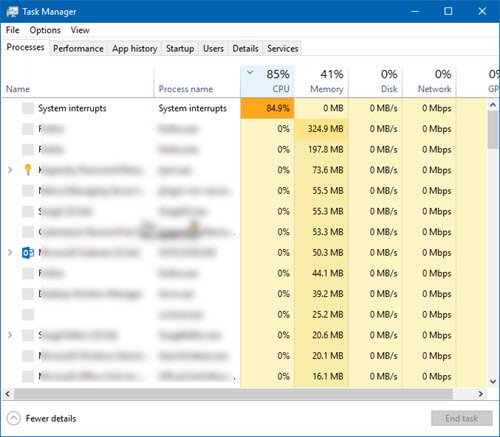
What is System Interrupts in Windows 11
System Interrupts are like an alert system for the CPU. If a scenario requires the CPU’s attention, it alerts the CPU. CPU then suspends what it is doing, saves it, and takes care of that important job. Once the job is complete, it resumes its previous activity.
This means that even though System interrupts appear as a process, they’re not. In fact, it’s like a manager who reports all hardware interrupts to the CPU. A lot of interrupts mean there might be many errors at the hardware level, which is why they start consuming a lot of resources.
Imagine a lot of employees (hardware) under a manager (System interrupts). Now, they all start complaining to him (interrupting) about their individual issues, and the Admin pushes all the requests to the CPU (Boss). The CPU will not be able to handle it together and will become overburdened.
Never think about disabling System Interrupts. Your PC will become almost useless without it.
Fix System interrupts high CPU usage in Windows 11
If the system interrupts takes up more than 5 to 10% of CPU, we have a problem. It could be happening because of a hardware or driver issue. The best way to fix this is to reboot your computer once and see if the issue comes back. Sometimes it’s a huge backlog for CPU, and it stays in the loop. A restart will fix it sometimes. However, if you see the CPU usage high again, here is how you fix it.
It’s going to be tough to figure out which hardware is causing problems. So fixing this will need both patience and time.
1] Update Hardware Drivers
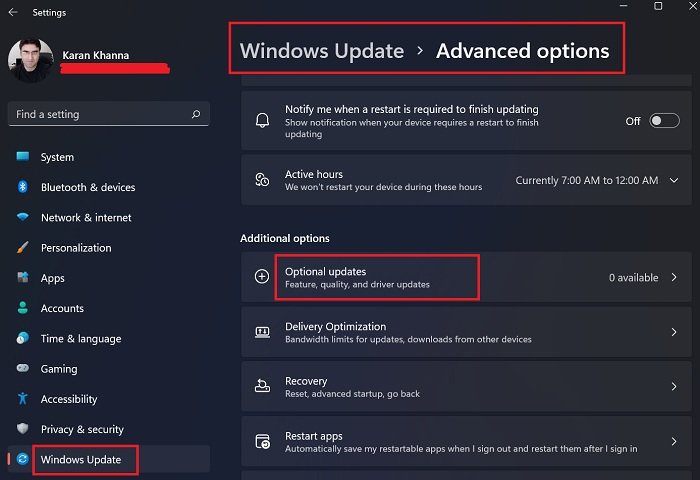
It is possible that a rogue hardware driver is causing the problem. So it’s time to update it using Windows Optional Updates.
- Go to Settings > Update and Security.
- Check whether a driver-related update is pending. If yes, please update all of them.
You can also consider using a free Driver Updater software.
2] Rollback Hardware Drivers
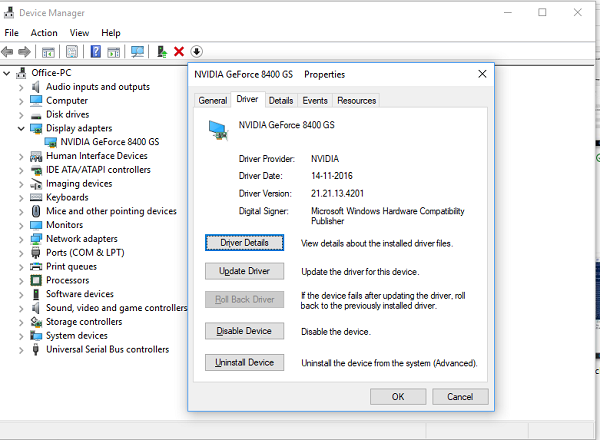
If a recent update to the driver has started this issue, you can rollback the driver to its previous version.
You can check with Windows Update History to figure out any recent updates. It is possible that the new driver has some unreported issue, and it’s not compatible with the current version of Windows.
3] Unplug External Hardware
Now that you are sure drivers aren’t the issue, it’s time to remove external hardware such as a mouse, keyboard, printer, external hard drive, webcam, and so on. Make sure to keep the task manager open and remove them one by one. If you notice a significant change in the System interrupts CPU usage after removing specific hardware, you know the culprit.
4] Disable & Enable Hardware
If you do not wish to remove them, you can also disable the hardware in Device Manager. This can also be applied to internal hardware.
- Open Device Manager (WIN +X + M).
- Navigate to the device you want to disable.
- Right-click and choose to disable the device.
Make sure to disable one device at a time. Give it a minute or two and notice if there was a shift in CPU usage to pinpoint the hardware. If there is no change, enable the device that you just disabled, and then move to the next device. If you see a change, you know what was causing the System interrupts and high CPU usage in Windows.
Here is a piece of advice. Make sure not to disable any Drive, which is necessary to keep your system up.
5] Check Hardware Failure
Again, no easy method to find out, but you can:
- Use the S.M.A.R.T tool or Windows native feature to check if your hard disk is causing an issue.
- Get your Power Supply checked up.
- Use Windows built-in Memory Diagnostic tool to check if your RAM has an issue on the hardware level.
- For other hardware, you can use Windows Diagnostic Tools like
- Reliability Monitor (Control Panel\All Control Panel Items\Security and Maintenance)
- Performance Monitor (perfmon.exe)
These tools should help you a lot to figure out hardware failures on your Windows computer.
6] Update Your BIOS/UEFI
BIOS updates were the most ignored updates a few years back. It was mostly because they had to be updated externally, but now that Windows is capable of updating the BIOS or the modern UEFI, keep it updated.
It is always best to update the BIOS by following instructions available on your OEM’s website. So make sure you know what you are doing or have someone on your side who can do it for you.
Let us know if these tips helped you to resolve System interrupts high CPU usage in Windows 11/10.
Are System Interrupts bad?
No. They are safety measures invoked in extreme scenarios, thus preventing excessive resource use. They are also invoked for general purposes, e.g., keystrokes, to read the data without missing anything. The baseline is that System Interrupts happen all the time, and it’s a good thing.
Why is the System interrupts using 100% CPU?
System interrupts process normally uses 1–2% CPU. A sustained usage of, say, 5% indicates a problem. While System interrupts don’t last long, if the hardware or its associated driver starts misbehaving and does not respond as expected, the whole process enters a loop, causing high CPU usage—the only way to resolve this is to reinstall the driver or replace the hardware.
Read: What is Hardware Interrupts in Windows?
How to make sure CPU usage is controlled?
Apart from using an application that requires more CPU, it is best to monitor background processes. These processes usually keep using CPU and spike all of a sudden if they get stuck. So if you don’t want an application to run in the background, make sure to disable it at startup. And close if you are not using it.
Other posts about processes using high resources:
- lsass.exe terminated and High CPU or Disk usage issues
- WMI Provider Host High CPU Usage issues
- Desktop Window Manager dwm.exe consumes high CPU
- Windows Shell Experience Host uses high CPU
- Windows Image Acquisition High CPU and Disk usage.
