
Windows Image Acquisition is the driver model which is responsible for communication between the system and graphics hardware. It provides image acquisition services for scanners and cameras. At times it causes high Disk & CPU usage in Windows 11/10 systems, thereby slowing it down. This post will help you address this problem.
Windows Image Acquisition High CPU & Disk usage
The reason behind the issue could either be a problem with the hardware or the drivers. If you face issues with the WIA process, here is what you can do to resolve the issue on your Windows computer:
- Restart Windows Image Acquisition service
- Run SFC scan
- Disconnect & reconnect imaging hardware, and update or reinstall its drivers
- Update the Graphics Drivers.
1] Restart Windows Image Acquisition Service
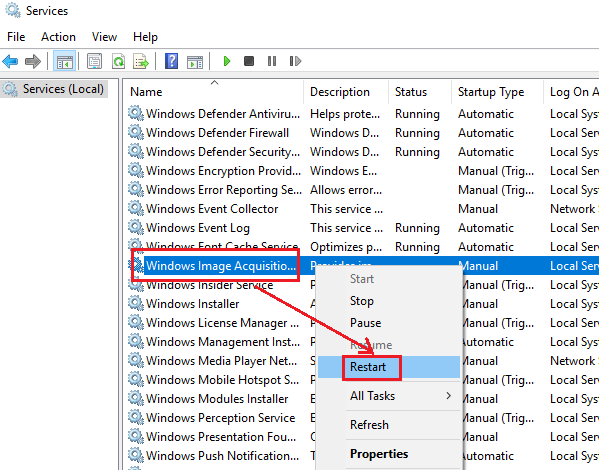
Open the Service Manager and locate the Windows Image Acquisition Service.
If the service Status is blank, right-click on it and select Start. If the service Status is Running, right-click on it and select Restart.
Check if this makes the problem go away.
2] Run SFC Scan
Running the System File Checker would be helpful in replacing missing and corrupt system files which could have caused the issue.
Running SFC at boot time is better still!
3] Disconnect & reconnect imaging hardware, update or reinstall its drivers
The hardware calling upon the Windows Image Acquisition service may be malfunctioning. In such a case, we could try to disconnect and reconnect your imaging hardware, like printers, scanners, and cameras. You could also update or reinstall its drivers.
Boot in Clean Boot State, and you could find the problematic hardware by hit and trial method, and it could be tested with another system. If the hardware works fine with other computers, try updating its drivers by downloading them from the manufacturer’s website.
You should also ensure that all your device drivers are updated to their latest versions.
4] Update the Graphics drivers
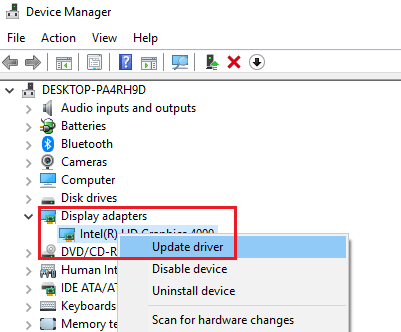
If updating the drivers of the potentially problematic hardware didn’t work, you could consider updating the Graphics Drivers of the system.
Type devmgmt.msc in search box and press Enter to open the Device Manager.
Expand the list for Display Adapters. Right-click on each driver individually and select ‘Update driver’.
Restart the system.
Let us know if anything here helped you fix the high Disk & CPU usage issue.
Can I end Windows Image Acquisition?
Windows Image Acquisition Service is the still image acquisition platform in the Windows family of operating systems. If you don’t use a camera or scanner with your computer, you can disable this service – but the better option would be to set it to Manual. If you wish to terminate the service, you can access the Services panel to complete the process.
What does Windows Image Acquisition do?
Windows Image Acquisition is a medium for establishing a connection between your operating system and imaging applications. As mentioned earlier, this driver model enables communication between our Windows OS and graphics hardware. Regardless of whether you have a graphics card or any other type of graphics hardware, it establishes the connection between them.
Related: Fix XboxStat.exe High CPU Usage.
