
Computers are prone to virus attacks. People take various measures to protect themselves from such malware attacks, but may still find themselves ill-prepared. One of the major consequences of a virus attack is the corruption and/or deletion of data from one’s computer. The data in a volume or a disk infected by a virus is at a high risk of getting deleted, and there are ways in which you can try to recover this data. Today, we will be looking at a few ways in which you can try to recover corrupted files and deleted files after a virus attack on Windows 11/10 computer.
How to recover Infected or Deleted files after a Virus Attack?
Computer viruses can delete all kinds of files, making it handy to know the procedures to follow in such cases to retrieve lost data. It is better to scan your PC with an antivirus before doing anything else.
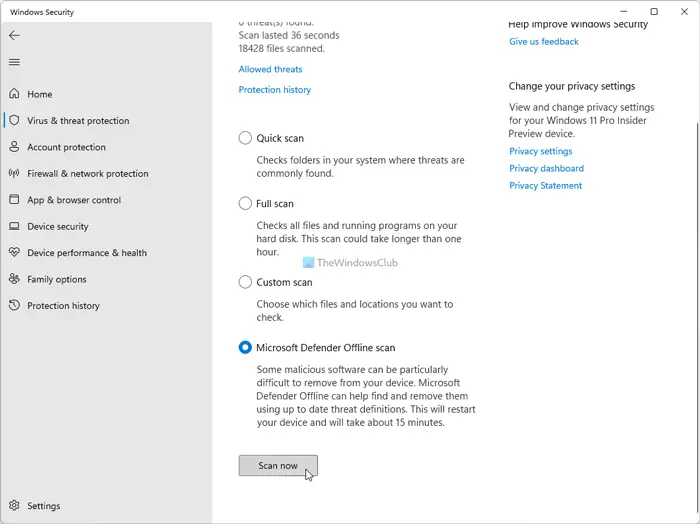
It can be Windows Defender at Boot time or any antivirus software that you use, in Safe Mode, for the best results. You may also use a second-opinion portable scanner or Malware Removal Tools to remove Specific Viruses to be doubly sure. Primarily, there are two courses of action:
- Use a third-party Data Recovery software to recover files
- Use Ransomware Decryptor Tools
- Use Windows built-in tools to recover files
Before you begin, remember to isolate the impacted device and disconnect it from the Internet or Network.
1] Recover deleted files after a virus attack using a Data Recovery software
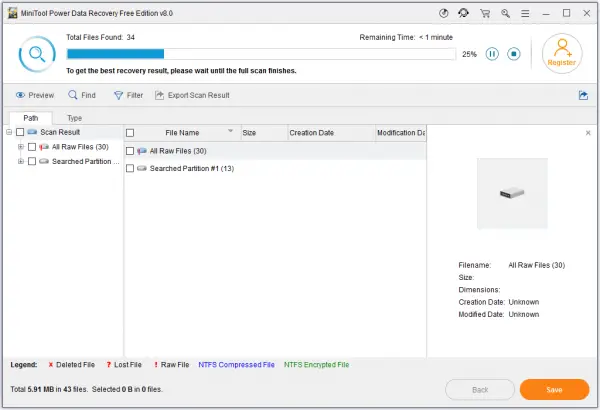
There are some very easy and effective free Data Recovery Software that can help you get back your data lost due to a virus attack, one of them being MiniTool Power Data Recovery Free. Recovering deleted data is made very easy by it, and we will look at its process in detail. There are two different scenarios in which you may find yourself while attempting to recover deleted data after a virus attack; one is when your PC is working fine, and the other is when the attack causes the PC not to boot up.
Here are the steps that you should follow when your PC is working properly:
- Download and install the MiniTool Power Data Recovery on your PC. Just make a note to not install it on the drive that the malware has infected
- From the Main interface, you’ll have access to several options like This PC, Removable Disk Drive, etc.
- Now, select the partition that you want to scan for the lost files
- As the scan progresses, you’ll be shown more and more files.
- You can either look through these files and pick a few selective ones or click on the ‘Save’ button at the bottom-right corner. Doing so would create a separate location for these files.
A subsequent prompt will say that the recovery has been successful, after which you can exit MiniTool. You can read here to get a more detailed understanding of how MiniTool works and what else it has to offer.
Things can get a little trickier when your Windows computer does not boot, start or turn on because of the malware attack. In such a scenario, the advised course of action is the following:
- Build an alternate bootable USB or DVD on another computer
- Detach the boot disk from this computer and put it in the infected one
- Restart that PC and go to its BIOS options to set it up to boot via the USB/DVD and not the local drive
- Follow the steps prescribed above to recover your data using MiniTool.
Read: Virus has changed all file extensions on my PC
2] Use Ransomware Decryptor Tools
If a Ransomware Decryption Tool is available for the malware that has locked down your files then the chances are very high that you will be able to decrypt and recover your files. See if any of these ransomware decryption tools help you
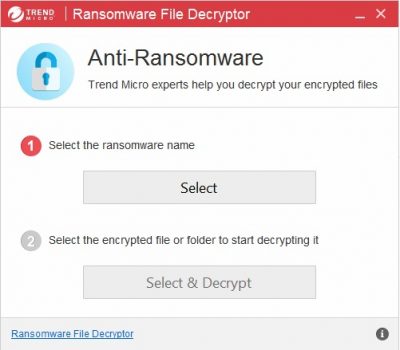
If no such tool is available, then the best bet would be to use your backup files in case of a Ransomware attack.
Read: What to do after a Ransomware attack on your Windows computer?
3] Recover deleted files after a virus attack using Windows in-built tools
Windows 11 and Windows 10 offer a Controlled Folder Access feature to protect files and folders against ransomware attacks. You can set up Controlled folder access via Windows Security and let it monitor the folders. If you have enabled and configured Ransomware Protection in Windows Defender it makes things easier.
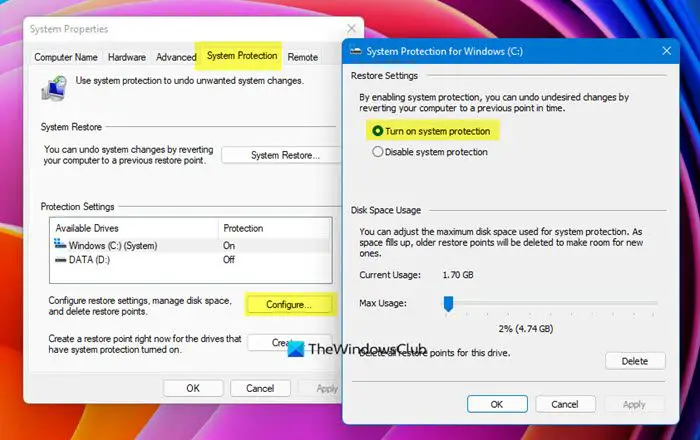
Microsoft also provides solutions to help you recover your deleted data. One of them is to restore deleted files from a backup. Here’s how you can activate a Windows backup in order to retrieve deleted data:
- Search for and open the Control Panel
- Here, select System and Security from the list of available options and further select Backup and Restore
- Click on “Select another backup to restore files from” which will then open the backup restoration dialog box here.
- If you have created a backup of your Windows at some point in the past, it will show up here and you can click on it and activate it
See if you can use the Shadow Volume Copy Service feature to recover older versions of the files. Freeware ShadowExplorer may make things easier.
How do I clean files from viruses?
After getting infected by a computer virus, you may have concerns about the safety of your data, since it’s highly likely that it has been corrupted. To clean these files at risk, you need to remove the virus from your computer. This post shows the different ways in which you can remove a virus from your Windows computer. The guide lists several methods, such as Online Virus Scanners, Botnet Removal Tools, etc.
How to recover hidden files by virus?
To recover files hidden by a virus, use the Command Prompt. Open it and type attrib -h -r -s /s /d D:\*.*, replacing “D:” with your drive letter. Press Enter. This command changes file attributes, making hidden files visible again.
Posts that may help you:
- Use System File Checker to replace a single corrupted file
- Fix corrupted system files in Windows
- Repair corrupted and damaged zip files
- Fix Missing DLL files
- Repair corrupted or damaged Windows Registry
What are the signs of a virus in a computer?
A more premature and better-prepared concern for people is to be aware of what the signs of a computer virus infection are. If you’re experiencing several signs of a computer virus, you can take pre-emptive measures to protect your OS and data. Some of the most common signs to spot a virus are slow program performance, frequent crashes, missing files, and frequent pop-ups, among other things.
Read: How to Recover Uninstalled Programs on Windows
We hope this guide has served its purpose, enabling you to easily recover any data deleted due to a virus attack.
