
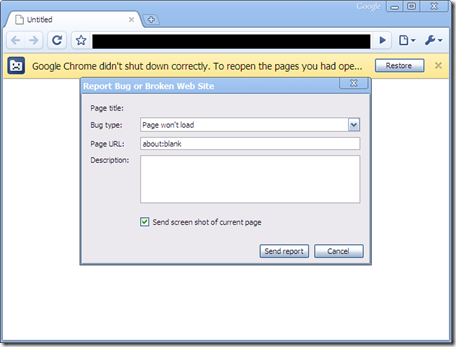
Google Chrome is one of the most popular browsers these days. But there may be times when your Chrome browser crashes or freezes randomly on your Windows 11/10 computer while browsing, opening a tab, loading a page, or downloading. It may end up with a message – Google Chrome has stopped working. In this post, we will show how to fix this issue.
Google Chrome has stopped working

Chrome keeps Freezing or Crashing on Windows 11
In this tutorial, I will provide a few tips for resolving this issue.
1] Delete the Local State file
First, delete the Local State file, which holds some of the Custom Settings, and see if it helps.
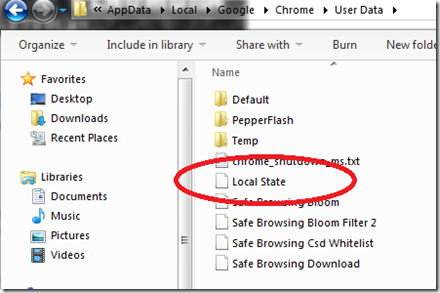 To delete the Local State file, follow these steps:
Close Google Chrome
Open Windows Explorer
In the address bar, type in-
%USERPROFILE%\AppData\Local\Google\Chrome\User Data
You’ll find the “Local State” file there. Delete it
Open Google Chrome and see if it has helped.
Fix: Your profile could not be opened correctly in Google Chrome.
2] Rename the Default folder
You could also try the following: Rename the Default folder, which has all the Google extensions, Bookmarks, History, Jumplist icons, etc. We are renaming it so that if it’s not the cause of the random freezes and crashes, we don’t have to lose all this information.
To rename the Default folder, follow these steps:
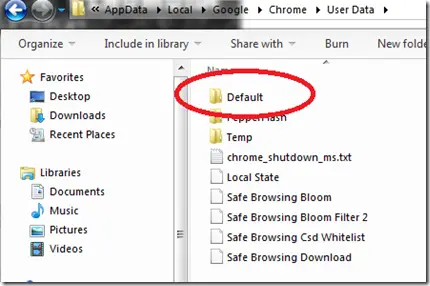
Close Google Chrome
Open Windows Explorer
In the address bar type in –
%USERPROFILE%\AppData\Local\Google\Chrome\User Data
You’ll find the Default folder here. Rename it to “Default.old”
Open Google Chrome and see if this has helped stop the crashes.
Remember to rename the folder to its original name. Now, you will at least know whether you need to consider these factors.
Read: Stop multiple Chrome processes from running.
3] Disable Flash extension
You might also want to check if the Flash extension is the culprit and causing the crashes, and see if it helps. To do so, follow these steps:
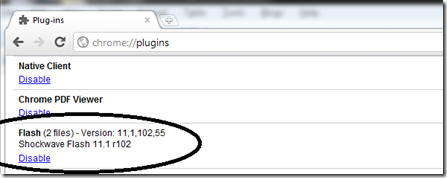
- Open Google Chrome
- In the address bar type in “about:plugins”
- Find “Flash” and click on Disable
- Restart Google Chrome and test it now
If it helps, uninstall Flash from the Program and Feature or use this Adobe tool, and reinstall it.
Read: Fix Google Chrome lagging and slow to open.
4] Chrome won’t launch?
This post will help you if Chrome won’t open or launch.
5] Disable Shockwave and other resource-hungry plugins
Check if your Google Chrome Shockwave Plugin is creating problems. Find & Disable Power-Hungry Extensions in Chrome using the Chrome Task Manager.
Read: Chrome crashes or freezes when downloading a file
6] Check about:conflicts
Type about:conflicts in the address bar and hit Enter; see if you can identify any non-Microsoft or non-Google processes listed there.

7] Reset Chrome
This should help! If it doesn’t, you may want to reset Chrome settings.
8] Reinstall Chrome
Well, if none of these steps help, you might have to consider reinstalling Google Chrome. To do so:
Go to Programs and Features and Uninstall Google Chrome.
To completely remove all traces, do the following as well.
Open explorer.exe and go to –
%USERPROFILE%\AppData\Local\
Delete the “Google” folder.
Then delete the Google folder in C:\Program Files (x86)
Next, open Registry Editor and delete the Registry entries under Google in the following paths:
HKEY_CURRENT_USER\SOFTWARE\Google
HKEY_LOCAL_MACHINE\SOFTWARE\Google
Close REGEDIT.
Now download and install Google Chrome again.
I hope that one of these tips helps you resolve your problem.
Computer freezes or crashes when opening Google Chrome
If your Windows computer freezes or crashes when opening Google Chrome, open Chrome in Incognito Mode and see if it works. If it runs fine, then locate and disable the problematic extension. If it still crashes your PC, you may have to reset or reinstall Chrome.
Why is Google Chrome not running on Windows 11?
There could be multiple reasons Chrome is not opening on Windows 11. Sometimes, antivirus blocks programs such as Google Chrome from opening. The likelihood of Chrome being blocked by an antivirus is low, but it can happen. Another cause of this issue is the problematic extensions installed on Chrome. Launch Chrome in Safe Mode to confirm whether an extension is responsible for this problem.
Why is Google Chrome so slow or unresponsive?
The main cause of slow performance or unresponsiveness in Google Chrome is your system’s inability to run It. You can run Chrome on a computer with 4 GB of RAM if your work includes simple tasks. But if you are required to open multiple tabs, you will experience unresponsiveness or slow performance in Chrome with 4 GB of RAM. In such a case, upgrade your hardware. If you install an SSD and run Windows OS, you will experience smoother performance.
Want your Chrome to perform better? Speed up the Google Chrome browser using these tricks! And watch this visual guide on how to make the Chrome browser run faster.
Fix Freezes or Crashes with these resources from The Windows Club:
Windows freezes | Windows Explorer crashes | Edge browser hangs, freezes, crashes | Firefox Browser freezing | Computer hardware freezes.
