
If the Squad game keeps crashing, or is not launching or working on your Windows 11/10 PC, here is a complete guide for you. Squad is a multiplayer first-person shooter played by millions of gamers worldwide. However, some users have complained that the game keeps on crashing on their PC. Some players say that it just won’t launch for them.
This issue could happen if your PC doesn’t meet the game’s minimum requirements. However, there are many other reasons for this problem. For example, an outdated Windows OS, outdated graphics drivers, software conflicts, antivirus interference, and other factors can cause the issue. If you are dealing with the same problem, try the fixes mentioned in this post, and you should be good.
Squad not launching, responding or working; Keeps crashing on PC
Here is a list of fixes that you can try if the Squad game keeps on crashing or won’t launch on your PC:
- Make sure minimum system requirements are fulfilled.
- Run the game as an administrator.
- Verify Integrity of Game Files on Steam.
- Close unnecessary background processes.
- Make sure your Windows and GPU driver are updated.
- Update Microsoft Visual C++ Redistributable.
- Update DirectX.
- Disable in-game overlay on Steam.
- Disable firewall/ antivirus.
- Troubleshoot in a clean boot state.
1] Make sure minimum system requirements are fulfilled
Before you get into advanced troubleshooting methods, the first thing you should do is to check whether or not your system meets the minimum requirements to play the Squad game on your PC. If it doesn’t, the game will crash and won’t run smoothly. You will need to upgrade your PC to play the game without hiccups.
Minimum Requirements for Squad:
- OS: Windows 10 (x64), Requires a 64-bit processor and operating system
- Processor: Intel Core i or AMD Ryzen with 4 physical cores
- Memory: 8 GB RAM
- Graphics: Geforce GTX 770 or AMD Radeon HD 7970 with at least 4GB of VRAM
- DirectX: Version 11
- Network: Broadband Internet connection
- Storage: 55 GB of available space
Recommended Requirements for Squad:
- OS: Windows 11/10 (x64), Requires a 64-bit processor and operating system
- Processor: Intel Core i or AMD Ryzen with 6 physical cores
- Memory: 16 GB RAM
- Graphics: Nvidia GTX 1060 or AMD Radeon 570 with at least 6GB of VRAM
- DirectX: Version 12
- Network: Broadband Internet connection
- Storage: 55 GB of available space
If your system meets the minimum requirements and the problem persists, try the next fix.
2] Run the game as an administrator
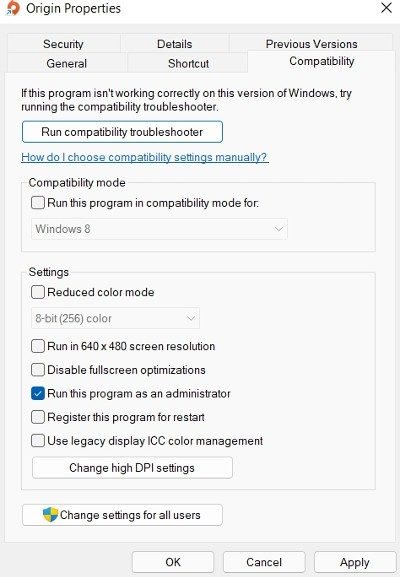
Run the game as an administrator to see if the issue is fixed. In some cases, the game may not launch or may keep crashing if it lacks the necessary admin rights. So, run Squad as an administrator and see if that helps. Right-click the Squad game’s executable and select Run as administrator to launch it. If the game runs smoothly, you can try making it run with admin rights always using the below steps:
- Firstly, right-click on the Squad exe file and select the Properties option from the context menu.
- Now, go to the Compatibility tab and tick the Run this program as an administrator checkbox.
- Next, press Apply > OK to save changes.
If the problem remains the same, move on to the next potential fix.
3] Verify Integrity of Game Files on Steam
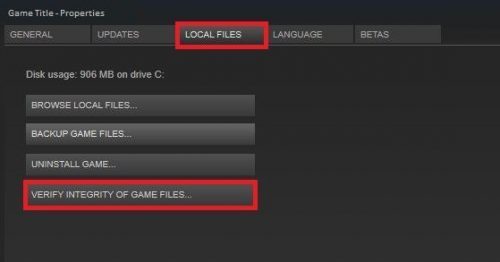
The issue might be caused by corrupted or broken Squad game files. If the scenario applies, you can verify the integrity of your game files to fix the issue. Here are the steps to do that:
- First, start Steam and go to its LIBRARY section.
- Now, right-click on the Squad game, and from the appeared context menu, click on the Properties option.
- Next, navigate to the LOCAL FILES tab and tap on the VERIFY INTEGRITY OF GAME FILES button.
- Steam will take a few minutes to verify and repair the game file, so hold on.
- Once done, try relaunching your game and check if the issue is resolved or not.
If Squad still keeps crashing or isn’t working properly, try the next fix.
Related: Resident Evil Village keeps crashing on launch.
4] Close unnecessary background processes
Next, try closing unnecessary background processes. Just open Task Manager and close unnecessary applications that are running in the background. See if this helps. If it doesn’t, we have more fixes to help you resolve the problem.
5] Make sure your Windows and GPU driver are updated
An outdated Windows OS or graphics driver can be why the Squad isn’t working properly on your PC. It is always recommended to keep Windows up to date and your graphics driver updated to get the best performance in your video games. Hence, update your Windows and graphics driver to fix the problem.
To update Windows, press Win+I to open Settings, then go to Windows Update. Then click Check for updates, and download and install any available updates. For updating graphics drivers, there are several methods like:
- You can use the Optional Updates features from the Settings > Windows Update section.
- Visit the official website of the device manufacturer and download the latest drivers from there.
- Use Device Manager to update your graphics drivers.
- Try a free third-party driver updater to automatically update the graphics driver.
After updating Windows and graphics drivers, see if Squad is working fine or not.
6] Update Microsoft Visual C++ Redistributable
Microsoft Visual C++ Redistributable is a runtime library essential for games to run properly. In case your Visual C++ package is outdated, you might face the issue at hand. So, try installing the latest Microsoft Visual C++ Redistributable package on your system to fix the problem.
7] Update DirectX
You can also try updating DirectX to fix the issue. Download and install the latest version of DirectX, then see whether the Squad game launches properly. If that doesn’t help, try the next solution.
See: Wolcen Lords of Mayhem crashes and not launching on Windows PC.
8] Disable in-game overlay on Steam
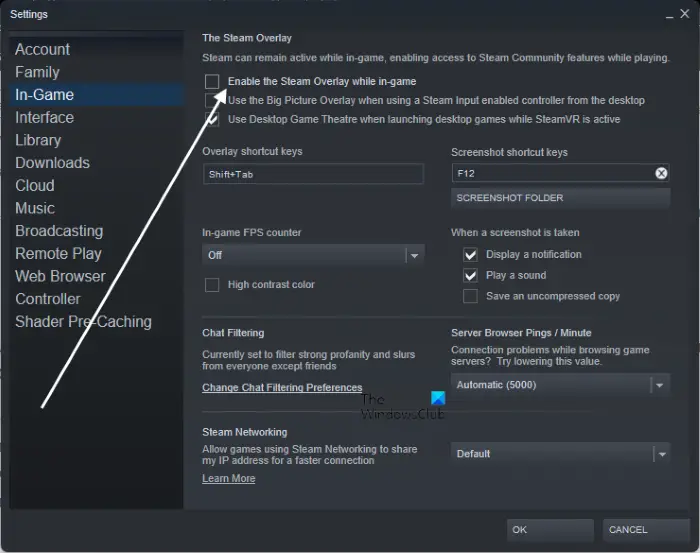
The in-game overlay is a nice feature. However, it can also cause issues in launching the game or make a game crash. Hence, if the scenario applies, disable the in-game overlays on Steam to fix the issue. Here’s how to do that:
- Firstly, start the Steam client.
- Now, click on the Steam menu and select the Settings/Preferences option.
- After that, navigate to the In-game tab.
- Next, disable the Enable the Steam Overlay while in-game checkbox.
- Finally, launch Squad and see if the issue is resolved.
Read: Generation Zero not launching, freezing, or crashing at startup on PC.
9] Disable firewall/ antivirus
If none of the above solutions work, try disabling your firewall/antivirus to fix the issue. Your antivirus or firewall might be blocking the game, so it won’t launch on your PC. This happens when your overprotective suite flags the game executable or related process as malicious due to a false-positive alarm. You can check this by temporarily disabling your antivirus and firewall. If the problem is resolved, you can try allowing your game through your firewall or adding the game to the exception/ exclusion list of your antivirus.
Read: Valorant Crashing Mid Game or on Startup.
10] Troubleshoot in a clean boot state
The problem might be caused due to application conflicts with the game. In that case, you can try performing a clean boot and then launch the game to check if the issue is fixed. You can follow the below steps to do so:
- First, press Win+R to open the Run dialog and enter msconfig in its Open field to start the System Configuration window
- Now, go to the Services tab and tick the Hide all Microsoft services checkbox.
- Next, press the Disable all button to disable all non-essential services and hit the Apply button.
- After that, navigate to the Startup tab, click on the Open Task Manager option, and then turn off the startup programs in Task Manager.
- Finally, reboot your PC and see whether the problem is resolved.
Hopefully, this will help you fix the problem.
How do you fix Squad not launching?
If Squad won’t launch on your PC, make sure it meets the game’s minimum requirements. Also, try running the game as an administrator, verifying the integrity of your game files, updating Windows, updating your graphics drivers, or updating DirectX. You can also try rebooting your PC into a clean boot to avoid software conflicts.
Can I play Squad on my PC?
Yes, you can play Squad on your PC as long as your system meets the minimum requirements. It requires a 64-bit processor and operating system, Windows 11/10, and meets additional graphics and memory requirements.
Now read: Mic not working in Squad game on Windows PC.
