
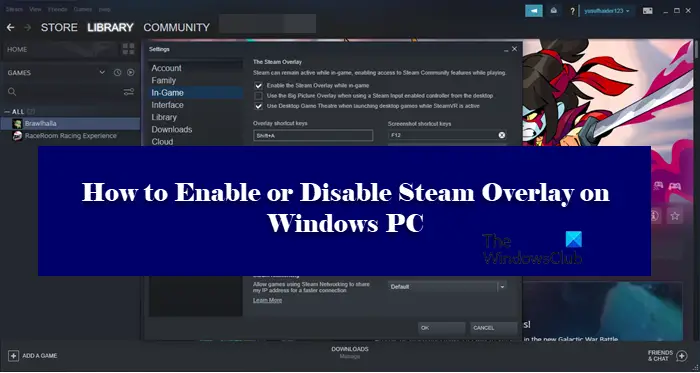
Steam Overlay allows users to access Steam features directly in the game without opening the launcher. However, this has been a blessing in disguise for some gamers. That is why we are going to show you how to enable or disable the in-game Steam Overlay on Windows PCs, so you can adjust the settings if your game starts crashing or freezing because of it.
What is Steam Overlay?
Steam Overlay is a component of Steam that lets you run it on top of any game you are playing. This won’t work for all games; it only works for Steam games. With Overlay enabled, you can chat with your friends, browse, and do a whole lot of things. To trigger Steam Overlay, just hit Shift + Tab, which is its default key. However, they can be changed by the user. Later in this article, we are going to see how you can change the default key of Steam Overlay and use a combination of your choice.
How do I change Steam Overlay shortcut?
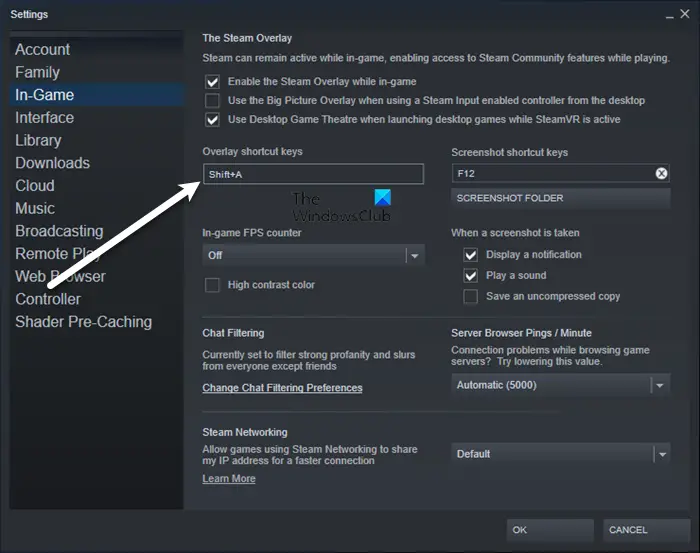
To change the default key to trigger Steam Overlay, you need to go to Steam > Settings > In-game. Then select the Overlay shortcut keys box and press a key combination to register it as the Overlay trigger. It is recommended not to pick a combination that you usually use, because in that case, you will end up triggering Steam Overlay all the time, even when you don’t want to.
Enable or Disable Steam Overlay on Windows PC
To enable or disable in-game Steam Overlay, you need to configure the Steam client application. Since it is exclusively for Steam, it doesn’t matter which Windows version you are on, the steps to do the same will be the same.
Should I disable Steam Overlay?
Steam Overlay, as mentioned earlier, is a feature and not a bug. Because it works across a wide range of games, it is unlikely to be perfectly optimized for everyone. That’s why it can often cause the game to freeze and sometimes even crash. Therefore, if you are noticing a significant drop in performance, you should turn Steam Overlay off and if that is to no avail, you can always turn it back on.
How do I turn off Steam Overlay?
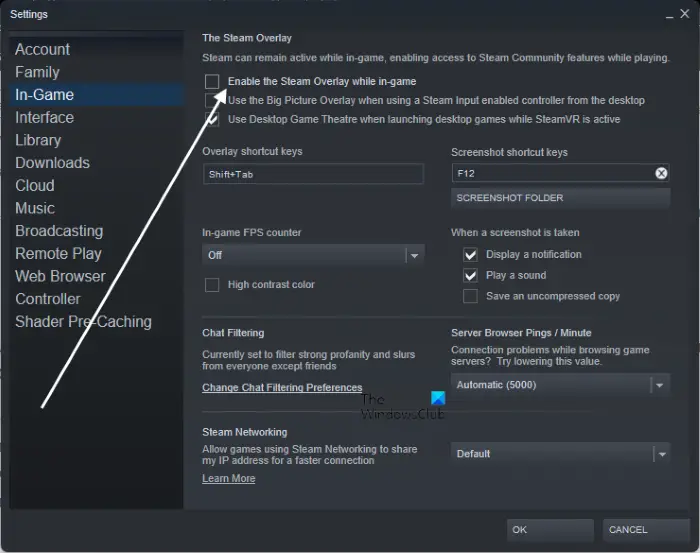
To turn off Steam Overlay, follow the given steps.
- Open Steam.
- Go to Steam > Settings.
- Click on In-Game.
- Untick Enable the Steam Overlay while in-game.
- Click Ok.
That’s how you can turn off Steam Overlay.
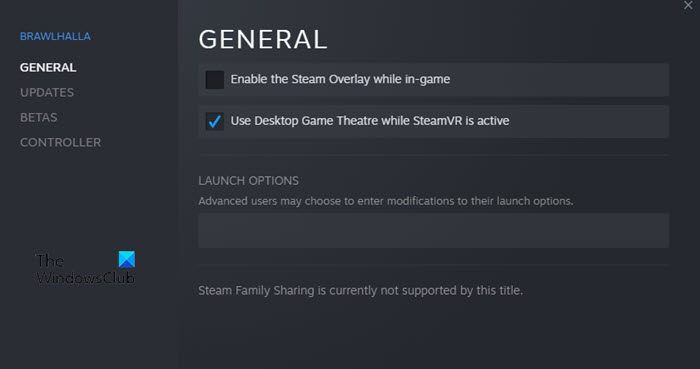
If you want to disable Steam Overlay for a particular game, follow the given steps.
- Open Steam.
- Go to LIBRARY.
- Right-click on your game and select Properties.
- Make sure you are on the GENERAL.
- Untick Enable the Steam Overlay while in-game.
- Click Ok.
So, if there is a particular game that’s giving you trouble, you can disable its Overlay and hopefully, your issue will be resolved.
Read: How to disable GeForce Experience in-game overlay
How do I enable Steam Overlay?
If you want to enable Steam Overlay, just follow the prescribed steps.
- Open Steam.
- Go to Steam and then to Settings.
- Click on the In-Game tab.
- Tick Enable the Steam Overlay while in-game.
- Click Ok.
This is was how you can easily turn on Steam Overlay.
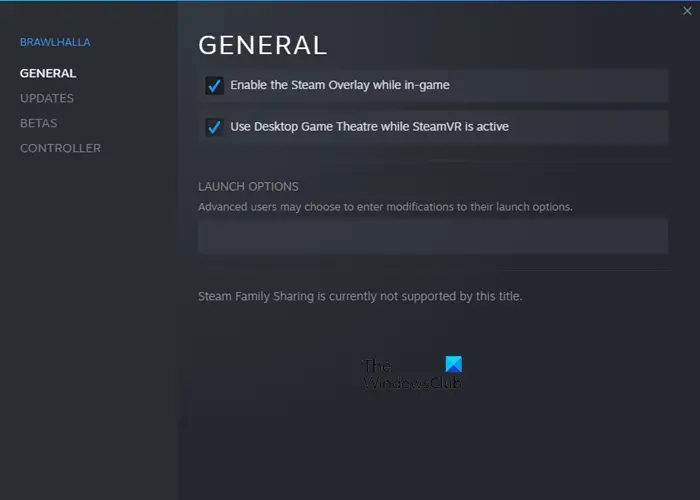
If you have disabled Steam Overlay for a particular game and want to enable it, just follow the mentioned steps.
- Launch Steam.
- Right-click on the game with disabled Overlay and open its Properties.
- You will be on the GENERAL tab
- Disable Enable the Steam Overlay while in-game.
- Click Ok.
That’s it!
Also check:
- How to add Microsoft Store Game apps to Steam in Windows
- How to access Steam screenshots folder on Windows PC.
