
Is your microphone not working in the Squad game? The Squad game is a multiplayer first-person shooter video game loved by millions of gamers. But some Squad players have recently reported that their microphone is not working in the game, and they are not heard by other players. This issue is annoying because it keeps you from communicating with your teammates.
The problem is most likely to occur if your microphone is not working fine or is poorly connected. However, there can be some other reasons for this issue. Now, if you are experiencing the same problem, we got you covered. In this post, we’ll show you several fixes to get your microphone working again in Squad.
Before we cover fixes, let’s look at the scenarios that might trigger this issue.
Why is my microphone not working in Squad?
Here are the potential causes why your microphone might not work in Squad:
- If your microphone is physically damaged, it won’t work. So, make sure your microphone is in proper working condition.
- In case your mic is not connected to your PC properly and securely, you will face the issue at hand. So, connect your mic properly or try a different USB port to connect your headset to your PC.
- You may experience this issue because your sound drivers are out of date. If the scenario is applicable, update your audio drivers to the latest version.
- Some sound settings on your PC can also cause the same issue. So, reconfigure your sound settings like setting your default input audio device, changing the audio format, disabling unused input devices, etc.
- Your in-game settings may also cause the issue. Hence, try modifying your game settings on Steam to fix the issue.
- If you have corrupted or broken game files, you might run into this problem. So, verify the integrity of your game files to fix the issue.
Fix Squad mic not working on Windows PC
If your microphone isn’t working in Squad on Windows 11/10, follow these suggestions to fix it.
- Make sure your mic is properly connected to your PC.
- Configure your sound settings.
- Make sure your sound driver is up-to-date.
- Check and modify your in-game settings on Steam.
- Detect Audio Device on Steam.
- Verify the integrity of game files.
Let us discuss the above fixes in detail now.
1] Make sure your mic is properly connected to your PC
The first thing you should try to fix the issue at hand is to ensure that your mic is working fine and is properly connected to your PC. Check that your microphone cables are properly connected. You can also test your mic in other applications to see if it works. You can also plug your mic into another device, like a tablet or smartphone, and see whether you can speak through it.
If you have a wired headset, try plugging it into a different USB port and see whether the issue is resolved. If you are using a wireless headset, unplug and replug the UBS wireless receiver and then connect it.
Also, we recommend connecting your mic before you open the game. Exit the game, connect your headset, then relaunch Squad to see if the problem is fixed.
If your microphone has no issues but still doesn’t work in Squad, try the next fix.
Read: Fix Discord Mic not working in Windows
2] Configure your sound settings
Next, check whether your mic is set as the default input device. Generally, the connected microphone is set as the default input device. But if Windows updates or something else changed your sound settings, you may run into this issue. You may also need to adjust other sound settings, such as disabling unnecessary input devices. So, try reconfiguring your sound settings to fix the issue.
You can try reconfiguring your sound settings using the below steps:
- Firstly, open Control Panel and tap on the Sound category to launch the Sound window.
- Next, navigate to the Recording tab, right-click on the unused devices, and press the Disable option.
- After that, select your active microphone in the Recording tab and tap on the Set Default option.
- Now, right-click your primary microphone and click the Properties button.
- In the new Microphone Properties window, move to the Levels tab and make sure the microphone volume slider is set to maximum.
- Then, go to the Advanced tab in the Microphone Properties window and choose the 2 channel, 16 bit, 48000 Hz (DVD Quality) option under Default Format.
- Finally, press the OK to save the changes.
If this doesn’t help, move on to the next solution.
Read: Fix Oculus Quest Mic not working on Windows PC.
3] Make sure your sound driver is up-to-date
If your audio device drivers are outdated, you may face these issues. Keep your device drivers updated to prevent malfunctions. If this applies, try updating your audio drivers and see whether the issue is resolved.
You can update your audio drivers via the Settings app. Just launch the Settings app and then go to the Windows Update > Optional Updates section. Here, you will get the pending driver updates which you can download and install.
If you prefer getting drivers from an official source, visit the official website of the device manufacturer. On the website, you can search for the audio driver model and then download and install the driver on your PC.
Another method is to open the Device Manager app, locate and expand the Sound category, and right-click on your active input audio device. Then, select the Update Driver option and complete the update process. A free third-party driver updater can also be used to update audio and other device drivers.
If the problem persists after updating your audio drivers, there may be another underlying cause. So, move on to the next potential fix.
See: Microphone not working in Microsoft Teams.
4] Check and modify your in-game settings on Steam
Your in-game settings on Steam can also cause the mic not to work in Squad. Check your in-game settings and adjust them as needed. Here’s how to do that:
- Firstly, open the Steam app and select the Friends menu option in the top left corner.
- Now, click on the View Friends List option and press the cogwheel icon present next to the chatbox.
- After that, go to the Voice tab from the left pane.
- Next, check the Voice Input Device setting and ensure that your active microphone is selected. If not, select the microphone you are currently using and exit the settings window.
- Finally, relaunch Squad and see if the mic works now.
If you still face the same issue, move on to the next potential solution.
Read: Fix Dread Hunger Voice Chat or Mic is not working.
5] Detect Audio Device on Steam
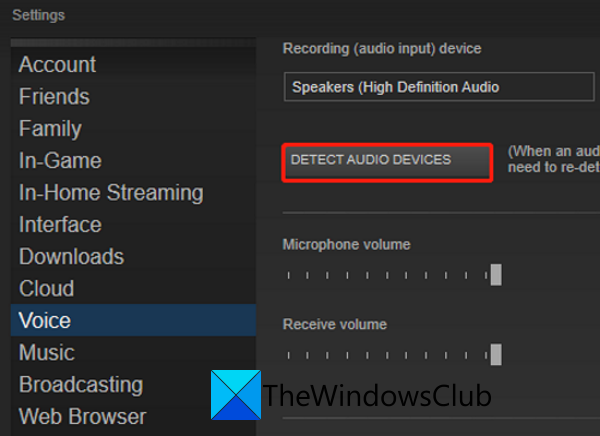
You can use Steam’s Detect Audio Device feature to fix the issue. It helps you fix the sound issues in your games. Here’s how to do that:
- Firstly, properly connect your mic to your PC before opening the game.
- Now, start the Steam app and click on the Steam menu option from the top-left corner.
- Next, tap on the Settings option and go to the Voice tab.
- After that, press the Detect Audio Device button present in the right-side panel.
- Finally, reopen your game and try speaking through your microphone.
If this doesn’t work, we have one more fix for you. So, move on to the next solution.
6] Verify the integrity of game files
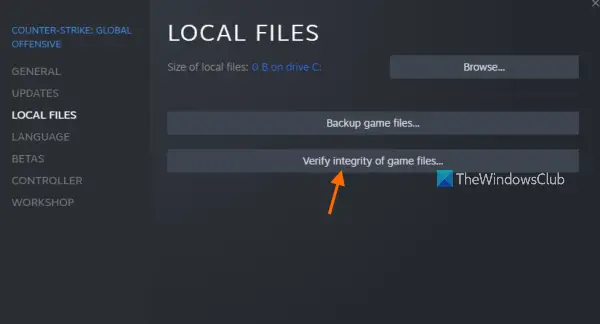
If none of the above solutions worked, try verifying the integrity of your game files. You might have corrupted or missing game files causing the problem. So, verifying and repairing the game files should fix the issue. Here’s how to do that:
- First of all, open Steam and navigate to LIBRARY.
- Now, right-click on the Squad game and select Properties from the appeared context menu.
- Next, go to the LOCAL FILES tab and click on the VERIFY INTEGRITY OF GAME FILES button.
- When the verification is done, relaunch the game and see whether the issue is resolved.
Hopefully, your mic will now start working fine.
How do I test my mic on Squad?
To test your microphone in Steam, open the Steam client and go to the settings menu. Under the Voice tab, you will find the Test Microphone button. Click it to start the test, speak into your microphone, and watch the level indicator move. This indicates that the microphone is working correctly. If the level indicator does not move, check your microphone’s connection. Make sure the volume is on and the microphone is not muted.
Now read: Ground Branch Mic not working.
