
Many users are reporting that their Meta Quest or Oculus Quest mic is not working on their Windows 11 or Windows 10 PC. In this guide, we have a few solutions to fix the issue. Oculus Quest (now Meta Quest) is one of the best virtual reality headsets from Facebook. It comes with built-in speakers and a set of mics to make gaming or virtual reality events more exciting. It is loved by gamers who enjoy immersive experiences while playing their favorite games, such as Resident Evil. It is released as a successor of Meta Quest or Oculus Quest.
Does the Meta Quest have a built-in mic?
Yes. Meta Quest or Oculus Quest comes with a set of built-in microphones along with speakers. You don’t need to have additional accessories to enable or use the mic on Meta Quest or Oculus Quest.
Why is my mic not working on my Meta Quest?
There may be many reasons the mic on your Meta Quest or Oculus Quest isn’t working. It might be due to a connectivity issue, outdated drivers, or other factors that are affecting the mic’s performance.
We can easily fix the mic issues on the Meta Quest or Oculus Quest. Let’s see how we can do it.
Oculus Quest 2 Mic not working on Windows PC
You can use the following methods to fix mic issues on Meta Quest or Oculus Quest.
- Restart your Meta Quest or Oculus Quest
- Change the default audio devices
- Give Microphone access to Meta Quest or Oculus Quest
- Update Audio drivers
Let’s get into the details of each method and fix the issue. Before that, try unplugging the Meta Quest or Oculus Quest from the PC and plugging it back in to fix any issues caused by a loose cable.
1] Restart your Meta Quest or Oculus Quest
This is a routine for gadgets that if something about them is not working fine, we have to restart it to fix the issue. There are many instances where the issue is fixed with a simple restart. This also applies to the Meta Quest or Oculus Quest. Restart it and see if that fixes the issue.
2] Change the default audio devices
Meta Quest or Oculus Quest has to be the default audio output and sound input device on your PC for it to function properly. Check the settings and make sure they are set to Meta Quest or Oculus Quest as the default.
3] Give Microphone access to Meta Quest or Oculus Quest
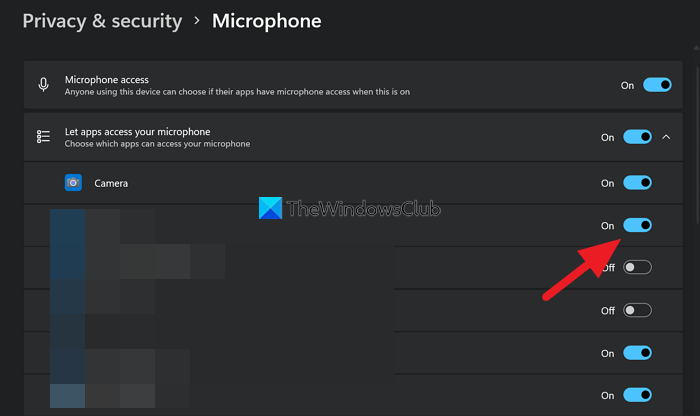
You might have removed mic access to Meta Quest or Oculus Quest in the privacy settings. Click on the Start button and search for Microphone privacy settings. Open it and toggle the button beside Meta Quest or Oculus Quest to give mic access to it.
See if it has fixed the issue.
4] Update Audio drivers
Another reason the mic on the Meta Quest or Oculus Quest might not be working is outdated or corrupted drivers. You have to update audio drivers to the latest version to fix the issue.
If the issue persists after trying the above methods, there may be a hardware issue. Try contacting customer service to resolve the issue.
Related read: What is a VR ready PC? How to check if your laptop is VR ready?
