
If you were trying to use the Reset This PC feature in Windows 11 or Windows 10, but find that the operation is stuck at 100, 74, 89, 1, 88, 10, 3, 18, 26, 36, 37, 62, etc, %, then this post will help you get out of the situation. It will also help you if it is stuck on Getting things ready, on Downloading, on Canceling or on Preparing to reset
Why is my PC stuck on resetting this PC?
Your reset may actually be stuck, or it may be taking too long. It is pretty common for the reset to get stuck on a percentage. These percentages denote particular operations that are being carried out like copying files, restoring the registry, etc. Once it passes that number, the Reset process is completed in a relatively lesser time. While it is advisable not to interrupt the Reset operation – if it has been more than an hour or two, then you have a problem.
Usually, the reset gets stuck due to file permissions or file corruption. Your system files associated with the Reset operation can become corrupted, preventing your PC from resetting. The corrupted files can be repaired using various methods. Sometimes, it can be a mere glitch. This glitch is stopping the utility from loading the reset files.
Fix Reset this PC stuck in Windows 11
If Reset This PC is stuck on Getting things ready, at 100 %, on Downloading, on Canceling or on Preparing to reset on your Windows 11/10 computer, here are some suggestions to help you get out of the situation:
- Let it run for 2-3 hours
- Hard restart the PC and try again
- Get into Safe Mode or Advanced Startup screen
- Repair Windows using Installation Media
- Perform In-place Upgrade Repair.
Let us talk about them in detail.
1] Let it run for 2-3 hours
Sometimes, the Reset utility slows down and seems to get stuck at a point and not move. Whereas, in reality, it is doing the task, just slower. Sometimes the process takes an 2-3 hours, so give it adequate time. If it still refuses to move, go to the next solution.
Read: There was a problem resetting your PC; No changes were made
2] Hard restart the PC and try again
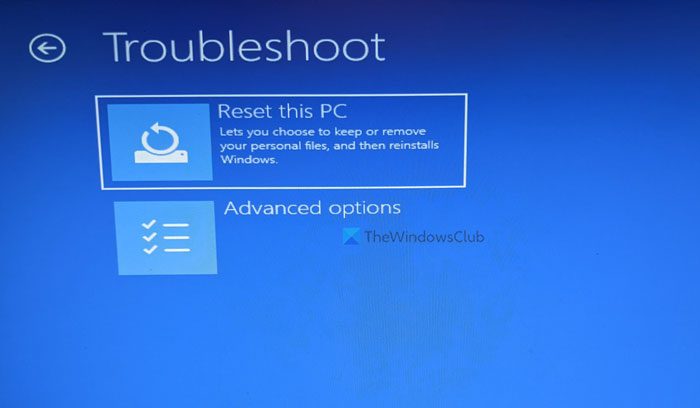
Once your PC starts, click on the Power option, hold Shift, and select Restart. If your PC boots to Windows Recovery Environment, then select Troubleshoot > Reset this PC. Hopefully, your PC will get reset successfully. This process is useful if your issue is due to a glitch.
Read: Reset This PC not working
3] Get into Safe Mode or Advanced Startup screen
If, after waiting some time, your issue isn’t resolved, you need to power down your PC.
Next, you need to find a way to boot Windows in Safe Mode. The options include:
- Press Shift and click Restart to boot you into the Advanced startup options screen
- If you had already enabled the F8 key earlier, things are easier as you press F8 while booting, to enter Safe Mode.
Once in Safe Mode:
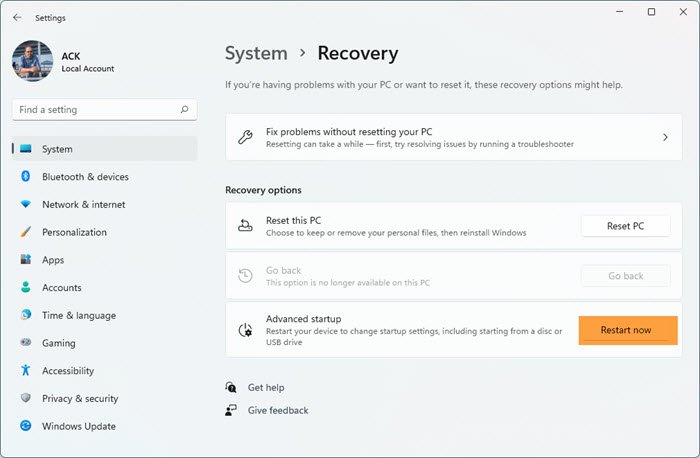
- Open Windows 11 Settings
- Click open System settings
- Scroll down till you see Recovery on the right side, and then click on it
- In the next screen, under Recovery options, you will see Advanced startup
- Click on the Restart now button to initiate the process.
If you cannot enter Safe Mode, then you may then have to boot Windows to the Advanced Startup Options screen.
Once here on the Advanced options screen, you need to use the Automatic Startup Repair option.
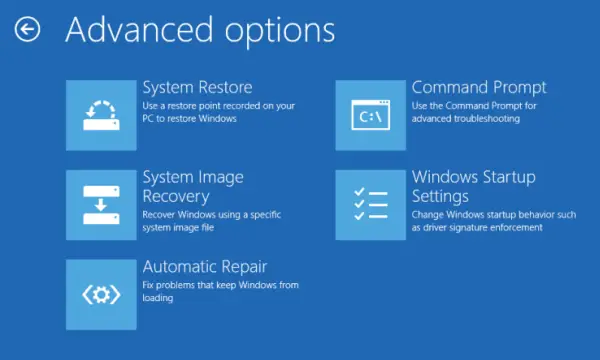
Select Automatic/Startup Repair. You will be asked to select the User Account to continue. Do so and continue. If asked, enter your password too and click on Continue. Windows Automatic Repair will now commence and try to identify and resolve the problem. This process may take some time, and your system may even reboot.
Read: Automatic Repair fails, stuck in a reboot loop
4] Repair Windows using Installation Media
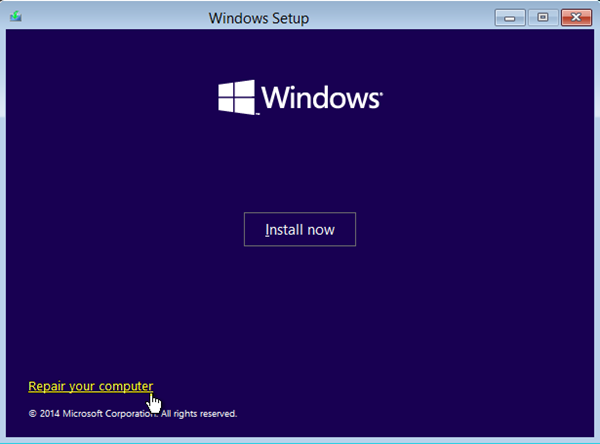
If you cannot enter Safe Mode or Advanced Startup, then you may then have to boot into Windows 11/10 with your Windows Installation Media or Recovery Drive and select Repair your computer. Follow the on-screen instructions to repair your computer.
You may use a Windows 11/10 DVD or a bootable USB drive, or you can burn Windows ISO to a USB drive using another computer.
Read: We can’t reset your PC while it’s running on battery power
5] Perform In-place Upgrade Repair
Essentially, a PC reset process is intended to reinstall Windows 11/10 on your computer, with or without deleting files, per your selection. If you’re unable to reset Windows 11/10 or the reset feature is simply not working, it’s likely the recovery partition may be corrupted. In this case, to resolve the issue in hand, you can perform an in-place upgrade repair – this procedure will fix any corrupt system files or bad image, which in turn can get the reset feature working normally.
Reset PC stuck in reboot loop in Windows 11
If the Reset This PC is stuck in a reboot loop, and your Windows cannot boot to the desktop, then as explained above, you will have to use a Windows installation media to Repair your computer.
How long does Reset this PC take on Windows 11?
Usually, it takes around 30 minutes to 1 hour to reset the PC. In addition, your computer restarts several times, which takes 4-5 minutes. However, it really depends on how many tasks it needs to perform and your computer’s read/write speed. So, there is no fixed time.
That’s it!
