
Google Chrome is a popular browser. The main reason for its reliability is that it runs on Chromium. Many users, however, report that they have been spotting Google Chrome using high memory. It eventually slows down the browser and the computer, affecting the overall user experience. Today, in this article, we will look at how to resolve this issue on Windows 11/10 computers.
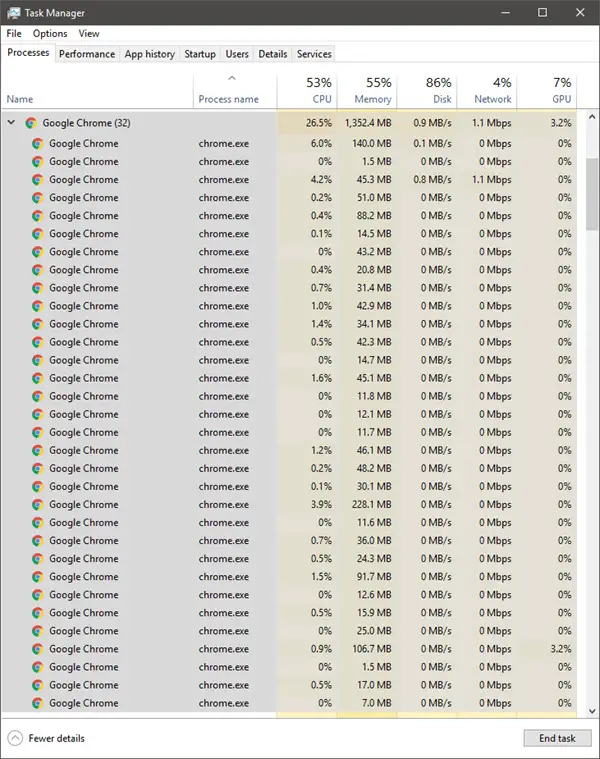
Reduce high Chrome Memory usage & make it use less RAM
We will be taking a look at the following fixes to reduce Chrome high memory usage:
- Close Unused Tabs.
- Turn on Memory Saver
- Enable Hardware Acceleration
- Run a Malware Scan
- Create a new User Profile for Google Chrome
- Disable the Site Isolation feature
- Turn on Use a prediction service to load pages more quickly
- Use the process-per-site switch
- Remove conflicting browser Extensions
- Reset or Reinstall Google Chrome.
Make Chrome use less memory
1] Close Unused Tabs
If any of the tabs are open that you are no longer using, there might be a high chance that it will use a good chunk of your RAM. To recover from this issue, try closing any unused tabs and see if RAM usage decreases.
2] Turn on Memory Saver
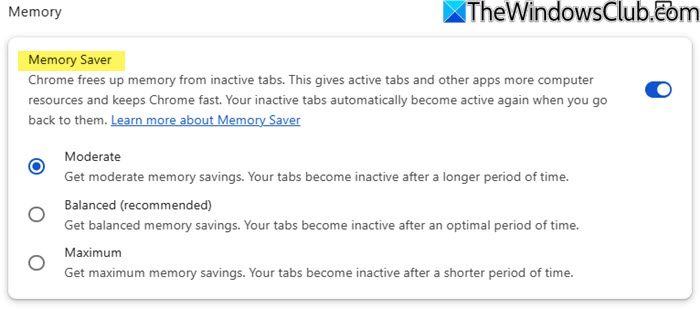
Open Chrome Settings and click Performance in the left bar. Here toggle ON Memory Saver and set it to Moderate or Maximum.
When you do this, Chrome will auto-free memory from inactive tabs while keeping them visible.
3] Enable Hardware Acceleration
First of all open Google Chrome and click on the Menu button (by clicking on the three dots button on the top right corner). Next, click on Settings.
After the Settings page opens, please scroll down to the Advanced button and click it.
Under the section that goes by the name System, turn on the toggle of Use hardware acceleration when available.
Restart Google Chrome.
When it starts up again, type in chrome://gpu/ in the address bar and hit the Enter key.
This will now display whether Hardware Acceleration or GPU Rendering is enabled or not.
4] Run a Malware Scan
As mentioned before, this problem can occur due to some changes made by malware or adware. Therefore, scan your whole system for malware or adware. Use any antivirus software to scan your computer.
You may want to also use AdwCleaner. This useful freeware lets you carry out the following tasks with the click of a button:
5] Create a new User Profile for Google Chrome
Kill every single process for Google Chrome from the Task Manager.
Next, navigate to the following location in Explorer-
C:\Users\<username>\AppData\Local\Google\Chrome\User Data\Default
Press CTRL + A on your keyboard to select all the files inside of the location mentioned above.
Then press Shift + Delete to delete all these selected files permanently.
Now, open Google Chrome, create a new User Profile, and then finally check if your issue is fixed.
6] Remove or disable conflicting Browser Extensions
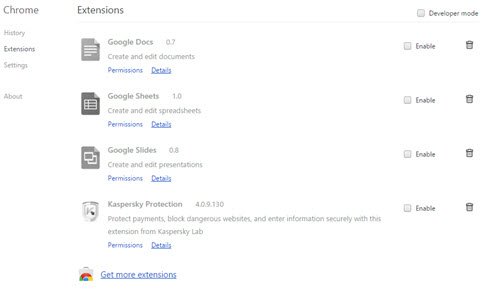
There is a high chance that extensions and toolbars installed in your browser might conflict with your website’s loading. So, to fix that, you need to remove or disable these extensions and toolbars. Maybe you could start Chrome in Safe Mode and then try to identify the offending extension.
Read: Google Chrome Helper Renderer High Memory or CPU Usage
7] Disable the Site Isolation Feature
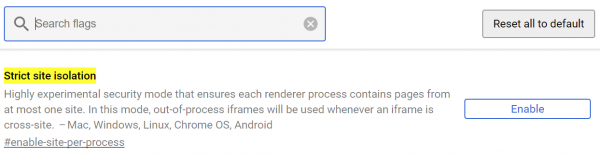
Open Google Chrome browser and visit this URL: chrome://flags
Look for Strict site isolation in the search box on the top portion of the page.
Then, toggle the appropriate entry to Enabled.
Restart Google Chrome for the changes to take effect.
This will enable the Site Isolation feature on Google Chrome.
Fix: Chrome high CPU or Disk usage.
8] Turn on Use a prediction service to load pages more quickly
Open Google Chrome and click on the Menu button denoted by three vertical dots in the top right corner.
Then, click on Settings. In the Settings section, scroll down and click on Advanced to reveal the Advanced Settings.
Now, scroll down to the Use a prediction service to load pages more quickly button and turn it on.
8] Use the process-per-site switch
You can use the process-per-site switch to make Chrome use less memory on Windows, but it comes at a cost!
Chrome supports a process model that groups all instances of the same website into a single process, while processes for different sites are isolated from each other. The benefit of using this model is that, because it creates fewer concurrent processes than the default model, the memory overhead is reduced. This will save some resources on your computer.
The small price you will have to pay is that if a tab of one website crashes for some reason, all other tabs of the same website will crash. The browser or open tabs of other websites will, however, not crash.
This can result in another issue at times. It can result in large renderer processes:
Sites like google.com host a wide variety of applications that may be open concurrently in the browser, all of which would be rendered in the same process. Thus, resource contention and failures in these applications could affect many tabs, making the browser seem less responsive. It is unfortunately hard to identify site boundaries at a finer granularity than the registered domain name without breaking backwards compatibility.
To use this model, users should specify a –process-per-site command-line switch when starting Chromium. This creates fewer renderer processes, trading some robustness for lower memory overhead. This model is based on the content’s origin, not on the relationships between tabs.
So if you want to save memory while using Chrome, and are willing to make these small sacrifices, you may go ahead and configure Chrome to run in, what is called as Process-per-site mode. To do this, right-click on Chrome’s shortcut and select Properties. Append the –process-per-site switch to the target URL that you see in the box. You may also append it to the main Chrome’s executable in its Program Folder. Thus the path now will look as follows, in my case:
"C:\Program Files (x86)\Google\Chrome\Application\chrome.exe" --process-per-site
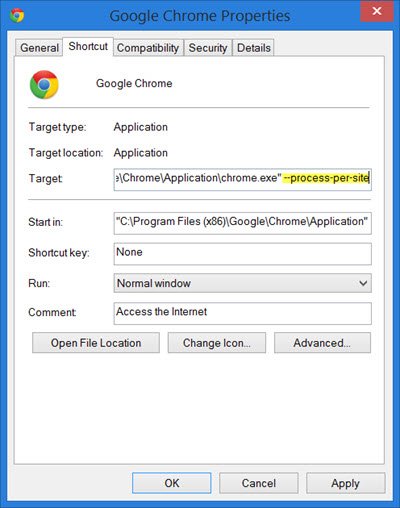
Click on Apply and Exit.
Read: Stop Google Chrome from running in the background
9] Remove conflicting browser Extensions
To remove conflicting Chrome extensions, open Chrome and go to chrome://extensions, then disable all extensions and re‑enable them one by one to identify the culprit; uninstall the problematic extension by clicking Remove; clear cache and restart Chrome to ensure no leftover data interferes; finally, keep only trusted extensions updated to avoid future conflicts.
10] Reset or Reinstall Google Chrome
To reset Chrome browser, make sure that Google Chrome is not running anywhere in the background using the Task Manager.
When you use the Reset feature, the following will happen:
- Search Engine will be reset to default
- The homepage will be reset to default
- New Tab Page will be reset to default
- Pinned tabs will be unpinned
- Extensions, add-ons, and themes will be disabled. The New Tab Page will be set to open on Chrome start.
- Content settings will be reset. Cookies, cache, and Site data will be deleted.
To begin, hit the WINKEY + R combination to open Run and then navigate to the following path,
%USERPROFILE%\AppData\Local\Google\Chrome\User Data
Now, select the folder named as Default and hit the Shift + Delete button combination and then click on Yes for the confirmation prompt you get.
After deleting the Default folder, open Google Chrome and click on the Menu button denoted by three verticle dots in the top right corner.
Then, click on Settings. In the Settings section, scroll down and click on Advanced to reveal the Advanced Settings.
Now, scroll down to the Restore Settings to their original defaults button and click on it.
Click on Reset, and this will reset your Google Chrome browser. Using this option resets your profile to the post-fresh-install state.
Now check whether your issue is fixed.
And if none of the methods mentioned above work properly, the ultimate fix would be to reinstall Google Chrome. First, you will have to back up your browser data like bookmarks, passwords, etc, then, uninstall Google Chrome fully from your computer. This should also include all the leftover folders with browsing data, user data, etc. Now, download the latest version of Google Chrome from its website. Having done that, you could import your data back.
TIP: Disable Sleeping Tabs and stop Chrome from refreshing Tabs
Why is my Google Chrome taking up so much memory?
The Google Chrome web browser uses one process per tab by default. If you open the Windows Task Manager, you will be able to see multiple Google Chrome processes. The idea behind this is that if any one of your tabs crashes, it will not crash the entire browser, because each tab runs its own process. Only that tab will crash.
How do I fix Chrome high CPU, Disk or Memory usage?
If you are facing high CPU or Disk usage issues in Chrome, you need to take a look at the following areas:
- Disable or remove unwanted Extensions
- Disable built-in features
- Use Chrome Task Manager to identify the culprit tabs
- Reset Chrome.
Here are some tips to speed up Google Chrome browser on Windows.
