
Helper Renderer for Google Chrome is a background process that runs while the Google Chrome browser is being used in the system. It enables and manages communication between the browser and its plugins, extensions, and the multimedia content of the website displayed in Chrome. This post will check how to reduce the Google Chrome Helper high memory or CPU usage.
Causes of Google Chrome Helper Renderer High CPU or Memory Usage
Contents such as Flash, Java, DivX, etc., are rendered through this Helper from external sources. It acts as the bridge between the browser and these components to ensure proper functionality.
Websites or web applications take up too many system resources
Websites with complex designs and rich media content, such as video, animations, and interactive elements like chatbots, tend to consume too many system resources. In such cases, the Helper Renderer’s workload increases considerably, compounding the problem.
Issues with Hardware Acceleration, Browser Extensions and Plugins
Hardware acceleration uses the GPU for graphics in browsers, reducing CPU load. However, outdated hardware or drivers can hinder GPU use, causing higher CPU/memory usage. Poorly optimized extensions may also increase resource consumption, impacting performance.
Software conflicts and Memory Leaks
Conflicts between incompatible browser extensions and software libraries can degrade browser performance, leading to high resource usage. In such cases, the Helper Renderer may fail to release unused memory, causing leakage.
Fix Google Chrome Helper Renderer High CPU or Memory Usage
Changes made to the browser settings and disabling unnecessary options that consume too many resources can help in fixing the said issue, as detailed below:
- Disable unnecessary plugins, extensions, and clear cache & cookies manually
- Disable Hardware Acceleration and Chrome Helper
- Reset browser to default settings
- Enable Tab discarding and use Chrome Task Manager
1] Disable unnecessary Plugins, Extensions, and Clear cache, cookies manually
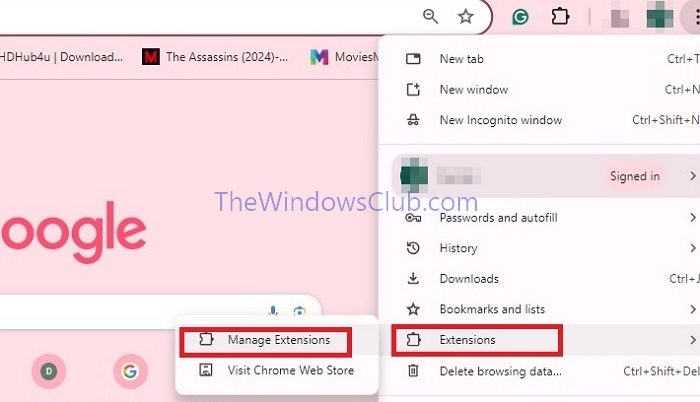
To free up system resources by disabling plugins and extensions,
- Open the Chrome browser and click on the three dots at the top left corner
- Click on Extensions > Manage Extensions
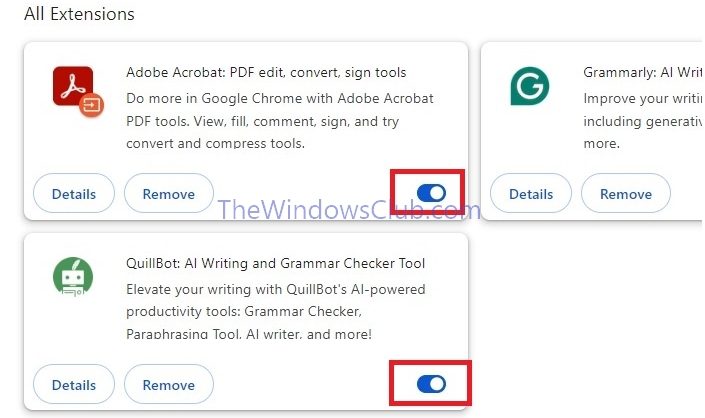
- Toggle off the unnecessary extensions to disable them.
To clear the browser cache and cookies,
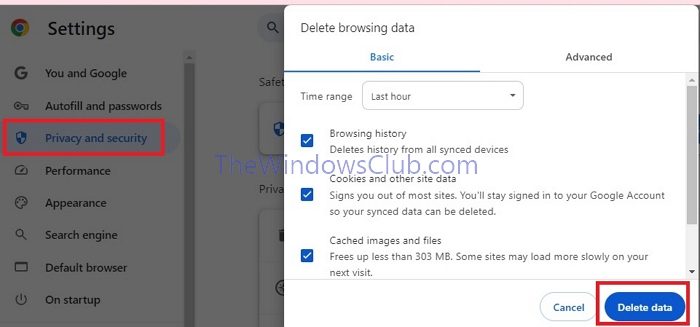
- Click on the Chrome menu ( 3 dots at the top right)
- Click on the option Privacy and Security > Delete Browsing Data
- Click on the check boxes beside Browsing History, Download History, Cookies and other Site Data, and Cached images and Files, and then click on Clear Data
- Relaunch the browser once done.
2] Disable Hardware Acceleration and Chrome Helper
If the hardware acceleration is not functioning correctly, it can lead to high CPU usage, Memory, and disk space usage. Hence, in such cases, disabling them can help rectify the issue.
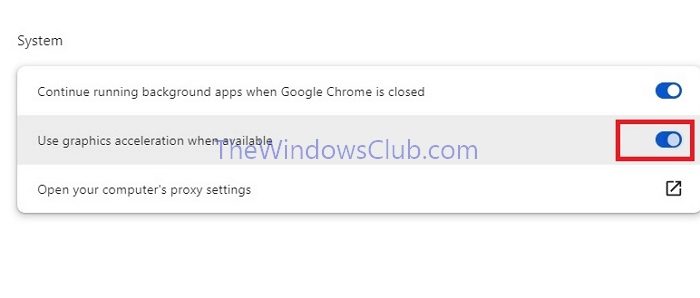
To disable:
- Click on the three dots at the top left and then Settings > System.
- Toggle off Use Graphics Acceleration when available and click Relaunch to open the browser after modifying the Settings.
3] Reset browser to default settings
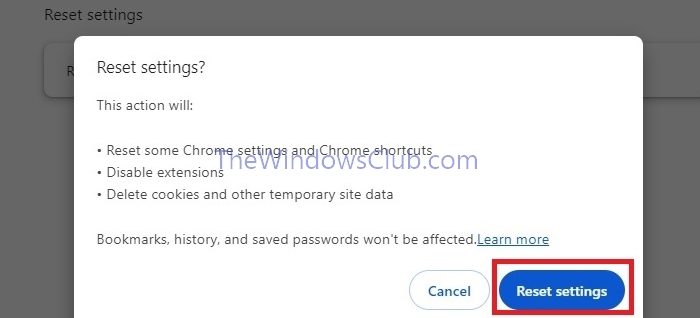
- Click on the three dots to open the Browser menu and click on Settings
- On the left pane, scroll down to the option Reset Settings
- Click on Reset settings to their original defaults and then click on Reset Settings
4] Enable Tab discarding and use Chrome Task Manager
Chrome has a built-in Task Manager that can help us identify and monitor CPU and memory usage. This can help us manage browser processes effectively, engage system resources and close unused tabs, which may take up a considerable amount of system resources.
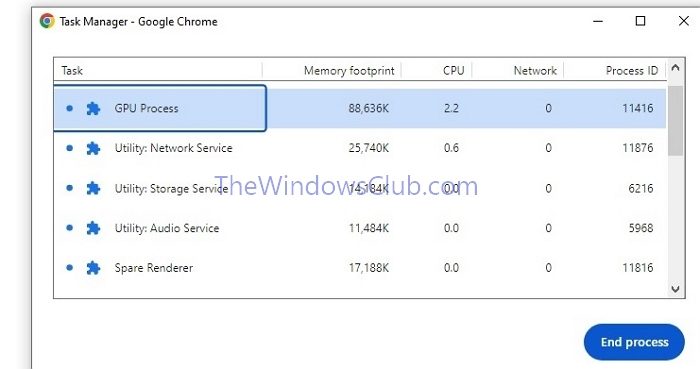
To open the Task Manager-
- Click on the Browser menu ( 3 dots).
- Navigate to More Tools > Task Manager to open the application and check the resources the Extensions and browser tabs use.
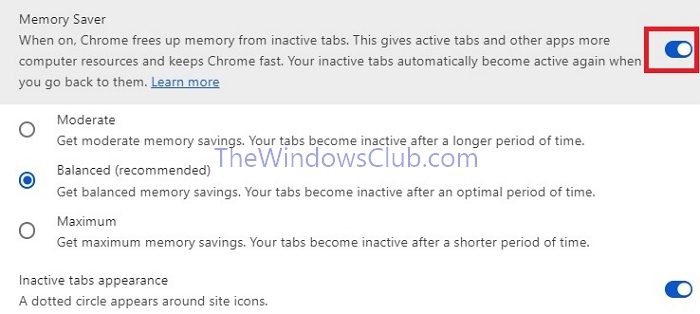
To enable Tab discarding-
- Open the Chrome browser and navigate to Settings > Performance
- Toggle the Memory Saver option to ON to free the memory from inactive tabs.
What happens if I quit the Google Chrome Helper renderer?
Disabling Google Chrome Helper can reduce resource overuse but will disable third-party plugins in Chrome. This will cause tools like video players to stop functioning correctly. While it may improve performance, it limits functionality. Consider carefully before disabling, as it may impact essential tools and features.
Read: Chrome high CPU or Disk usage in Windows 11
Will I lose anything if I uninstall Chrome?
When you uninstall Chrome and delete your profile information, the data is removed from your computer. However, if you signed in and synced, some of your data may still be stored on Google’s servers.
Read: Reduce high Chrome Memory usage & make it use less RAM.
