
There may be times when you find that your Windows Firewall in Windows 11/10 isn’t working as it should. Maybe you were infected with malware, and the malware changed the firewall settings – or you manually tried to configure the firewall settings but messed up somewhere. Should you wish, you can always restore or reset Windows Firewall settings to defaults.
In this post, we will see how to restore or reset Windows Firewall settings to their defaults in Windows 11/10.
Reset Windows Firewall settings to default
A firewall is a software or hardware that checks information coming from the Internet or a network and then either blocks it or allows it to pass through to your computer, depending on your firewall settings. It can help prevent hackers or malicious software from accessing your computer through a network or the Internet. A firewall can also help stop your computer from sending malicious software to other computers.
To restore Windows Firewall default settings, open Control Panel and click open Security applet. Here, on the left side, you will see a link to Restore defaults.
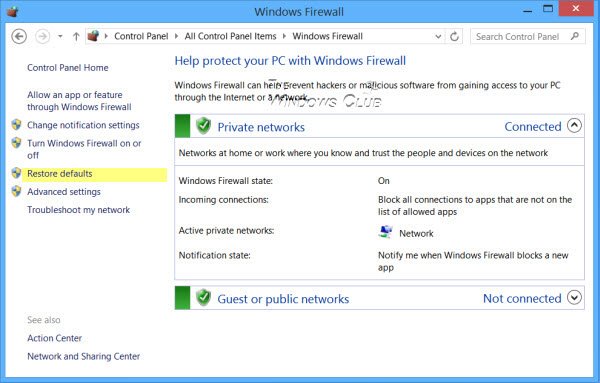
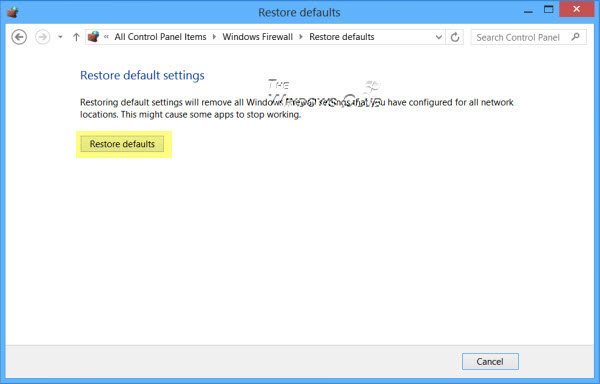
Click on it. You will be taken to a window that will allow you to restore the default firewall settings. Click on the Restore defaults button. Restoring the default settings will reset all the firewall settings that you may have configured for all network locations.
You will be asked to reconfirm. Click on Yes.
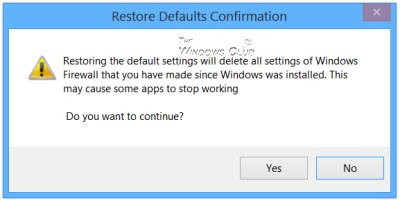
The Windows Firewall settings will be restored to default values.
Read: How to open Windows Firewall
Windows Firewall builds on and further polishes the already improved Windows Vista firewall in Windows 11/10. The default firewall is now quite a powerful one and allows you to block or open Ports, access manage the advanced firewall settings, including the configuration of filtering for outbound connections, through its Control Panel, Management Console, Netsh utility, or the Group Policy Editor.
The netsh advfirewall firewall command-line context is available in Windows 11/10. This context provides the functionality for controlling Windows Firewall behavior that was previously available through the netsh firewall context in earlier Windows operating systems.
The netsh firewall command-line context might be deprecated in a future version of the Windows operating system, and so Microsoft recommends that you use the netsh advfirewall firewall context to control firewall behavior.
You can also use the netsh advfirewall command line to reset or restore firewall settings to default policy settings and values using netsh advfirewall reset command.
Typing netsh advfirewall reset ? will give you information on what it does.
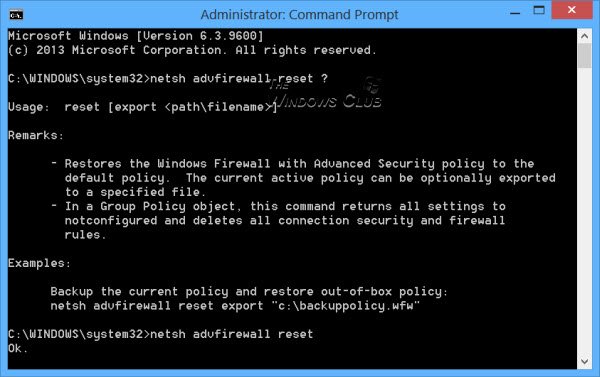
To restore the firewall settings, open an elevated command prompt, type the following and hit Enter:
netsh advfirewall reset
The command will restore the Windows Firewall with Advanced Security policy to the default policy and return all Group Policy settings to Not Configured and delete all connection security and firewall rules.
Once the operation is completed, you will see ‘OK‘.
These links may also interest you:
- Reset Windows Security settings to default values
- Windows Firewall has blocked some features of this app
- Windows Firewall service does not start
- Repair Windows Firewall with Windows Firewall Troubleshooter
- Troubleshoot Windows Firewall with Advanced Diagnostics, Tools
- Import, Export, Restore Default Firewall Policy.
