
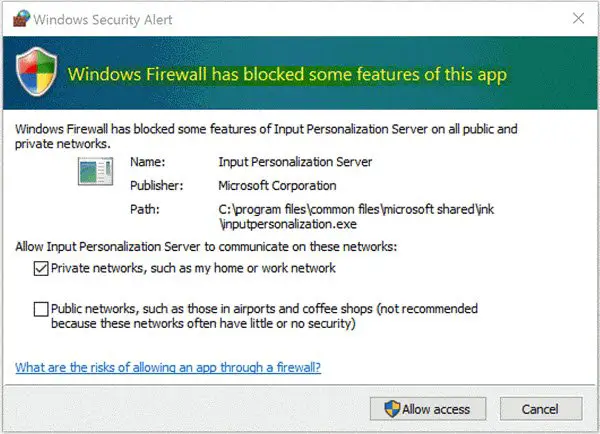
At times, you may have noticed that when you go on to run a program, the Windows Firewall suddenly throws up a message stating that Windows Firewall has blocked some features of this app and gives you two options – Allow access or Cancel. If you trust the program, click Allow access to proceed. If in doubt, it is best to select Cancel. Now let us see why this happens and what we can do about it.
With the launch of Windows 11/10, Microsoft seems to have toiled real hard to augment the security of its operating system, both with the addition of new tools to defend against hackers as well as new features that make it convenient and much more secure to use.
Windows Firewall with its Advanced Security is a vital part of a layered security model. By offering a host-based, two-way network traffic filtering system for your devices, Windows Firewall with Advanced Security blocks any unauthorized network traffic flowing to or from local devices.
Earlier versions of Windows Firewall allowed you to set rules only for incoming connections, whereas newer versions, such as those in Windows 11 and Windows 10, also allow you to control outgoing connections. That means, if users want, the system lets them prevent certain software or apps from connecting to the internet or limit them to secure connections. Windows Firewall does this by working with the Network Awareness system, which lets it apply security settings appropriate to the types of networks the device is connected to.

Windows Firewall has blocked some features of this app
All these strict security measures are a great option for those concerned about leaking personal information over insecure connections and for blocking malicious inbound & outbound traffic. However, Windows Firewall can be quite irritating due to repeated notifications that ‘Windows Firewall has blocked some features of this app‘. You will see this message on Windows 11, Windows 10, Windows 8.1, and Windows 7 as well as the earlier versions.
According to Microsoft’s official support forum, usually, this notification requests the user to permit access to a process or a program, however, as soon as the corresponding activity starts, the notifications start appearing repeatedly. It is most commonly observed when using a web browser. The most common cause of this notification in web browsers is a malicious plugin or one that attempts to connect to the internet without the user’s permission. Other causes may include software or apps that try to update themselves in the background without your permission as well as viruses and malware on your computer.
If you receive this message frequently, here are a few things you could try.
1] Anti-virus scan
The priority should be to scan your computer for viruses with your antivirus software and see if it is some malware that is causing this popup.
2] Disable VPN Network Adapter
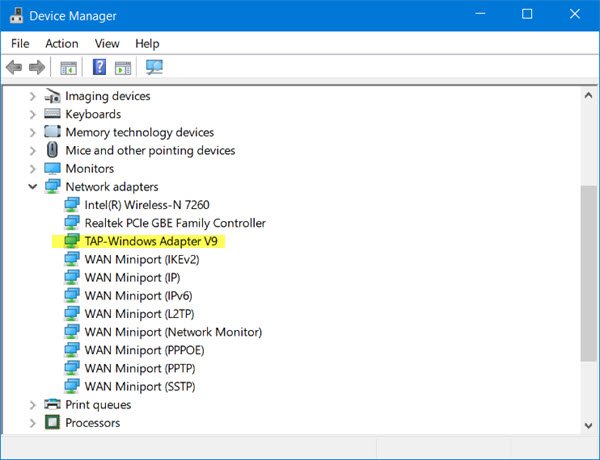
Such messages can also be triggered by a VPN client running on your system. If you are running a VPN, from the WinX Menu, open Devices Manager and expand the Network Adapters category. Try and identify the entry related to your VPN software, right-click on it, select Disable device and see if it helps. You may be required to reboot your computer. If it does not help, you can re-enable it.
If it does not help, disable each network adapter one at a time and see whether any of them is causing the problem.
3] Whitelist the process in the Windows Firewall
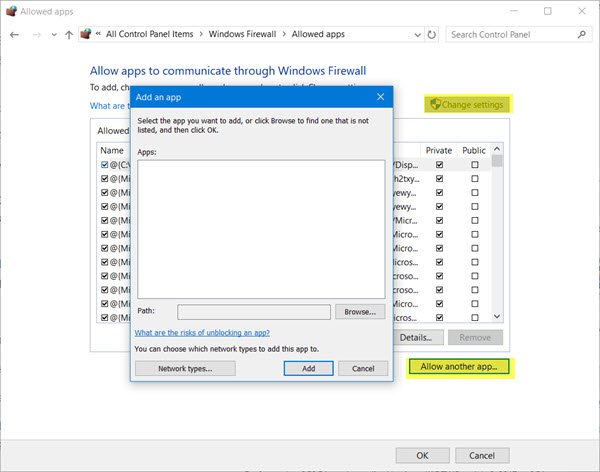
If the process you know is safe for sure, you may allow the particular program through your Firewall by whitelisting it as follows:
- Click ‘Start’ and type ‘Firewall’ in the search field and then click “Allow an app or feature through Windows Firewall’ from the search results.
- On the next screen, click Change Settings
- On the list of programs that appears, tick/check both ‘Private’ and ‘Public’ options for the program or app for which you’re getting repeated notifications.
If the program you want to unblock is not in the list, click the Allow another program button to add it. Add the software or application in the list and choose ‘Add’. If the program you wish to unblock is not in this list, use the ‘Browse’ feature to search the program manually. You may also configure the Network type.
Once the required program has been granted permission, click ‘OK’ and exit.
If you find this too tedious, you may use an app like OneClick Firewall or Windows Firewall Notifier to allow or block access with a click.
4] Restore Windows Firewall settings
If you think you may have disturbed the default Windows Firewall settings, you may want to reset Windows Firewall settings to defaults. This post will show you how to Import, Export, Repair, Restore Default Firewall Policy.
Hope something helps!
See these posts if you face the following issues:
- Windows could not start the Windows Firewall on Local Computer
- Windows Firewall service does not start
- Error 1079. Windows Time, Windows Event Log, Windows Firewall services fail to start.
How to Check Firewall Details with current profile?
You can use Command Prompt or Windows Terminal using the netsh advfirewall show currentprofile. Once you run the command in the terminal, it will display details of the Local Firewall Rules, Remote Management, Logging, and more. Be aware, that netsh firewalldoesn’t work anymore, and so you should use this command.
Read: How to open Windows Firewall
How do I allow a program to run that firewall is blocking?
In the Windows Firewall settings, you can click on Allow a program or feature option and then unblock or add a program to make sure they are not blocked by the Firewall. However, if the program still doesn’t work, check whether additional security software is blocking it.
