
Some users encountered the Blue Screen error when they started their computers for the first time. BSOD errors on a Windows computer occur due to hardware and software issues, such as corrupt drivers, faulty hardware, etc. If you encounter the BSOD on first boot on your Windows 11 computer, this article will help you.
BSOD on first boot or startup only in Windows 11
If you encounter a Blue Screen on first boot only when you start it the first time in WIndows 11/10, use the following fixes:
- Clear CMOS
- Disable Fast Startup
- Check for driver errors
- Update your drivers
- Test your RAM
- Disable overclocking (if applicable)
- Check Event Viewer
- Perform the clean installation of your GPU driver
- Update your BIOS and chipset drivers
- Restore your system or reset your PC
- Hardware fault
All these fixes are explained in detail below:
1] Clear CMOS
Clearing CMOS usually fixes booting issues. You can also try this. Please turn off your computer and open its case. Locate the small coin-shaped battery. Gently pull it out of the socket and wait for a few minutes. Insert the battery into the socket with the correct polarity, then turn on your computer. You can also try replacing the CMOS battery with the new one.
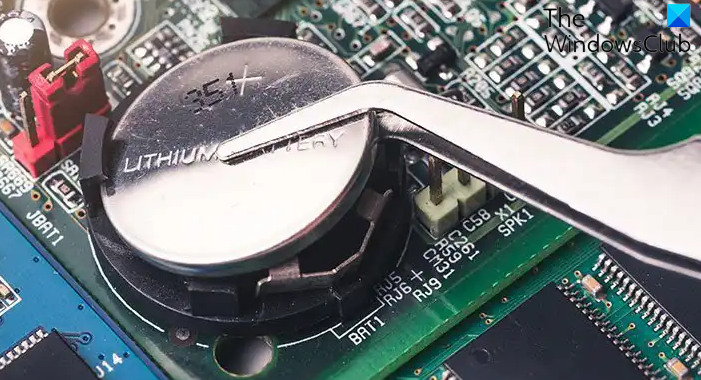
This action will also reset your BIOS settings to the default. Therefore, before proceeding, note down all your current BIOS settings so that you can reapply them later.
2] Disable Fast Startup
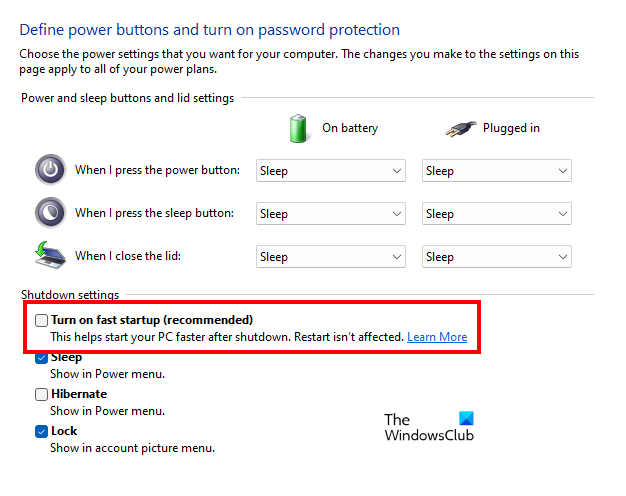
Fast Startup is a good feature, as it makes booting faster. However, in some cases, it can cause issues. This might be the case with you. Disable Fast Startup and see if it helps.
3] Check for driver errors
Corrupt drivers can also cause this problem. Check your driver status in the Device Manager. Follow these steps:
- Open the Device Manager.
- Expand all the branches one by one and look for a warning sign.
- If any driver shows the warning sign, it has some issues. Double-click on that driver to open its properties.
- Read the Device status under the General tab.
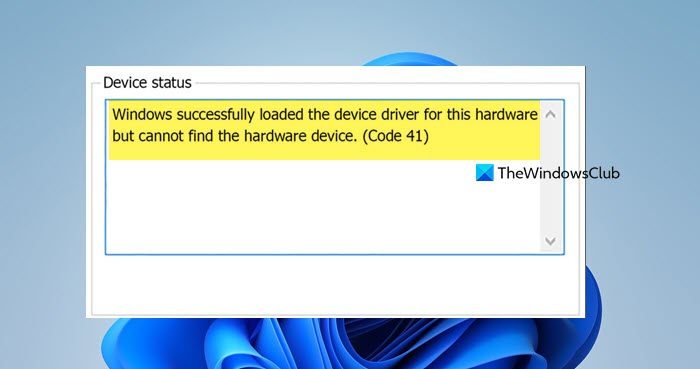
The Device status for a corrupt driver will show you one of the Device Manager error codes and messages. Now, troubleshoot the error accordingly.
In most cases, reinstalling the affected driver resolves the issue. You can also download the latest version of the device driver from the official website of your computer manufacturer (if applicable).
4] Update your drivers
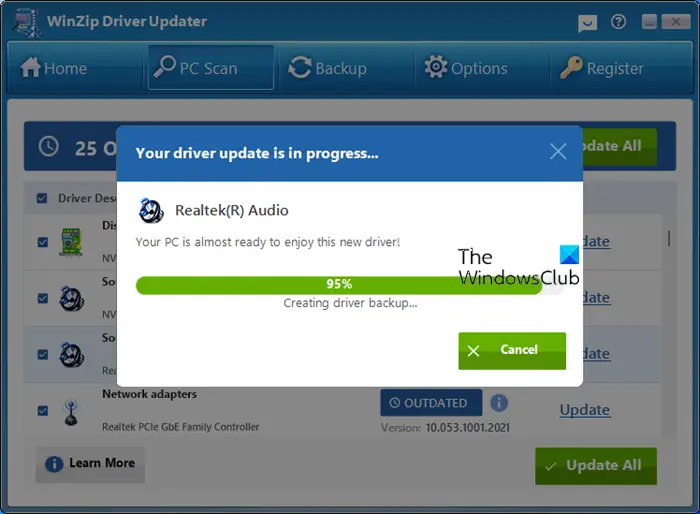
A BSOD on first boot can also occur due to outdated drivers; updating them to the latest version can help. Since it is difficult to find out the outdated drivers manually, you can use third-party driver updater software to find the outdated drivers and update them to the latest version.
5] Test your RAM
A hardware fault, such as a faulty RAM, is the most common cause of this problem. When you boot your computer for the first time, it is called a Cold Boot. During the cold boot, BIOS performs the POST test. In this test, BIOS checks hardware components, such as RAM, CPU, storage devices, etc., to ensure that they are functioning correctly.
During a cold boot, the RAM starts in a completely uninitialized state, so the system performs full memory initialization. On the other hand, during a warm boot (restart), the RAM does not return to a fully uninitialized state, so the system does not repeat the full initialization process. This is why weak or failing RAM often causes errors only during a cold boot, not after a restart.
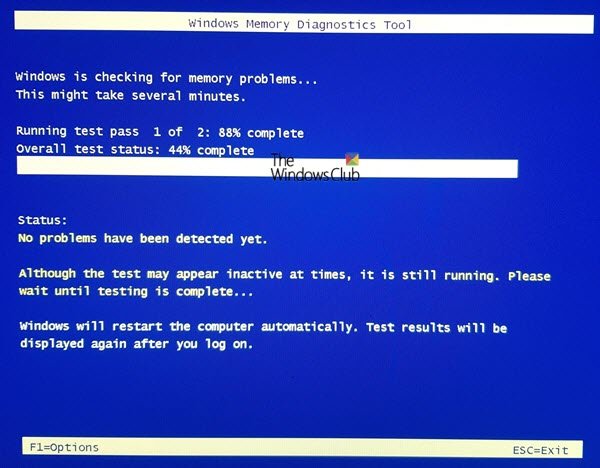
Windows has a built-in Memory Diagnostic Tool to test your RAM health. Use it to confirm the health of your RAM. Alternatively, you can also test your RAM manually. However, the manual method is only applicable if you have multiple RAM sticks. Turn on your computer with one RAM stick at a time. When you get a BSOD error, the RAM stick is faulty.
Read: No Signal on first boot only after restart
6] Disable overclocking (if applicable)
Overclocking is one possible cause of this problem. To confirm this, disable overclocking (if applicable). If the BSOD does not occur, this means that:
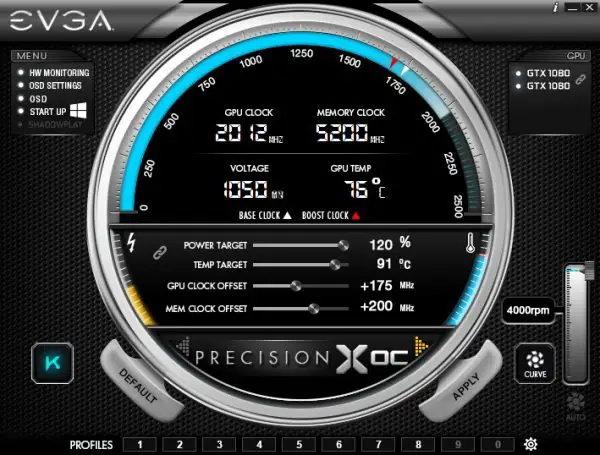
- You might have applied incorrect overclocking settings.
- Your RAM is struggling with the overclocked speeds. This happens when the RAM is faulty.
7] Check Event Viewer
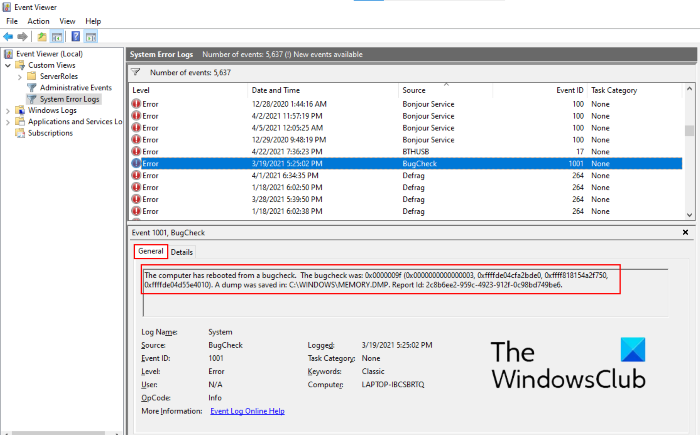
Windows records all errors and warnings in logs. You can view these logs in Event Viewer. Reading the BSOD logs in Windows Event Viewer will help you know the exact reason for this issue, so you can troubleshoot correctly.
8] Perform the clean installation of your GPU driver
Your computer might also have a corrupt graphics card driver. Perform the clean installation of your graphics card driver and see if it helps. First, visit the official website of your computer manufacturer and download the latest version of your GPU driver.
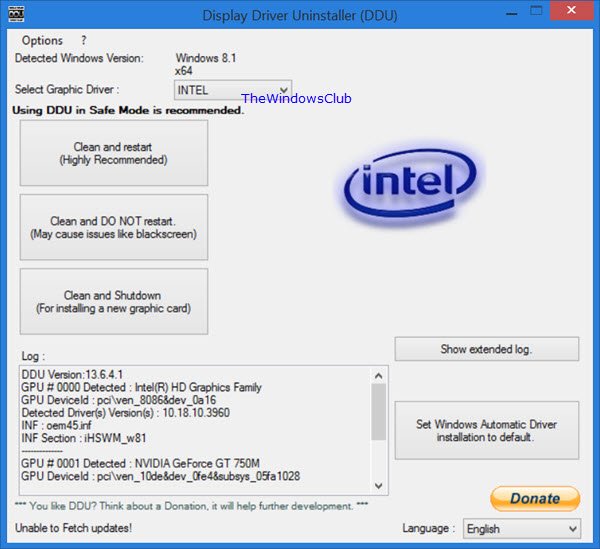
Now, download and install the DDU (Display Driver Utility). Run the DDU to completely remove the graphics card driver from your system. Now, run the installer file to install the GPU driver from scratch.
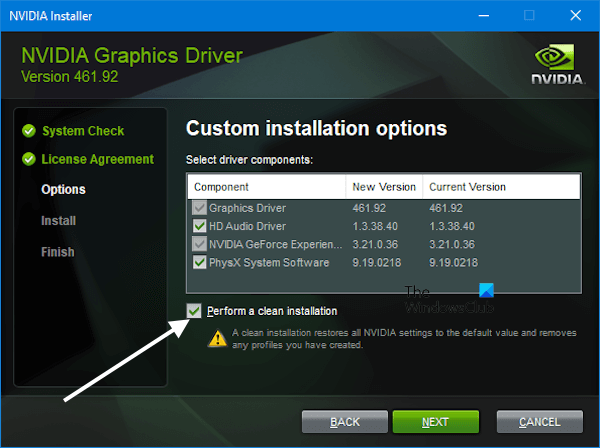
NVIDIA and AMD users can also use the dedicated NVIDIA and AMD software for a clean installation instead of using the DDU.
9] Update your BIOS and chipset drivers

Updating the BIOS is recommended because it improves hardware compatibility and system stability. Update your BIOS to the latest version. You will get the latest BIOS version for your motherboard on the official website of your motherboard or computer manufacturer. Additionally, update the chipset driver.
While updating your BIOS and chipset driver, you must provide a continuous power supply to your PC and laptop, even if your laptop is fully charged. Power supply interruption during this process can damage your motherboard.
10] Restore your system or reset your PC
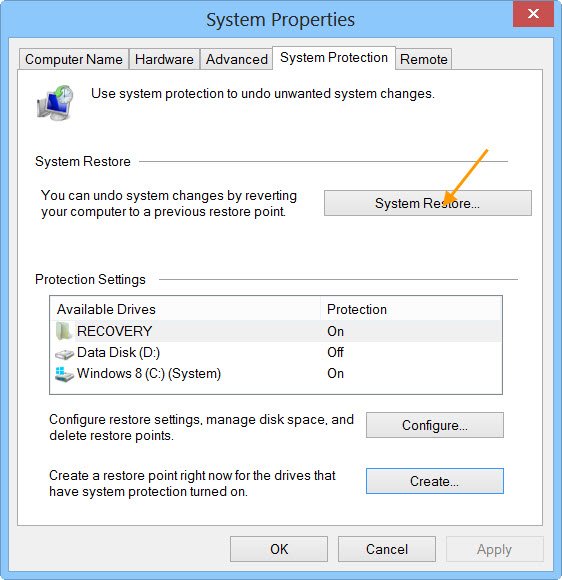
If the BSOD occurred due to software issues, restoring your system to the previous point in time can help. If System Restore does not work, reset your PC to the factory default settings. While performing this action, select the Keep my files option to keep your data safe during a factory reset.
11] Hardware fault
If you still get a BSOD on first boot, there might be a hardware fault in your system. The problem may be with your system’s RAM or PSU. Take your computer to a professional computer repair technician for further assistance.
That’s it. I hope this helps.
How to solve BSOD on Windows 11?
Windows displays an error code when a BSOD occurs. This error code is displayed for a short time until your PC restarts. Note down the error code to troubleshoot the BSOD error correctly. Sometimes, Windows displays a driver name that causes the BSOD with an error message. Analyzing the memory dump files is the best way to solve BSOD on Windows 11, as these files contain all information about the BSOD error.
Is a BSOD caused by RAM?
Yes, faulty RAM can cause BSOD errors on Windows computers. If your RAM is dying, your system will show you some symptoms. When you notice these signs, immediately test your RAM health and backup your data.
Read next: Windows is not generating BSOD logs.
