
Some users experience no display output on initial boot and must restart their system to get the display working. If you get no signal on first boot and the display works only after a restart, use the solutions provided in this article. This problem can occur due to both hardware and software issues.
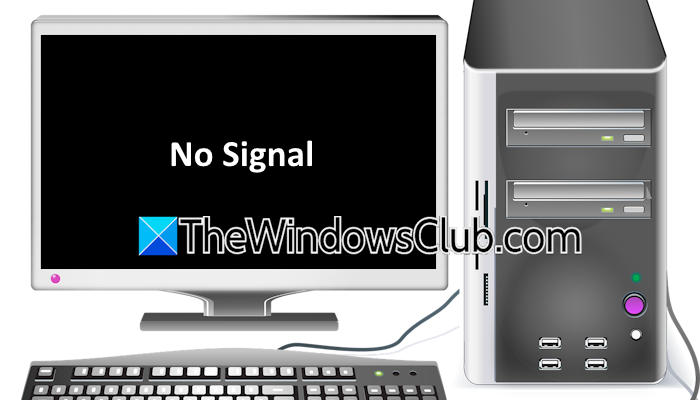
No signal on first boot, only after restart
Use the following fixes if you get no signal on first boot and your display becomes visible only after restarting your Windows computer:
- Check cable connections
- Perform the Hard Reset
- Update monitor firmware
- Do you hear any beep sound?
- Disable Fast Startup
- Reset CMOS
- Update or reinstall the graphics card driver
- Did you install the Beta version of BIOS?
- Update BIOS
- Test your RAM
- Hardware fault
All these fixes are explained below in detail.
1] Check cable connections
The first step is to check all the cable connections. The cable connecting your display should not be loose. Also, check the cable carefully. It should not be damaged. If another cable is available, use it to connect your display.
The problem may also be associated with your monitor. To check this, connect another monitor (if available).
2] Perform the Hard Reset
Perform the hard reset and see if it helps. Follow these steps:
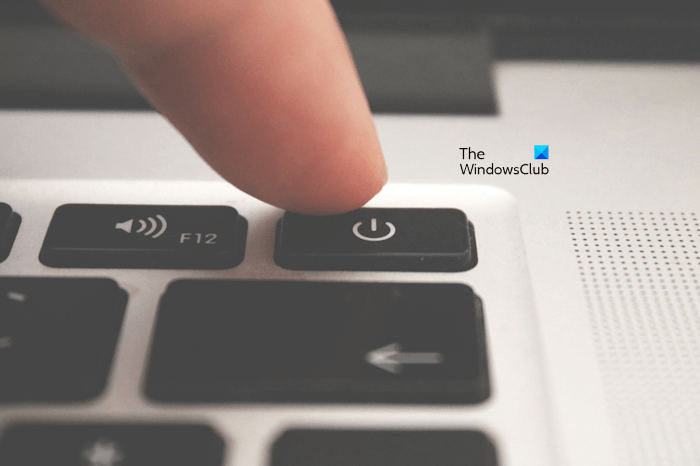
- Turn off your computer.
- Disconnect all the peripherals and remove the power cord.
- Press and hold the power button for up to 45 seconds.
- Connect the power cord and turn on your computer.
3] Update monitor firmware
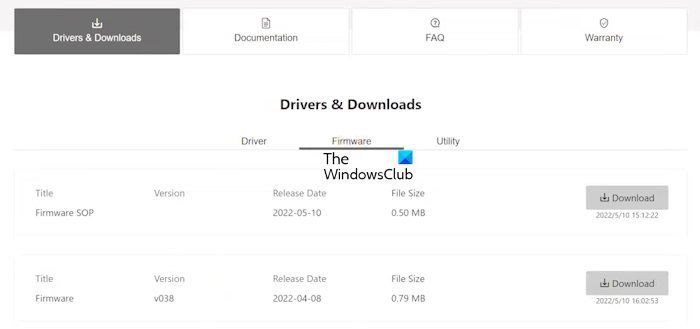
No signal on first boot can be a sign of an outdated monitor firmware. Update your monitor firmware to the latest version and see if it fixes the problem. Monitors from different brands have different firmware update processes. Refer to the user manual to know the right process.
4] Do you hear any beep sound?
Do you hear any beep sound while turning on your computer? Computer motherboards emit different beeps when a hardware fault is detected. These beeps sound different on motherboards from different brands. If you hear a beep, decoding it will help you identify a hardware fault in your system. For this, refer to your motherboard’s user manual.
5] Disable Fast Startup
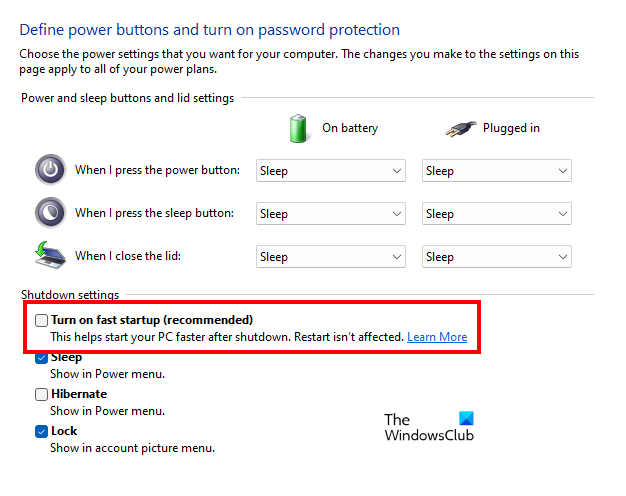
Fast Startup is a useful feature in Windows PCs. It reduces booting time and makes your computer start faster. However, sometimes, it causes issues. This feature is enabled by default. Disable Fast Startup and see if it helps.
6] Reset CMOS
Resetting or clearing the CMOS is a powerful troubleshooting step for display issues. You can try this and see if it helps.
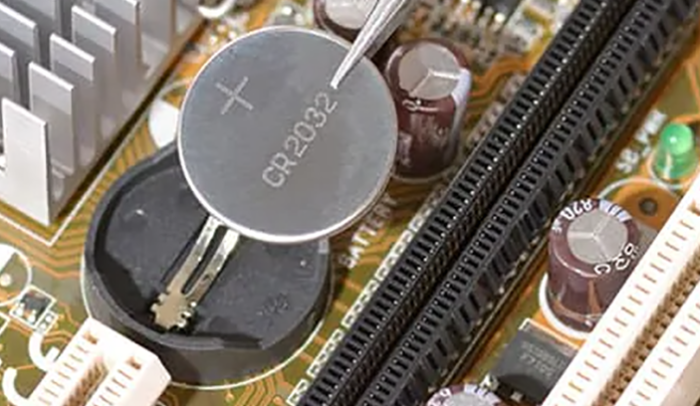
To clear the CMOS, you have to open your computer case. If you are not good at this, take professional help. Go through the following instructions:
- Completely turn off your computer and disconnect the power cord.
- Open the computer case.
- Locate the CMOS battery. It is a small coin-shaped battery.
- Gently pull it out of the socket.
- Wait for a minute.
- Reinsert the battery into the socket with the correct polarity.
- Connect the power cord and turn on the power supply. Turn on your computer.
This step will also reset your BIOS settings to the default. Therefore, before proceeding, note down all your current BIOS settings, so you can reapply them later.
7] Update or reinstall the graphics card driver
The problem may be associated with your graphics card driver. If so, updating or reinstalling it can help. Visit the official website of your computer manufacturer and download the latest version of the graphics card driver from there. Run the installer file to update your GPU driver to the latest version.
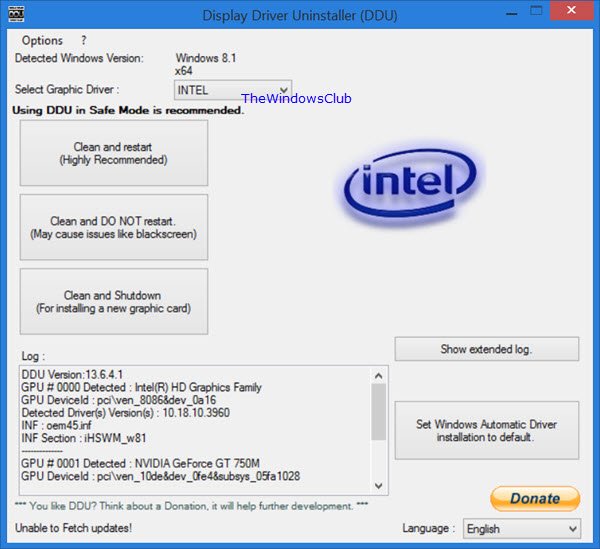
You can also try performing a clean installation of the GPU driver. For this, download and install the Display Driver Uninstaller (DDU) utility. Now, run it to completely remove the GPU driver from your system. After that, you can install the display driver from scratch.
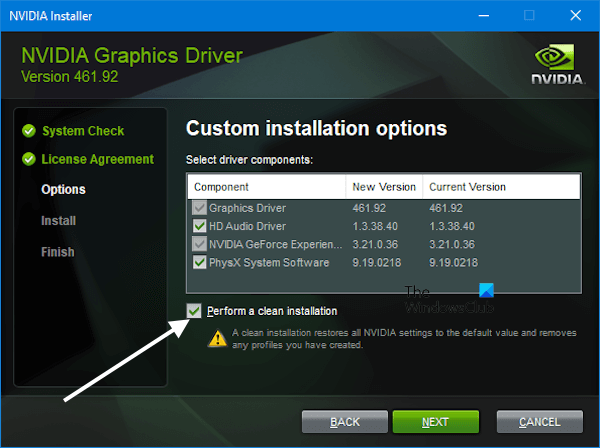
NVIDIA GPU users can also use the dedicated software to perform a clean installation of the GPU driver.
8] Did you install the Beta version of BIOS?
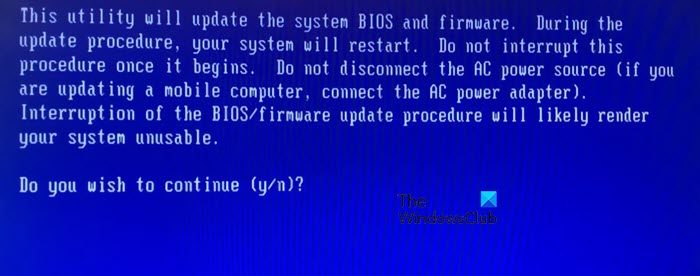
Some motherboard manufacturers offer a Beta version of the BIOS. Since the Beta version is an early release, it may have some bugs. If you are using the Beta version of BIOS, you can downgrade it to the stable build. Downgrading the BIOS is a riskier process. Therefore, we suggest you contact your computer manufacturer’s support before proceeding.
9] Update BIOS
An outdated BIOS version can also be the cause of this issue. Check the current BIOS version installed on your system in System Information. Now visit your computer manufacturer’s official website and check the available BIOS version. If an updated BIOS version is available, download and install it.
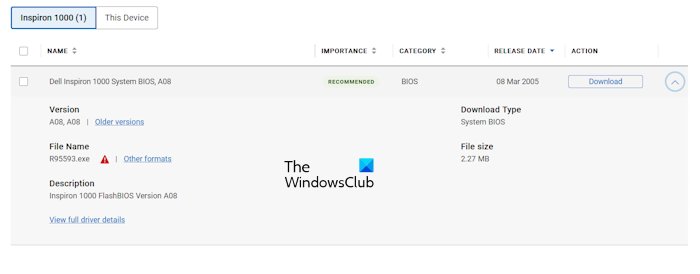
Provide a continuous power supply to your system while updating the BIOS. An interruption in the power supply during the BIOS update will damage your motherboard.
10] Test your RAM
This problem can also occur if your RAM stick is faulty or is inserted into the wrong RAM slot. To test the health of your RAM, you can use the built-in Windows Memory Diagnostic Tool. If the RAM test results are clear, it means your RAM is healthy.
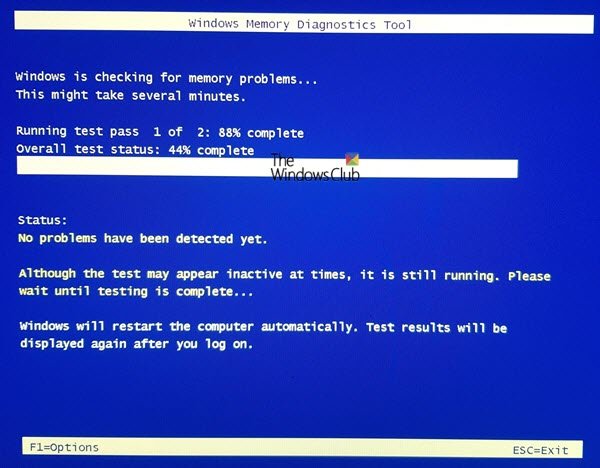
Now, either your RAM is not seated properly or inserted into the wrong slot. Reseat your RAM. If this does not work, try inserting it into another available slot. If you have more than one RAM stick, try different combinations, such as Slot 1 and Slot 2, Slot 3 and Slot 4, etc.
11] Hardware fault
If none of the above fixes work, there may be a hardware fault. The problem may also be with your PSU. Seek professional help for further troubleshooting.
That’s it. I hope this helps.
When I restart my PC, there is no display
If your PC shows no display when you boot or restart it, the cable might be loose. Check cable connections. If you have another cable, use it to connect your display. If that works, your cable is faulty. Clean and reseat your RAM sticks. Also, try to clear the CMOS. This issue may also be caused by a faulty display driver or outdated monitor firmware.
Can RAM cause no signal?
Yes, a faulty RAM can cause the no display problem. This issue also occurs if the RAM sticks are not seated properly or seated in the wrong RAM slots. Clean your RAM sticks. If this does not work, reset and update your BIOS.
Read next: No display after installing a new RAM.
