
At times, we may see issues with the display or resolution on the primary, external or secondary monitor. When you find the monitor is not displaying full screen in Windows 11, here’s how to fix it. These methods apply to both primary and secondary monitors of a PC.
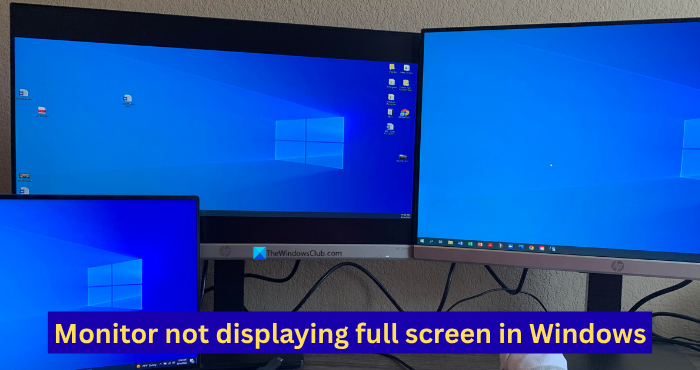
Monitor not displaying full screen in Windows 11
If the monitor connected to your PC, whether primary or secondary, is not displaying the full screen in Windows 11/10, the methods below will help fix the issue.
- Adjust the screen resolution in Settings
- Check the connections of the display
- Adjust Multiple Display Settings
- Adjust the monitor’s built-in display settings
- Tweak Overscan options
Let’s get into the details of each method. Before going into them, check for driver updates through Windows Update in the Settings app and install any that apply.
1] Adjust the screen resolution in Settings
The simplest way to fix display issues on a Windows PC is by adjusting the screen resolution to perfectly fit our monitor. Generally, Windows detects the monitor, reads its configuration, and adjusts the display settings accordingly. But at times, there might be issues with the default settings.
To adjust the screen resolution on Windows, open the Settings app, click System, and go to Display. Under the Scale & layout settings, adjust the Scale and Display resolution.
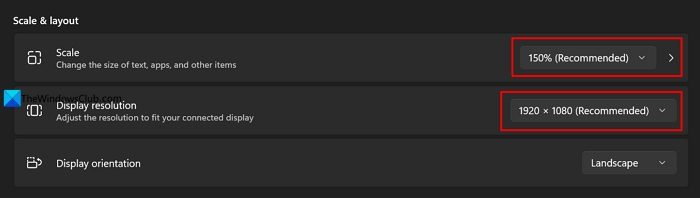
The recommended scale and resolutions fit our monitors perfectly. In rare instances, we have to change them to achieve the desired display on the monitors.
Read: Screen Resolution changes after reboot automatically on its own
2] Check the connections of the display
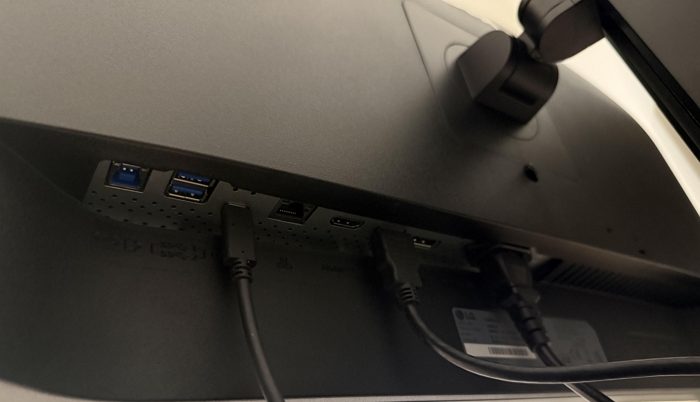
Modern monitors come with HDMI, DisplayPort, and USB-C or Thunderbolt ports. It is a common practice for us to use HDMI ports to connect a monitor to a CPU or a laptop. If you are not using the cables provided by the monitor’s manufacturer, check if they support the resolution of your PC. If it does not work, switch to DisplayPort or Thunderbolt, which support higher refresh rates and resolutions and work much better than HDMI.
3] Adjust Multiple Display Settings
If you have connected multiple displays to your PC, blanket adjustments to display resolutions or scaling do not work. You must select the display and adjust the settings. Open the Settings app, click System, and select Display. Select the monitor you are having issues with. If you do not know which is which, click Identify to see numbers assigned to each monitor you have connected.
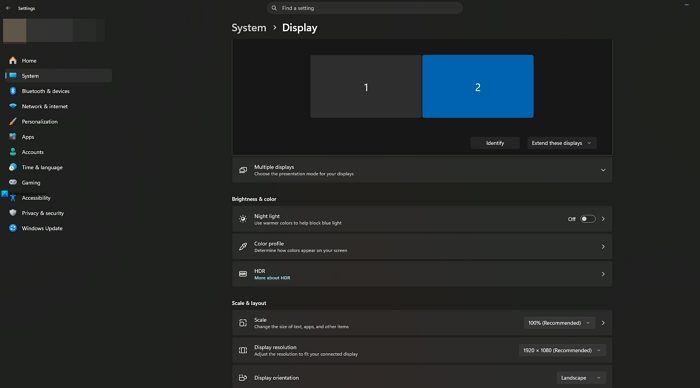
Then, adjust Scale and Display resolution to fix the issue.
4] Adjust the monitor’s built-in display settings
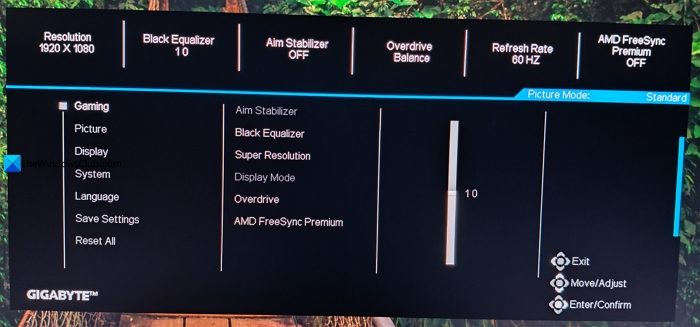
Some monitors offer resolution options in their built-in settings, which can be adjusted using the monitor’s physical buttons. If the built-in resolution is set to a value other than the resolution specified in your PC’s Display settings, you will see the issue. The built-in monitor settings bypass and show you the resolution that is specified in its settings. Change the resolution to match the resolution you have already selected in the Settings app of your Windows PC. Sometimes, it is not about resolution, but the aspect ratio too. Check aspect ratio options too.
5] Tweak Overscan options
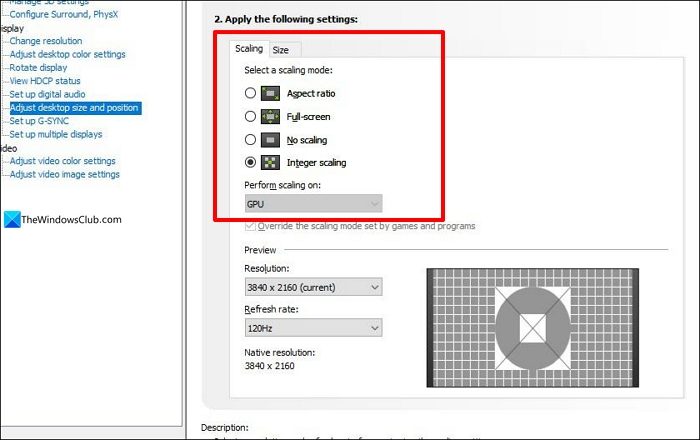
The graphics cards in modern PCs come with their own software, such as NVIDIA Control Panel, Intel Graphics Command Center and AMD Software. They come with options to tweak display settings to achieve the best possible graphical performance on your PC. Each program offers scaling options. Under each program’s scaling options, multiple options are available. Change the scaling for each one and see how it affects the image on the monitor. Adjust it to suit your display perfectly.
Read: Second Monitor is zoomed in on a Windows computer
Why is my monitor not showing my full screen?
If your monitor is not showing in full screen, it may be due to incorrect display scale or resolution settings. Sometimes, when the monitor’s aspect ratio is configured via its built-in settings, you will see the monitor not showing full screen. You can fix it easily by tweaking a few display settings.
How do I make my screen fit the whole monitor?
To make your screen fit the whole monitor, use the display scale and resolution recommended by Windows in the Display settings. They are suggested based on your monitor’s features and capabilities. Only in very rare instances, those feel off for the monitors.
Related read: How to fix the Stretched Screen display problem on PC.
