
Nothing kills the mood like your screen going black mid-game while your PC fans are still spinning. The system is clearly on, but the display is gone. This is usually a signal or driver issue, not a full crash. In this post, we will see what to do if the monitor turns off while playing games, while the system remains on.
When your monitor loses its signal, but the system is still running, it indicates that the graphics card is failing to transmit video output. This issue often arises during demanding tasks, such as gaming, when the GPU is pushed beyond basic desktop use. Common reasons include a crashing graphics driver, an inadequate power supply that can’t manage sudden wattage spikes, or the graphics card overheating, which may trigger a shutdown of its display output for safety.
Additionally, Windows power settings might unintentionally cut power to your display or the USB port it uses for data. A loose or damaged DisplayPort or HDMI cable could also be a factor, especially if vibrations from the PC fans disrupt the connection while gaming.
Monitor turns off while playing games, while the system remains on
If your monitor turns off while playing games and your PC remains on, follow the solutions below.
- Reset your GPU clock speeds to their default values
- Disable USB Selective Suspend
- Perform a clean driver removal using Display Driver Uninstaller (DDU)
- Replace your HDMI or DisplayPort cable
Let us talk about them in detail.
1] Reset your GPU clock speeds to their default values
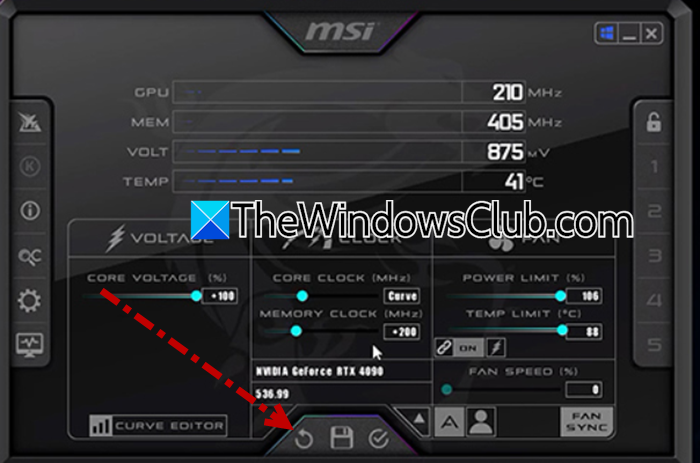
Overclocking your graphics card, whether you did it manually or it came pre-overclocked from the factory, can become unstable the moment a demanding game loads. Returning to default clock speeds removes that instability and lets the GPU run at the voltages it was certified for.
Follow the steps mentioned below to do the same.
- Open MSI Afterburner or your GPU manufacturer’s tuning software (like ASUS GPU Tweak or EVGA Precision X1).
- Click the Reset button, which usually looks like a circular arrow or a default icon.
- Click Apply, then save the profile so the settings stick after a reboot.
- Restart your PC and test the game again.
Finally, check if the issue persists.
2] Disable USB Selective Suspend
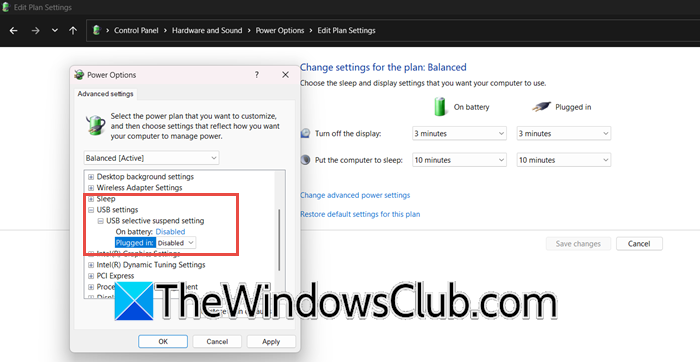
Windows has a built-in power-saving feature that cuts power to USB ports when it thinks they’re idle. If your monitor connects via USB for data or uses a USB hub, this setting can mistakenly turn off the link while you’re gaming. Disabling it keeps the connection alive at all times. Follow the steps mentioned below.
- Open Control Panel and go to Hardware and Sound > Power Options.
- Next to your active power plan, click Change plan settings.
- Then click Change advanced power settings.
- Scroll down to USB settings, expand it, and then expand the USB selective suspend setting.
- Set it to Disabled, click Apply, then OK.
Restart your computer for the change to take effect.
3] Perform a clean driver removal using Display Driver Uninstaller (DDU)
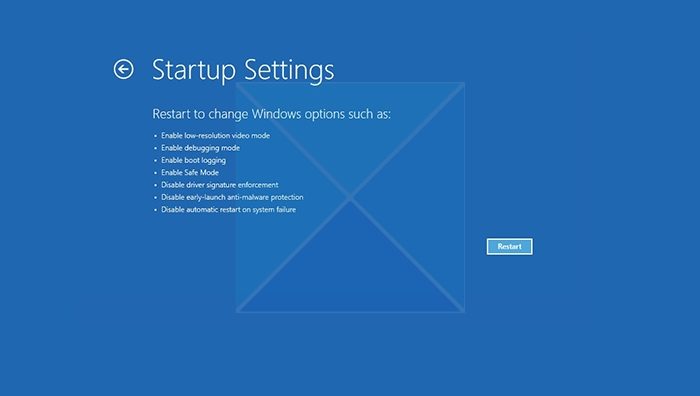
A corrupted or partially updated graphics driver is one of the most common reasons for black screens during gaming. When Windows automatically updates drivers on top of older ones, leftover files can cause a TDR (Timeout Detection and Recovery) error. Running DDU in Safe Mode removes all traces of the old driver, allowing you to install a fresh copy from scratch. Follow the steps mentioned below to do the same.
- Download Display Driver Uninstaller (DDU).
- Boot your PC into Safe Mode. To do this, hold the Shift key while clicking Restart from the Start menu. Then go to Troubleshoot > Advanced Options > Startup Settings > Restart, and press the 4 key when the menu appears.
- Once in Safe Mode, run DDU as Administrator.
- Select your GPU type (NVIDIA, AMD, or Intel) from the dropdown menu, then click Clean and restart.
After the restart, download the latest driver directly from the manufacturer’s website and install it normally.
4] Replace your HDMI or DisplayPort cable
This might sound too simple, but a worn, cheap, or damaged cable can work fine for basic tasks and fail the moment your game pushes high bandwidth, like when you’re playing at high resolutions or refresh rates. A new, certified cable eliminates this variable.
- Power off your PC and your monitor completely.
- Unplug the current video cable from both ends.
- Get a known-good, high-quality replacement cable (look for “certified” on the packaging for HDMI 2.1 or DisplayPort 1.4/2.0).
- Connect the new cable securely at both ends until you hear or feel a click.
Power everything back on and launch your game.
That’s it!
Read: How to move fullscreen game to second monitor in Windows 11.
External monitor shuts off when gaming on Windows 11
External monitor off when the GPU loses signal under load while the laptop keeps running. The usual triggers are hardware-accelerated GPU scheduling (HAGS) bugs, unstable refresh rates, or driver crashes.
- Disable HAGS: Settings > System > Display > Graphics > Default graphics settings > toggle Off.
- Lower refresh rate: Settings > System > Display > Advanced display > choose a stable rate.
- Clean reinstall GPU drivers using DDU in Safe Mode.
Start with HAGS and refresh rate; those fix most cases. If the issue persists, proceed to reinstall the driver.
Read: Second Monitor lags when playing games.
Why does my monitor keep turning on and off when my PC is off?
This usually happens because Windows or a connected peripheral (such as your mouse or keyboard) briefly wakes the system from sleep. Even when your PC is off, background tasks like scheduled maintenance, wake timers, or a sensitive mouse can send a signal that turns the display on, then off again as the system immediately goes back to sleep. Disabling USB devices that can wake your computer solves this.
Why does my computer turn off completely when I’m playing a game?
When your PC shuts down entirely mid-game, it’s almost always a hardware protection trigger. Your computer does this to prevent permanent damage. The two most common culprits are either your CPU or GPU overheating beyond safe limits, or your Power Supply Unit (PSU) being overloaded by sudden power spikes from the graphics card. Check your component temperatures with HWMonitor while gaming; if they exceed 85-90°C, you’re dealing with overheating. If temperatures are normal, your PSU likely needs an upgrade.
Also Read: Fix Mouse lag when connected to external monitor.
