
A Blue Screen of Death (BSOD) that fails to create a memory dump file and leaves no trace in the Event Viewer is a frustrating scenario when trying to troubleshoot the issue. This absence of evidence severely hinders the troubleshooting process, as the critical clues needed to identify the root cause are missing. This typically points to a failure in the very early stages of the crash process, before the system can write diagnostic data to the disk. If BSOD is not generating logs, and there is nothing in Event Viewer, follow the solutions mentioned below.
BSOD not generating logs and there is nothing in Event Viewer
This issue occurs because the fatal system crash happens at such a low level that the components responsible for writing the log files, the disk subsystem, file system drivers, or memory management, are themselves compromised or unavailable. The failure is often so severe that it interrupts the process before the error can be logged to the Event Viewer or before the memory dump can be paged out from RAM to the designated file on the storage drive.
If the BSOD is not generating logs, and nothing is in Event Viewer, you can follow the solutions mentioned below.
- Verify Kernel Dump Configuration
- Check Page File Settings
- Run CHKDSK
- Test System Memory
Let us talk about them in detail.
1] Verify Kernel Dump Configuration
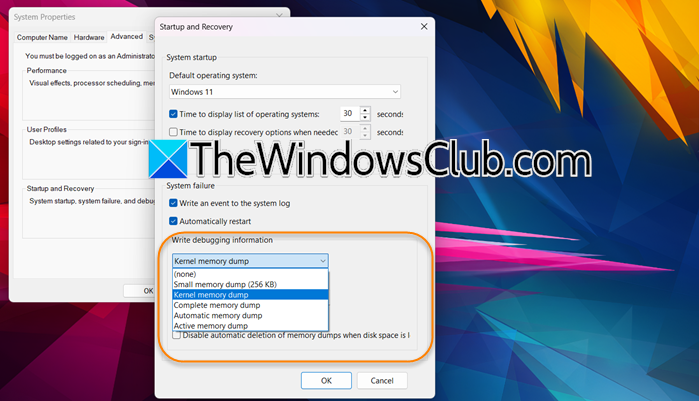
Your system must be explicitly configured to create a log file (a memory dump) when a BSOD occurs. By default, this is configured, but in your case, this might not be set up correctly, or the setting might point to a location without enough space, causing the log creation to fail silently. Let us go ahead and check and fix the configuration.
- Open Run (Win + R), type systempropertiesadvanced.exe, and click OK.
- Now, go to the Advanced tab and click on Settings.
- In the Write debugging information section, ensure the dropdown is not set to (none). Select Kernel memory dump (recommended for most users) or Small memory dump.
- Verify the Dump file path (usually %SystemRoot%\MEMORY.DMP for Kernel or %SystemRoot%\Minidump for Small). Ensure the drive letter in the path (typically C:) has enough space.
- Then, ensure the checkbox for Overwrite any existing file is checked.
- Finally, click on OK.
Now, check if the issue is resolved.
2] Check Page File Settings
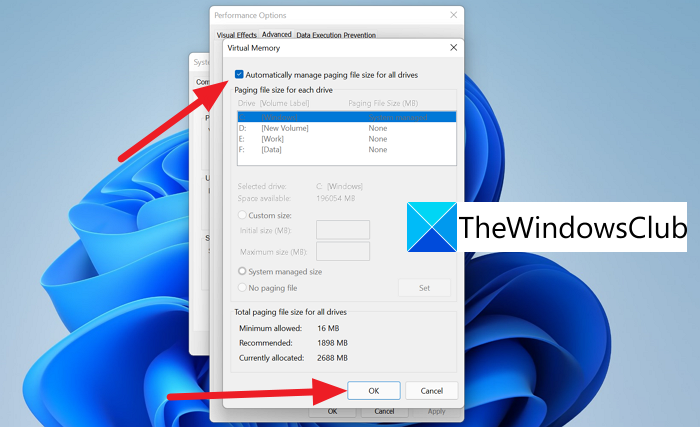
The page file on the boot drive acts as a temporary buffer for the crash data. If it is missing, too small, or on the wrong drive, the dump process has nowhere to write and fails. You can follow the steps mentioned below to do the same.
- Open Virtual Memory Settings, by pressing Win + R, typing systempropertiesperformance.exe, and clicking OK.
- Go to the Advanced tab.
- Click on Change…
- Make sure that “Automatically manage paging file size for all drives” is checked.
- If it is unchecked, select your system drive (usually C:), then select the System managed size option and click Set.
- Click on OK.
This should do the job for you.
3] Run CHKDSK
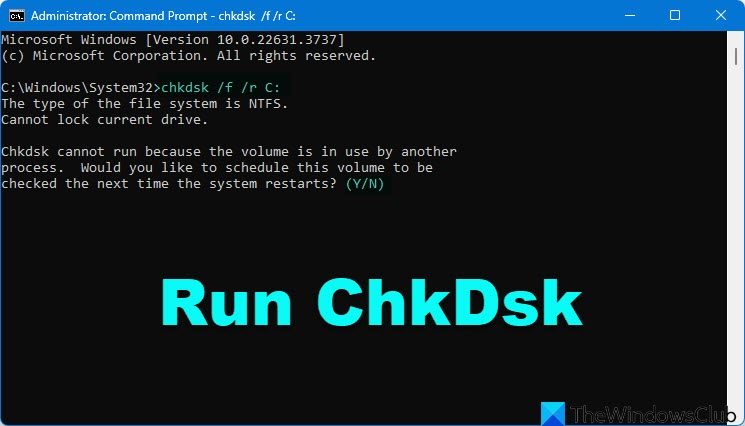
A BSOD memory dump is a file written to your storage drive. If the drive’s driver is corrupted or the physical hardware (HDD/SSD) is failing, the system cannot complete the write operation, resulting in no log file being created.
Open the Command Prompt (as an administrator), type chkdsk /f /r C:, and press Enter. When prompted to schedule the scan for the next restart, type Y and restart your computer.
Download and run a tool like CrystalDiskInfo. It will instantly display the Health Status of your drive (e.g., Good, Caution, Bad) based on its internal SMART diagnostics, indicating hardware failure.
4] Test System Memory
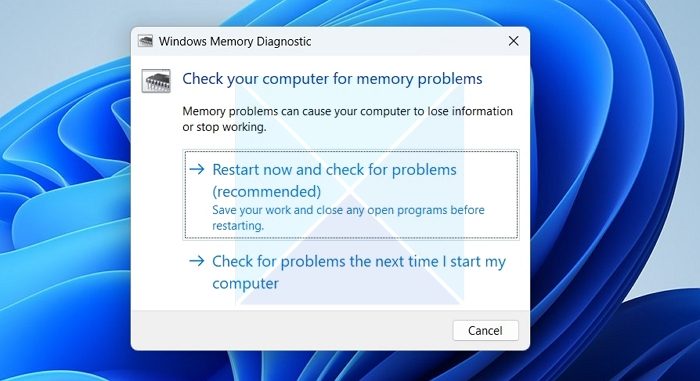
Faulty RAM (bad memory modules) can corrupt the core operating system data and drivers needed to successfully capture and write a crash dump. This causes a catastrophic failure so early in the crash process that the logging mechanisms are never even activated.
- Hit Win + R, type mdsched.exe, and click OK.
- Now, select Restart now and check for problems to allow the tool to run upon reboot.
- An extended test will run automatically; allow it to complete, as this takes time. Your computer will restart, and the results will be displayed briefly on screen or can be found in the Windows Logs > System section of Event Viewer, looking for a source named MemoryDiagnostics-Results.
Finally, check if the issue persists.
Hopefully, with the help of these solutions, your issue will be resolved.
Read: How to fix Blue Screen in Windows 11
How to check BSOD log in Event Viewer?
To check for BSOD logs in Event Viewer, open it by typing eventvwr.msc in the Run dialog. Navigate to Windows Logs > System. Use the Filter Current Log option on the right to display only events with the source BugCheck or EventLog (Event ID 6008), which will show the recorded crash information.
Read: How to Recover Data after Blue Screen of Death in Windows 11?
How to find out what caused BSOD?
The primary method is to analyze the memory dump files (e.g., C:\Windows\MEMORY.DMP or files in C:\Windows\Minidump) using a tool like WinDbg or BlueScreenView. If no dump was created, check the Event Viewer under Windows Logs > System and filter for events with a source of BugCheck. For persistent, unlogged crashes, test your hardware, specifically your RAM and storage drives, for failures.
Also Read: Troubleshoot Windows Blue Screen or Stop Errors.
