
Windows Update uses Event Tracing for Windows (ETW) to generate diagnostic logs and save them in the .etl file format. This reduces disk space usage and improves performance. In this post we will show you how to find Windows Update logs and how to read Windows Update Logs in Windows 11/10.
One fallout of this method is that the Windows Update logs are not immediately readable. You need to decode the .etl file, which is the format these logs are saved in.
Where to find Windows Update Logs?
On Windows 11 and Windows 10, Windows Update logs are not stored in plain text anymore. They need to be captured using Event Viewer and PowerShell. In earlier versions, they could be found here at C:\Windows\WindowsUpdate.log.
How to read Windows Update logs in Windows 11
You can use PowerShell, Event Viewer or the Tracefmt.exe tool to read the Windows Update logs.
Use PowerShell to read Windows Update logs
When you open the file C:\Windows\WindowsUpdate.log in File Explorer you will only see the following information pop upin Notepad:
Windows Update logs are now generated using ETW (Event Tracing for Windows). Please run the Get-WindowsUpdateLog PowerShell command to convert ETW traces into a readable WindowsUpdate.log.
In order to read the WindowsUpdate.log, you will need to use Windows PowerShell cmdlet to re-create the WindowsUpdate.log the way we normally view it.
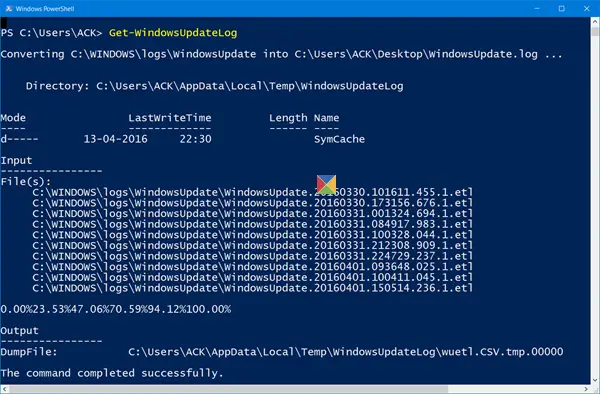
So open a PowerShell window, type Get-WindowsUpdateLog and hit Enter.
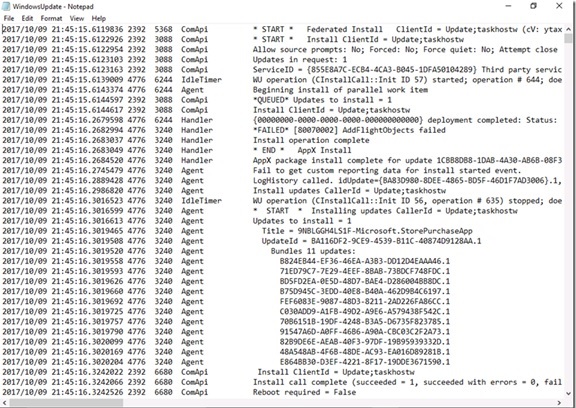
When you open one of these .etl file, you will see the content in the following format:
- Timestamps
- Process ID and thread ID. The first four digits are the process ID, and the next four are the thread ID
- Component name. Identifiers for the components that are associated with the IDs
- Update identifiers include update IDs and revision numbers, revision IDs, local IDs, and inconsistent terms and descriptions.
Full details can be found on Microsoft.com.
Use Event Viewer to read Windows Update logs
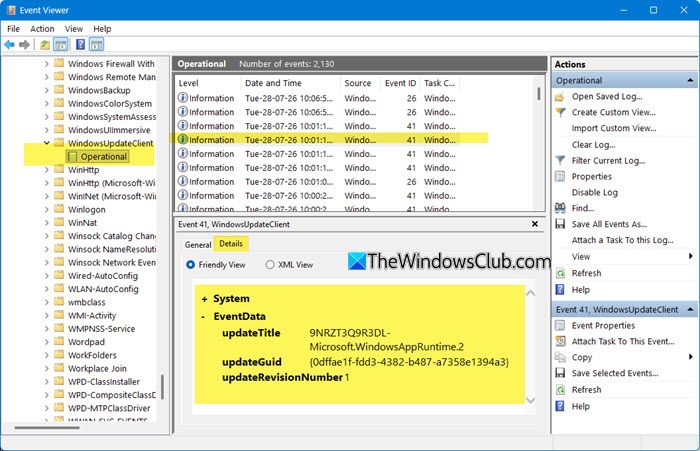
Open Event Viewer and navigate to the following path:
Applications and Service Logs > Microsoft > Windows > WindowsUpdateClient > Operational.
Here, you can browse the event logs. To get detailed information, select a specific log and click on the Details tab below it.
Using Tracefmt.exe tool to read the Windows Update logs
To read the Windows Update logs in Windows 11/10, you can also use the following method:
- Download Windows Symbol Package and install them using the method outlined here. Install these symbols to say, C:\symbols.
- Download Tracefmt.exe tool by following the instructions here. Tracefmt (Tracefmt.exe) is a command-line tool that formats and displays trace messages from an event trace log file (.etl) or a real-time trace session. Tracefmt can display the messages in the Command Prompt window or save them in a text file.
Now open a command prompt with administrative rights and create a temporary folder, named %systemdrive%\WULogs. Now copy Tracefmt.exe to this directory.
Next, Run the following commands one after the other:
cd /d %systemdrive%\WULogs
copy %windir%\Logs\WindowsUpdate\* %systemdrive%\WULogs\
tracefmt.exe -o windowsupate.log <each windows update log delimited by space> -r c:\Symbols
The method does look tedious.
Other Useful Windows Update related Logs
- CBS.log: Located at
%systemroot%\Logs\CBS.Useful for troubleshooting installation issues. - UpdateSessionOrchestration.etl: Found in
C:\ProgramData\USOShared\Logs.Tracks download/installation orchestration. - NotificationUxBroker.etl: Same folder, logs update notifications.
BONUS INFORMATION
Windows Update Log File formatting has been improved
When Microsoft released Windows 10, it substituted the Windows Update log file date log file from a plain text to a binary file format. The Windows Update log file is typically required by Developers and IT professionals to read vital information while debugging applications. The preferred format for the Update log file is text so that it can be opened using the plain text editor, or processed using the text editing tools.
However, with Microsoft replacing with an unreadable binary format, a new PowerShell cmdlet, Get-WindowsUpdateLog, was added to format the binary file and convert to the preferred text format.
This process required users to either connect to the Microsoft Symbol Server to get the latest symbol files or they needed to download the latest Windows symbol files before running the Get-WindowsUpdateLog cmdlet. However, the process would not succeed if the latest symbols were unavailable at the Microsoft Symbol Server at the time of connection, which could cause formatting issues in the formatted text files.
This issue has been sorted out now
Connection to Microsoft Symbol Server not required
Microsoft has improved the overall Windows update log file access. Establishing a connection to the Microsoft Symbol Server to get the symbols is no longer required. Though, users will still have to run the Get-WindowsUpdateLog PowerShell cmdlet to translate the Windows Update log from its binary format into readable text files.
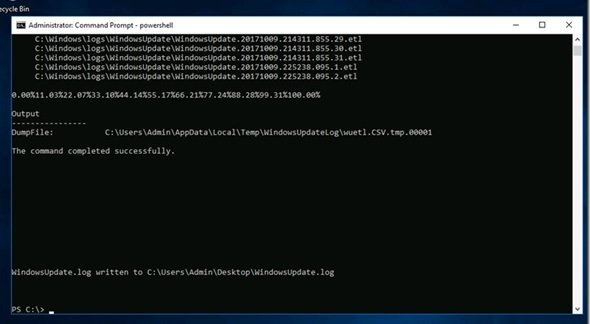
Observe the screenshots and you will find that though the computer has no network connection at all (see the icon at the bottom right), the Get-WindowsUpdateLog worked successfully.
What are Symbol files?
For curious minds, here is an explanation. When applications, libraries, drivers, or operating systems are linked, the linker that creates the .exe and .dll files also create a number of additional files known as symbol files.
Symbol files are identified with the extension .pdb. They hold a variety of data which are not actually needed when running the binaries, but which could be very useful in the debugging process. symbol files typically contain,
- Global variables
- Local variables
- Function names and the addresses of their entry points
- Frame pointer omission (FPO) records
- Source-line numbers
Read next: Where to look for your Windows Update History.
