
If you are receiving a KERNEL_MODE_HEAP_CORRUPTION Blue Screen on Windows 11/10, then this post will help you resolve it. One of the primary reasons for this error is a conflict between Windows and an outdated or corrupted driver. Other known reasons include memory leaks or hardware faults. However, there is a rare chance that a software conflict can do that, unless it involves the drivers.
The KERNEL MODE HEAP CORRUPTION bug check has a value of 0x0000013A. This indicates that the kernel mode heap manager has detected corruption in a heap.
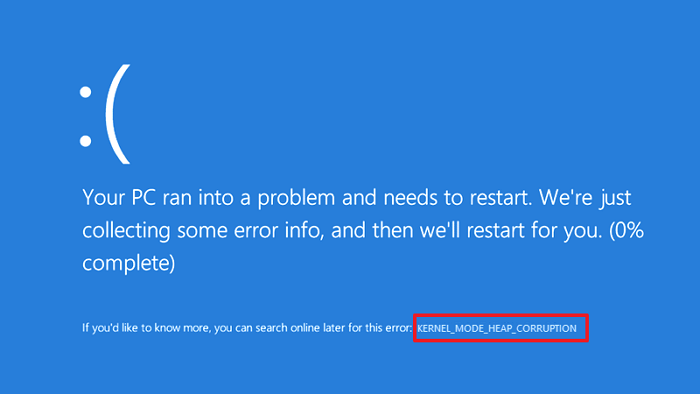
Fix KERNEL_MODE_HEAP_CORRUPTION BSOD
Follow these methods to resolve a BSOD caused by Kernel Mode Heap Corruption in Windows 11/10.
- Run ChkDsk
- Use Device Verifier Manager
- Update or Rollback Driver
- Fix Corrupt System Files
- Run Memory Diagnostics
- Run Hardware Troubleshooter
You will need a clear understanding of what the methods do here and admin permission.
Moreover, if you can log in normally, good; else you will have to boot into Safe Mode, enter Advanced Startup options screen, or use the Installation Media to boot to be able to carry out these instructions.
1] Run ChkDsk
Run ChkDsk using the following command:
chkdsk c: /r
2] Use Device Verifier Manager
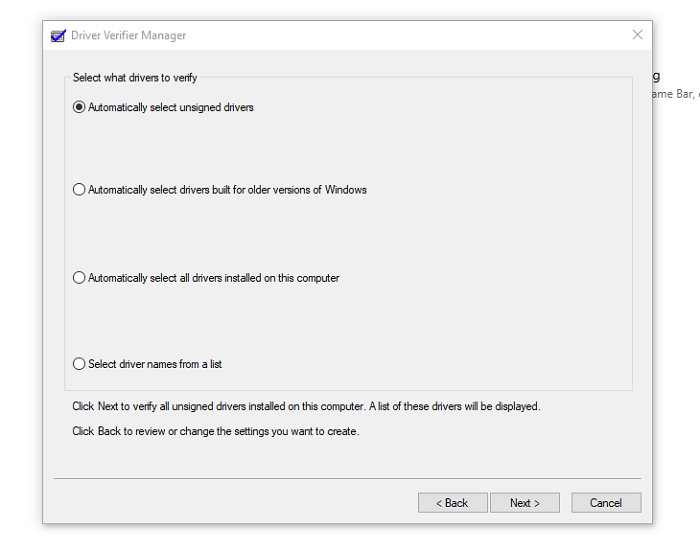
One of the best methods to check if the driver is an issue is to run the Driver Verifier Manager. The tool will help troubleshoot, identify & resolve common device driver problems.
Open the Run prompt ( Win + R), type verifier, and then press the Enter key. Once the Device Verifier is open, select Create Standard settings and then select Automatically select unsigned drivers. This will help narrow down the issue if it’s caused by unsigned drivers. Once you detect it, uninstall the driver, and then reinstall the correct driver.
3] Update or Rollback Driver
Depending on the situation, you can either update or roll back the driver and check if the BSOD issue is resolved.
If the BSOD occurred because you have recently updated the driver, you could roll back using the Device Manager. Use Win + X, followed by M to open the device manager. Next, locate the hardware for which you have updated the driver.
Once you find it, double-click to open the properties window, and then select the Drivers tab. If you recently updated the driver, the Rollback Driver button will be enabled. Use that.
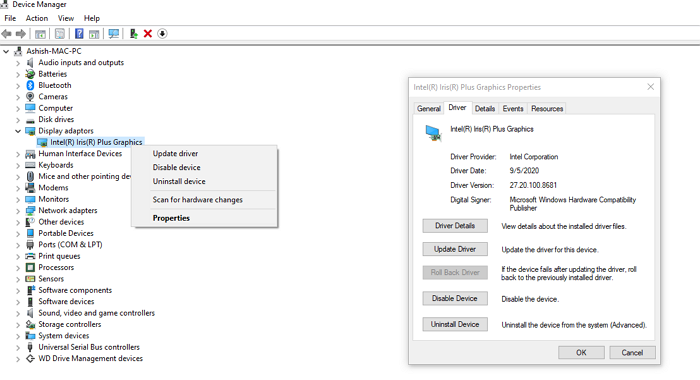
If the BSOD occurred after a Windows Update, it’s possible you need to install the latest compatible driver.
Open Device Manager, locate the device, right-click it, and choose Update Driver. If this doesn’t work, go to the OEM website and check for an updated driver.
4] Fix Corrupt System Files
System File Checker and DISM are two tools that can help fix corrupt system files that may be causing the BOSD screen. Follow our exhaustive guide on how to use them.
SFC command:
sfc /scannow
DISM Command:
Dism /Online /Cleanup-Image /RestoreHealth
First, run the SFC command; if that doesn’t work out, use the DISM command. Make sure to run them on an elevated command prompt.
5] Run Memory Diagnostics
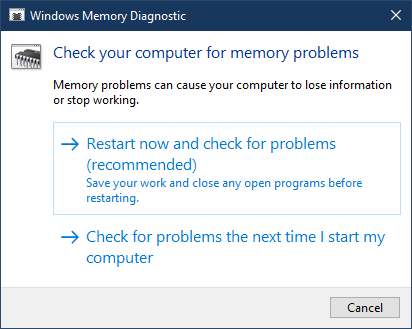
Check your memory. Use the Windows Memory Diagnostic Tool. Go to Control Panel and type “memory” in the Search box. Under Administrative Tools, click Diagnose Your Computer’s Memory Problems. In the Windows Memory Diagnostics Tool, shown here, select one of the options.
6] Run Hardware Troubleshooter
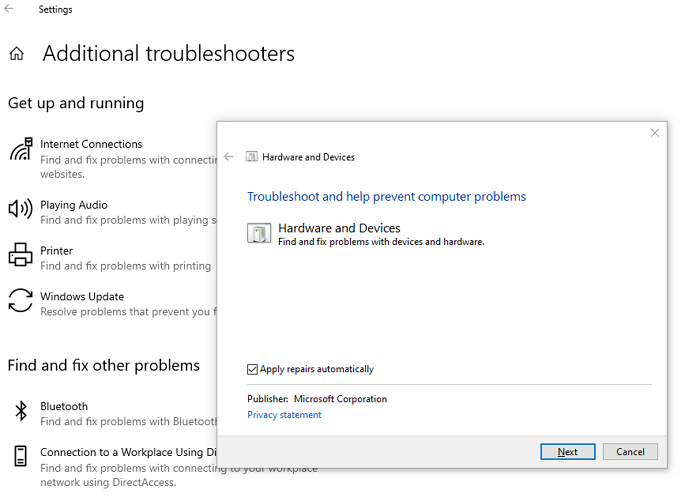
Microsoft offers a built-in hardware troubleshooter that you can invoke using the following command on PowerShell or an elevated Command Prompt.
msdt.exe -id DeviceDiagnostic
Once launched, click on the Advanced link, and uncheck the—Apply repairs automatically—option. You can do this if you want to understand the problem before it gets fixed. Click on the Next button.
The wizard will then run its diagnostics. It may prompt you to enable checking for an updated driver. Once done, if there is an issue with the driver, it will figure it out and offer a solution.
I hope these solutions help you with the BSOD caused by Kernel Mode Heap Corruption on Windows 11/10. The issue is related to drivers, but it is always good to check for any recently installed software that could also be causing the problem.
More Tips: Fix Windows Stop Errors or Blue Screen of Death.
