
If you are getting a DAM WATCHDOG TIMEOUT Blue Screen error in Windows 11/10, these solutions will help you troubleshoot the issue. This problem mainly occurs due to corrupt drivers and RAM incompatibility. If you are getting this BSOD, you can try these solutions to get rid of the issue within moments.
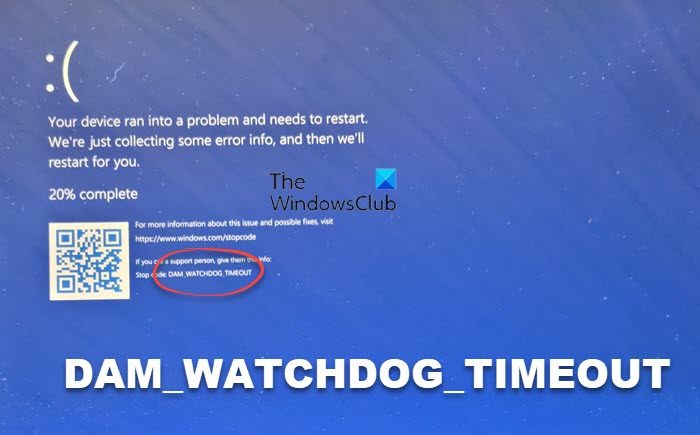
Fix DAM WATCHDOG TIMEOUT Blue Screen in Windows 11
To fix DAM WATCHDOG TIMEOUT Blue Screen in Windows 11/10, follow these steps:
- Uninstall recently installed drivers
- Check RAM speed
- Use Windows Memory Diagnostic
- Use Driver Verifier Manager
To learn more about these steps, continue reading.
1] Uninstall recently installed drivers
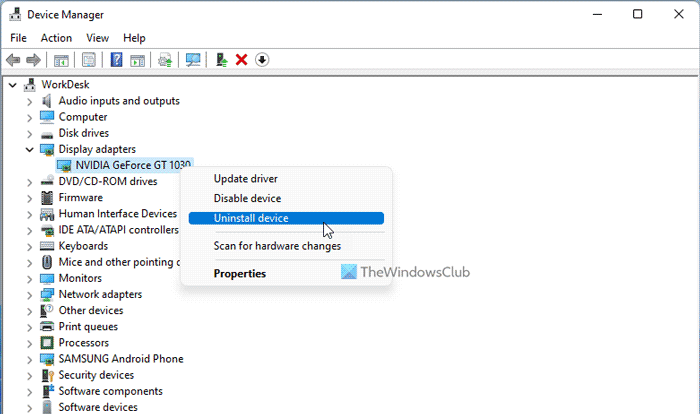
In most cases, BSOD errors occur due to corrupted drivers and incompatible hardware. In this situation, it appears when you have issues with the installed drivers or RAM. Therefore, you should start the troubleshooting process by checking the drivers.
If you have recently installed or updated a driver on your computer, it is recommended that you remove it immediately. Sometimes, an incompatible driver version can cause this issue. That is why you can follow this guide to uninstall or remove device drivers in Windows.
2] Check RAM speed
Let’s assume that you have RAM of 2400 MHz. However, you recently installed another RAM module with a speed of 3200 MHz. If this happens, you can expect the aforementioned BSOD on your computer. That is why you must install the new RAM of the same speed as the older one. To check the RAM speed on Windows, you can follow this guide.
3] Use Windows Memory Diagnostic
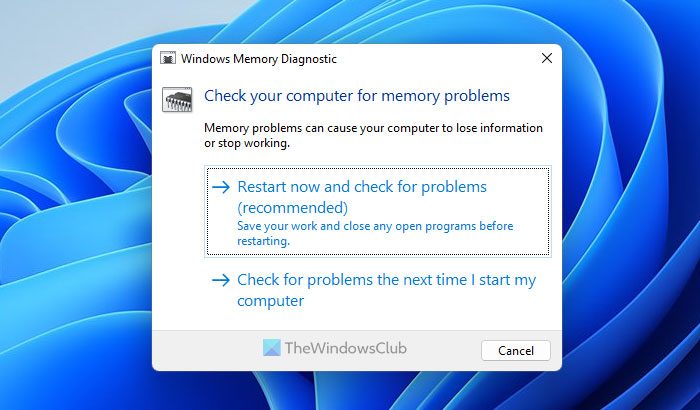
The Windows Memory Diagnostic tool helps you detect and fix common RAM issues. If there are minor problems with your installed RAM, you can fix them with the Windows Memory Diagnostic tool. The best thing is that you do not need to download it externally since Windows 11 and Windows 10 come with this utility as a pre-installed app.
You can open this utility by searching for windows memory diagnostic. Following that, click on the Restart now and check for problems option.
It will search for problems within moments post-restart. However, if you want to learn more about Windows Memory Diagnostic tool, you can go through this article.
4] Use Driver Verifier Manager
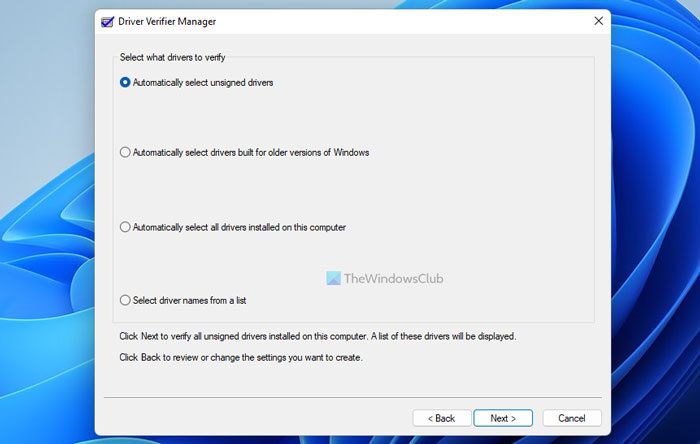
Driver Verifier Manager is one of the best options to find corrupt drivers on your PC. You can find unsigned drivers, drivers built for older versions of Windows, etc. On the other hand, you can select all the drivers or choose a specific driver to find issues.
Like the Windows Memory Diagnostic Tool, Driver Verifier Manager is also an in-built utility that you can open by searching for the Driver Verifier Manager verifier. However, if you want to learn more about the Driver Verifier Manager, you can read this article.
That’s all! Hope this guide helped.
How do I fix the CLOCK WATCHDOG TIMEOUT error in Windows 11?
To fix the CLOCK WATCHDOG TIMEOUT error in Windows 11, you can follow this guide. In other words, you need to uninstall updates of recently installed drivers, unplug all external devices, remove recently installed hardware, etc. On the other hand, you can also run the Windows Memory Diagnostic tool.
How do I fix Watchdog Timeout blue screen?
There are many BSOD errors related to WATCHDOG TIMEOUT in Windows 11 and Windows 10 PC. However, you need to find the exact error to troubleshoot the issue. For your information, if you get PDC WATCHDOG TIMEOUT BSOD, you can run the Windows Memory Diagnostic tool, update the BIOS, etc. On the other hand, if you get DAM WATCHDOG TIMEOUT BSOD, you can follow the aforementioned solutions mentioned in this article.
Similar BSODs:
- CLOCK_WATCHDOG_TIMEOUT Blue Screen
- PDC WATCHDOG TIMEOUT Blue Screen.
