
If Task Manager is showing High CPU, Memory, or Power usage by Windows Audio Endpoint Builder in Windows 11, here is how you can fix the issue within moments. Here you can find all the possible reasons and solutions to fix this problem.
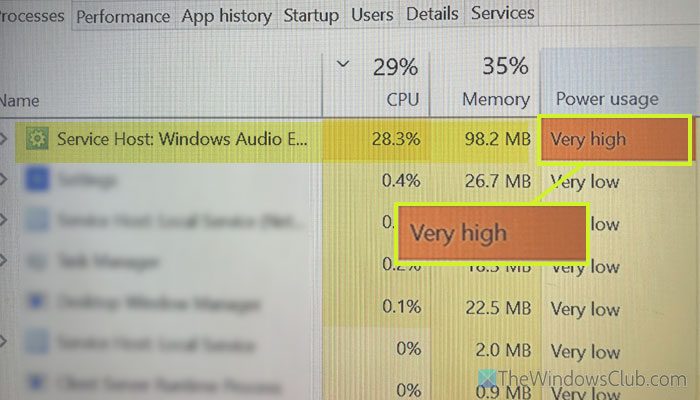
Why does Windows 11 show high CPU usage by Windows Audio Endpoint Builder?
If Windows 11/10 shows high CPU usage by Windows Audio Endpoint Builder, one of these could be the reason:
- Corrupt audio driver
- Adware and malware
- Corrupt system files
- A glitch in the audio driver or Windows update.
- Services are not running in the background.
Fix Windows Audio Endpoint Builder High CPU
To fix the high CPU usage by Windows Audio Endpoint Builder, follow these solutions:
- Update audio driver
- Uninstall and re-install audio driver
- Restart services and dependencies
- Update Windows
- Run System File Checker
- Scan PC for adware and malware
To learn more about these solutions, continue reading.
1] Update audio driver
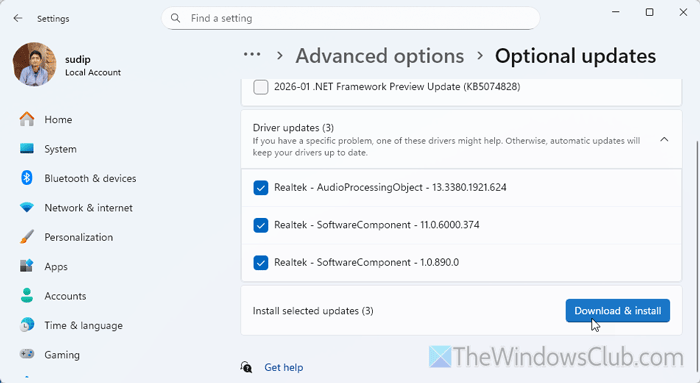
If you haven’t updated your audio driver for a very long time but you have installed several updates of Windows 11, you might encounter the aforementioned error.
To update the audio driver in Windows 11, follow the instructions:
First, press Win+I to open the Windows Settings panel. Then, go to Windows Update > Advanced options > Optional updates.
Then, expand the Driver updates section and find the audio driver update. Select it/them and download it/them.
Finally, restart your computer.
Read: How to install Driver and Optional Updates in Windows 11
2] Uninstall and re-install audio driver
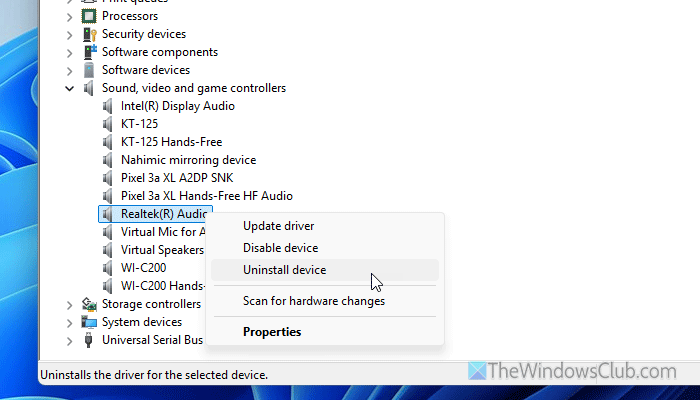
To uninstall the audio driver, open the Device Manager and expand the Sound, video and game controllers menu. Then, right-click on the Realtek High Definition Audio option and choose the Uninstall device option. If it asks for confirmation, click the Uninstall button.
After that, open the official Realtek HD Audio Driver website, download, and install it accordingly.
Read: How to download Audio driver for Windows 11
3] Restart services and dependencies
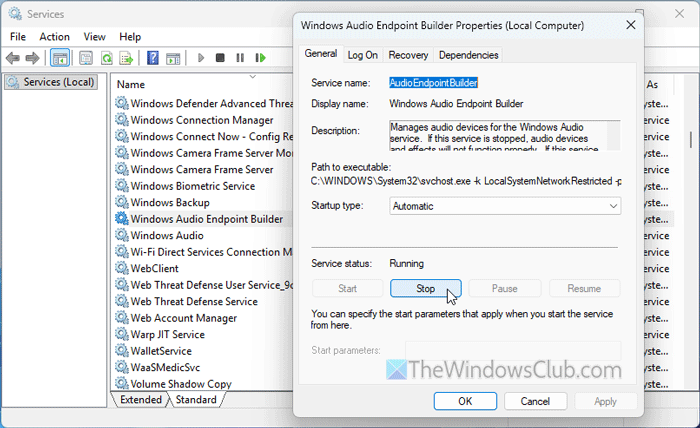
Although the Windows Audio Endpoint Builder service doesn’t depend on any other service, some other services depend on it. For example, Windows Audio and Windows MIDI Service depend on the Windows Audio Endpoint Builder service.
That said, it is recommended to restart the Windows Audio Endpoint Builder service first. Then, restart both of those mentioned services. To do that, open the Services panel first.
Then, find the Windows Audio Endpoint Builder service and double-click on it. Next, click the Stop button.
Choose Automatic from the Startup type drop-down menu and click on the Start button.
Finally, click the OK button to save the change. Once done, do the same with Windows Audio and Windows MIDI Service.
Read: How to Enable, Disable, Start, Stop, Refresh or Restart Services in Windows
4] Update Windows
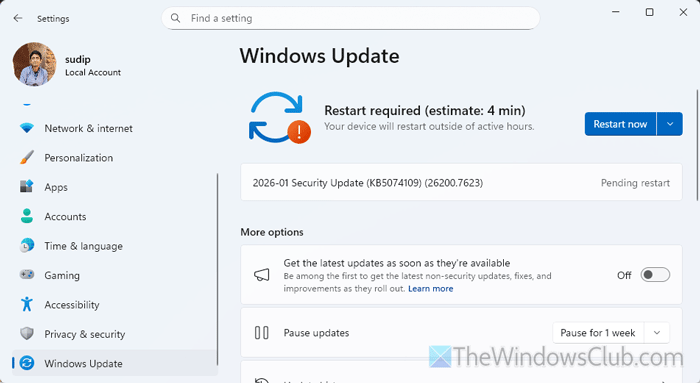
To update Windows 11, open the Windows Settings panel first. Then, go to the Windows Update tab and find if an update is available for not. If yes, download and install it.
It is also recommended to go to Advanced options > Optional updates and download all the available driver updates as well.
5] Run System File Checker
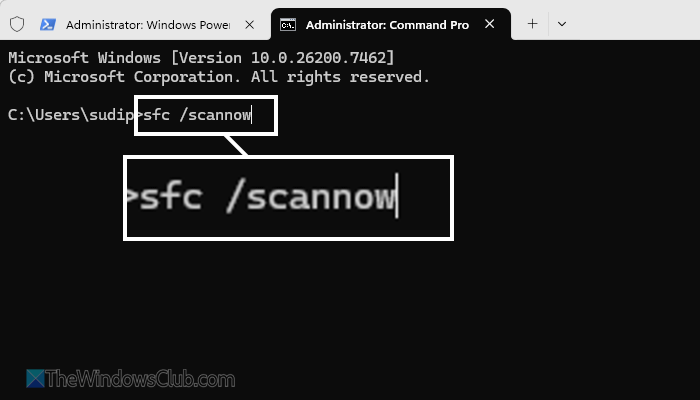
If there are issues with the Windows Audio service’s system files, you might end up with high CPU, Memory, and Power usage by Windows Audio Endpoint Builder. That is why you can run the System File Checker and rectify all the damaged system files within minutes.
To run the SFC scan, open Terminal with administrator privileges and use this command: sfc /scannow.
For your information, it takes a few minutes to complete the process.
6] Scan PC for adware and malware
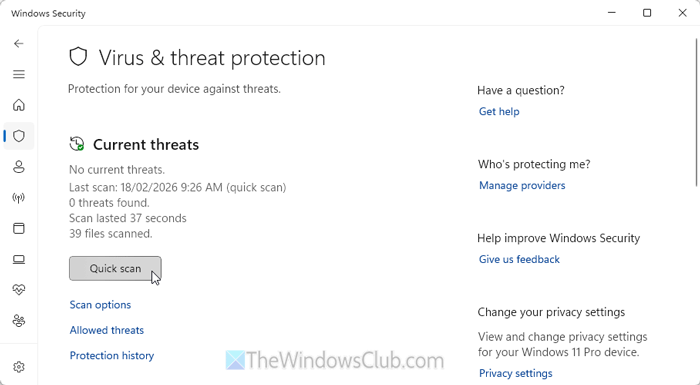
If your computer is attacked by malware or adware, there is a high chance of encountering such excessive resource use caused by random services. That is why it is suggested to scan your system with an adware removal tool first. That said, AdwCleaner is one of the best programs in this segment.
Following that, scan your computer with an antivirus. You can certainly use Windows Security. However, if it doesn’t work, you can use Kaspersky Free Antivirus, Avast Antivirus, or anything else.
Read: Windows could not start Windows Audio Endpoint Builder service
Can I disable Windows Audio Endpoint Builder Service?
Although you cannot disable it, you can stop this particular service from running in the background. For that, open the Services wizard and double-click on the Windows Audio Endpoint Builder service. Then, click the Stop button.
How to fix audiodg.exe high CPU usage?
To fix the audiodg.exe high CPU usage problem in Windows 11, uninstall Skype and update the audio driver first. After that, disable all sound effects and use the Get Help app to run the audio troubleshooter.
Read: Windows Audio Service needs restart at login to get sound back
