
If you see an error message saying Windows could not start the Windows Audio Endpoint Builder service on Local Computer, here is how you can fix the issue in Windows 11/10 PC. Because this error can arise from multiple scenarios or causes, we have consolidated the possible reasons and solutions to resolve it.
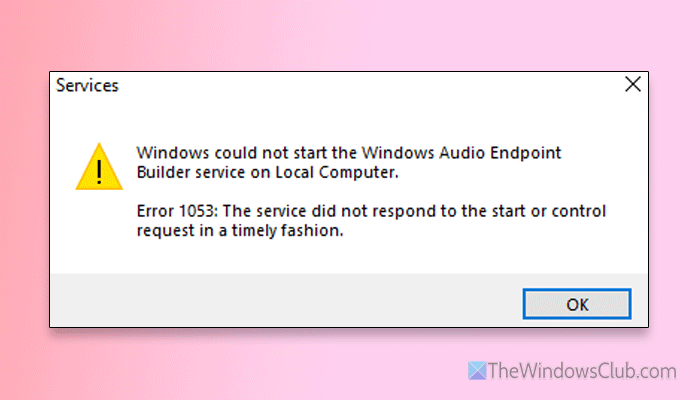
The error message is something like this:
Windows could not start the Windows Audio Endpoint Builder service on Local Computer.
Error 1053: The service did not respond to the start or control request in a timely fashion.
Windows could not start the Windows Audio Endpoint Builder service
To fix the Windows could not start the Windows Audio Endpoint Builder Service error, follow these solutions:
- Check all the dependencies
- Restart/enable Power service
- Gain access to AudioEndpointBuilder
- Update Windows and Audio driver
- Reinstall Windows Audio driver
- Disable third-party equalizers
- Run SFC scan.
To learn more about these solutions, continue reading.
1] Check all the dependencies
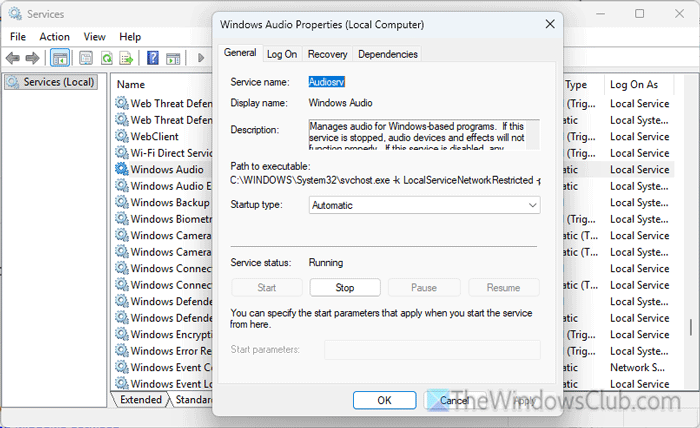
In case you didn’t know, most Windows services depend on other services. For example, the Windows Audio Endpoint Builder service depends on these two services:
- Windows Audio
- Windows MIDI Service
In other words, if these two services are not running, the Windows Audio Endpoint Builder service won’t run properly. That said, it is recommended to check these two dependencies first.
For that, open the Windows Services wizard and double-click on the Windows Audio service first. If it is not running, choose Automatic from Startup type, and click the Start button.
After that, do the same with Windows MIDI Service.
2] Restart/enable Power service
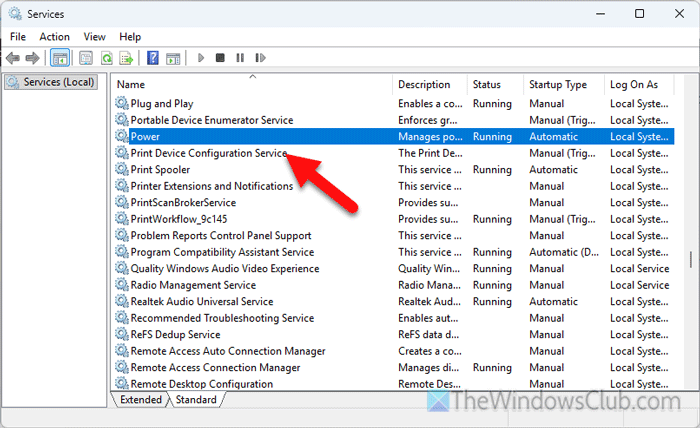
The Power service lets you manage all the power-related policies on your computer. On the other hand, if this service is not running, you won’t be able to start or use the Windows Audio Endpoint Builder service. As a result, the aforementioned error will appear on your computer. Therefore, follow these steps to restart or enable the Power service in Windows 11:
First, press Win+R to open the Run prompt, type services.msc, and hit the Enter button.
Then, find Power service and double-click on it. If this service is running, click the Stop button, choose Automatic from the Startup type drop-down menu, and click the Start button.
However, if it is not running, click the Start button.
Note: If the Start and Stop buttons are grayed out, you do not need to take any action. Make sure the Service status is Running.
Read: How to Enable, Disable, Start, Stop, Refresh or Restart Services in Windows
3] Gain access to AudioEndpointBuilder
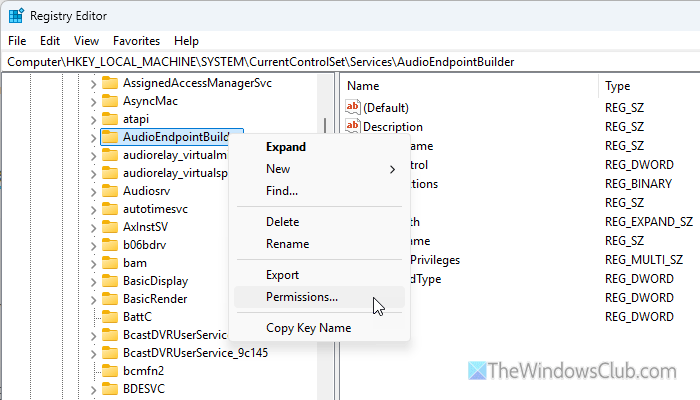
AudioEndpointBuilder is a registry key, and your current user account must have access to this key. If your user account doesn’t have access to this registry key, you will get the above-mentioned error.
Therefore, follow these guide to gain access to AudioEndpointBuilder in Windows 11 PC.
The path of this key is this:
HKEY_LOCAL_MACHINE\SYSTEM\CurrentControlSet\Services\AudioEndpointBuilder
It is highly recommended to backup registry files and create a System Restore point before making any changes in the Registry files.
4] Update Windows and audio driver
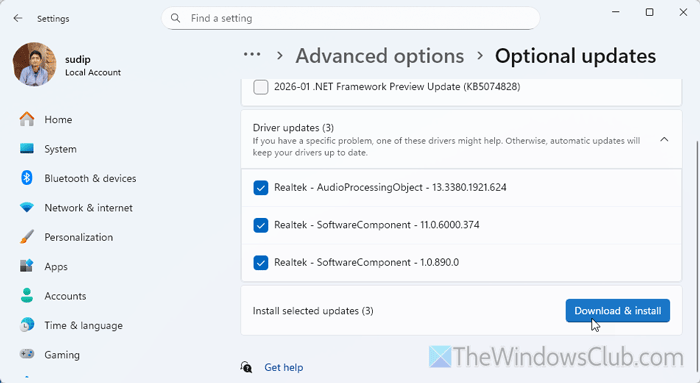
At times, an old version of Windows 11 could cause this error. If so, it could be resolved by updating Windows. Not only that, but if your audio driver hasn’t been updated in a long time, you may encounter this problem on your computer. In that case, you also need to update the Audio driver.
To update Windows 11 and the audio driver, follow these steps:
Press Win+I to open Windows Settings on your computer. Go to Windows Update and check if there is any pending updates.
If yes, download and install them. Otherwise, click on the Advanced options > Optional updates and expand the Driver updates section.
If any update is available that is named after Audio, download and install it as soon as possible.
Once done, restart your computer and check whether the issue is resolved.
Read: How to install Driver and Optional Updates in Windows 11
5] Reinstall Windows audio driver
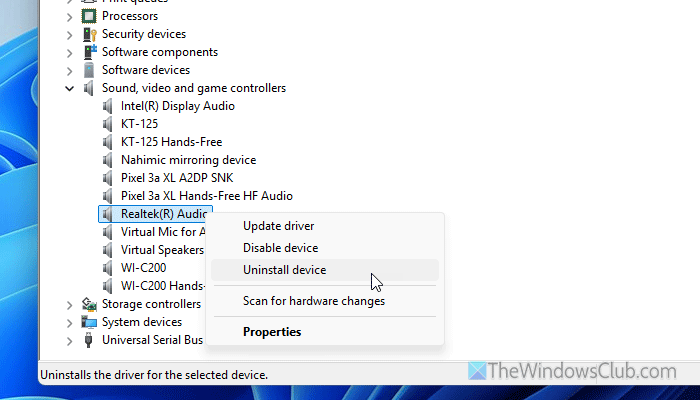
Generally, Windows 11 doesn’t require an audio driver to use a wired speaker. However, a driver might be required at times to get more options and control over your speakers and microphones. If this driver is not updated or has issues, you may encounter the above-mentioned error.
To reinstall Windows audio driver, do the following:
First, open the Device Manager and expand the Sound, video and game controllers section. Next, right-click on the Realtek High Definition Audio and select the Uninstall device option.
It will ask for confirmation. Click the Uninstall button. Next, head to the official website of your audio driver, download and install it accordingly.
6] Disable third-party equalizers
If you use a third-party equalizer such as Viper4Windows, Equalizer APO, Windows Audio Loudness Equalizer, or anything else, it is time to disable it. These equalizers make many changes to your audio settings, and as a result, some services might not be functioning properly.
7] Run SFC scan
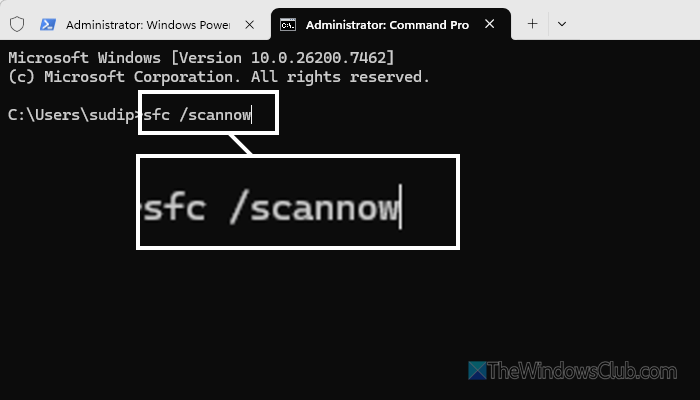
If none of the aforementioned solutions work for you, it is considered that some of your system files are corrupt. At this moment, System File Checker is the solution. Although you can use DISM, an SFC scan is better suited for this purpose.
To run the SFC scan, follow these steps:
- Open the Command Prompt instance Terminal with administrator permission.
- Enter this command: sfc /scannow
Let the process be finished. You might need to restart your computer.
Windows Audio Endpoint Builder not found or missing
To fix the Windows Audio Endpoint Builder not found or missing error, follow these solutions:
- Run the SFC scan.
- Check AudioEndpointBuilder registry key. If you cannot access it, gain access to it.
- Reinstall audio driver.
- Allow Sound Recorder using Group Policy.
- Restart Windows Audio service using the Services panel.
Read: Audio services not responding error in Windows 11
How to fix Windows Audio service not starting?
To fix the Windows audio service is not starting error, check the status of Windows Audio service first. If it is not running, set the Startup type as Automatic and click the Start button. Then, use the Get Help app to run the Audio Troubleshooter.
How to start Windows Audio Endpoint Builder?
To start Windows Audio Endpoint Builder, open the Services wizard first. Double-click on the Windows Audio Endpoint Builder service and click the Start button. To restart, click the Stop button first. Then, choose Automatic from the Startup type drop-down menu, and click the Start button.
Read: Windows could not start the Windows Audio service on Local Computer
