
The Microsoft iSCSI Initiator Service (MSiSCSI) is what lets your Windows 11 machine talk to remote storage devices like NAS or SAN over a network. When this service refuses to start, you lose access to that storage entirely. In this post, we will see what to do if The Microsoft ISCSI service is not running on your computer.
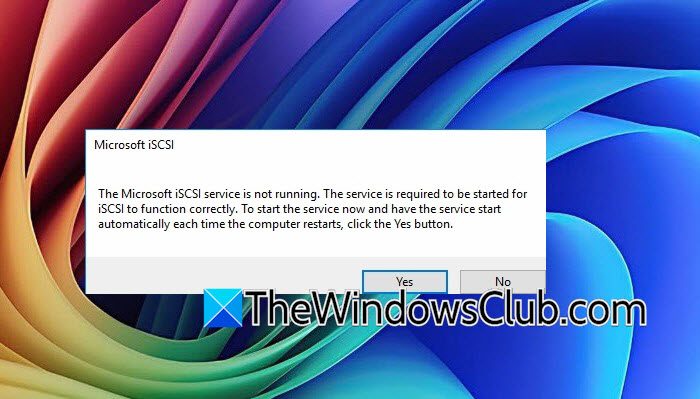
The Microsoft iSCSI service is not running. The service is required to be started for iSCSI to function correctly. To start the service now and have the service start automatically each time the computer restarts, click the Yes button.
What is Microsoft iSCSI?
Microsoft iSCSI Initiator Service (MSiSCSI) is a built‑in Windows service that lets your computer connect to external storage devices over a network using the iSCSI protocol, essentially treating remote storage like a local hard drive. It is commonly used in business environments to access SAN or NAS storage without requiring expensive Fibre Channel hardware. You manage it through the iSCSI Initiator control panel in Windows.
The Microsoft ISCSI service is not running
The most common is the service being set to Manual or Disabled, so it never kicks off when needed. But the trickier culprit is its dependency on the Windows Event Log service. If the Event Log is corrupted, stuck, or has broken permissions, MSiSCSI will fail with an Access Denied error. Some Windows 11 builds also have a known conflict where Event Forwarding policies explicitly block the iSCSI service from initializing.
If Microsoft iSCSI is not running on your computer, follow the solutions mentioned below.
- Check and manually start the iSCSI service
- Restart the Windows Event Log service
- Fix Event Log registry permissions
- Force-start the service using PowerShell
- Check Windows Firewall rules
Let us talk about them in detail.
1] Check and manually start the iSCSI service
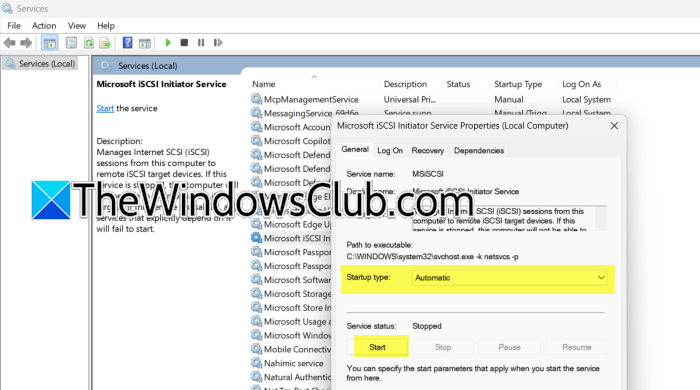
If the service is disabled or set to manual, it will never start on its own. We need to set it to Automatic to ensure Windows launches it when required. To do so, open Services.msc, look for Microsoft iSCSI Initiator Service in the list, double-click it, and set the Startup type to Automatic.
Click the Start button to start the service immediately. Click Apply > OK.
2] Restart the Windows Event Log service
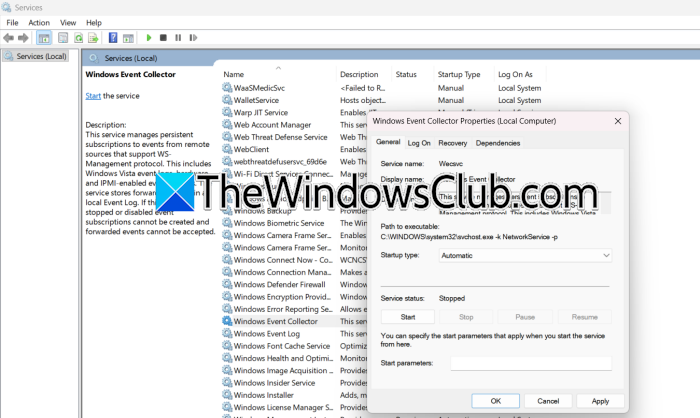
The iSCSI service depends on the Event Log. If that service is stuck, MSiSCSI cannot start; therefore, we need to look for and start the service. In the same Services Manager window, find Windows Event Log. Now, ensure it is set to Automatic and shows Running. If it is stopped, click Start. If it is already running, right-click and select Restart. Once the Event Log is running, try starting the iSCSI service again.
3] Fix Event Log registry permissions
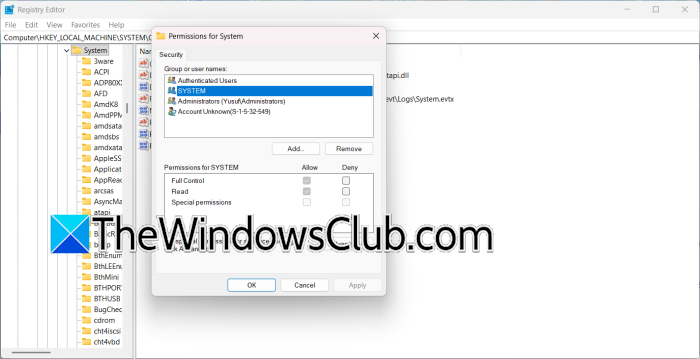
Misconfigured permissions on the Event Log registry key are a known cause of the Access Denied error when starting MSiSCSI. This usually happens after misapplied Event Forwarding policies. You need to open the Registry Editor and navigate to HKEY_LOCAL_MACHINE\SYSTEM\CurrentControlSet\Services\EventLog\System. Right-click on SYSTEM, select Permissions, and ensure SYSTEM has Full Control.
Also, add NETWORK SERVICE and give it Read permissions.
Close Registry Editor and try starting the iSCSI service again.
4] Force-start the service using PowerShell
When the Services Manager GUI refuses to cooperate, PowerShell can bypass the issue directly. First, open PowerShell as an admin on your computer. Then, run the following command to start the service immediately.
Start-Service -Name MSiSCSI
To set it to start automatically on boot, run Set-Service -Name MSiSCSI -StartupType Automatic.
Finally, check if the issue persists.
5] Check Windows Firewall rules
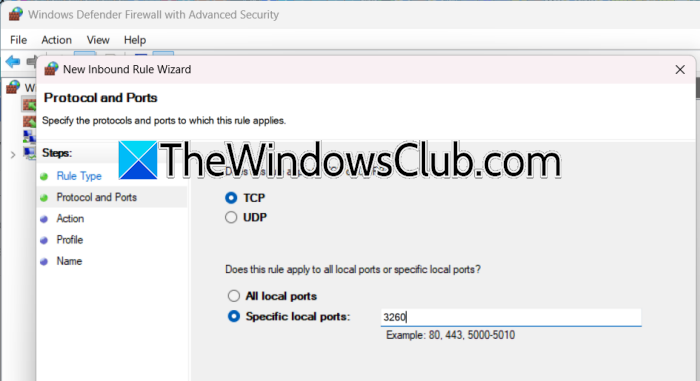
While the firewall usually does not stop the service from starting, incorrect rules can block iSCSI communication after the service launches. Ensuring the right ports are open is a good sanity check. Follow the steps mentioned below to do the same.
- Open Control Panel and go to Windows Defender Firewall > Advanced settings.
- Check both Inbound and Outbound rules.
- Ensure TCP port 3260 (the default iSCSI port) is allowed.
- If you use a third-party firewall, make sure it is not blocking the iSCSI Initiator process.
Finally, check if your issue persists.
That’s it!
Read: How to install and configure File Server on Windows Server
iSCSI Initiator connection failed
Even if the Microsoft iSCSI Initiator Service is running, you might still run into a connection failed error when trying to connect to a target. This usually happens when the initiator cannot reach the target IP, the authentication credentials are wrong, or the target itself is not properly configured to accept your connection. Sometimes the portal (IP and port) is simply not added correctly to the initiator’s list.
- Verify the target portal: Open the iSCSI Initiator by typing “iscsicpl” in the Run dialog. Go to the Discovery tab and check that the target IP address and port (default is 3260) are listed correctly. If they are not, click on Discover Portal and add the correct IP address. Sometimes, removing and re-adding the portal can clear old entries.
- Check network connectivity: Use a simple ping command to check if you can reach the target IP from your Windows 11 machine. If the ping does not work, check your network cables, switches, and VLAN settings. Make sure that firewall rules on both sides allow traffic through TCP port 3260.
- Review target authentication settings: If your storage target needs CHAP authentication, go to the Configuration tab in the iSCSI Initiator, click on CHAP, and make sure the username and secret match exactly what the target requires. Even a small typo can cause problems.
- Check the target’s iSCSI setup: On the storage side, make sure the target is running and that your initiator’s IQN (iSCSI Qualified Name) is listed in the target’s access list. You can find your IQN in the Configuration tab of the iSCSI Initiator. If the target does not allow unknown initiators, it will deny your connection without a clear error.
- Restart the iSCSI Initiator service after making network changes: Sometimes, the service keeps old network settings. After you fix any networking or firewall issues, restart the service by going to Services. Right-click it and choose Restart. Then, try connecting again.
If you still see the failure, check the Event Viewer under Applications and Services Logs > Microsoft > Windows > iSCSITarget for detailed error codes. Those logs often tell you exactly why the target refused the connection, whether it is a timeout, authentication failure, or a resource issue on the storage side.
Also Read: How to Install and use iSCSI Target to configure Storage Server.
