
The Microsoft iSCSI Initiator Service allows your computer to connect to remote storage devices (SAN/NAS) over an IP network using the Internet Small Computer Systems Interface (iSCSI) protocol, making them appear as local disks. The service runs under the LocalSystem account in a shared svchost.exe process and must be running before you can use iSCSI. In some cases, users have reported that the Microsoft iSCSI Initiator Service fails to start with an Access is denied error, particularly after restarting a Windows Server or Windows PC.
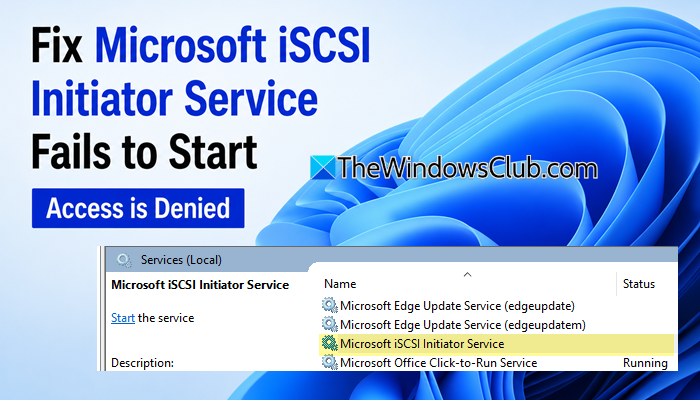
The startup proceeds, but the following Event Viewer entry is commonly logged:
Event Log: System
Event ID: 7023
The Microsoft iSCSI Initiator Service service terminated with the following error:
Access is denied.
If you encounter the same issue on your Windows 11/10 PC, the solutions in this post will help you resolve it.
iSCSI Initiator Service fails to start with Access is denied error
If the Microsoft iSCSI Initiator Service fails to start with the Access is denied error in Windows 11/10, use these fixes:
- Restore the default System Event Log permissions
- Restart the Windows Event Log service
- Check if endpoint security software is blocking the service
- Run SFC and DISM
Before troubleshooting the Microsoft iSCSI Initiator Service, ensure you’re signed in with an administrator account. If you’re using a standard account, Windows may prevent you from modifying service settings or Event Log permissions.
1] Restore the default System Event Log permissions
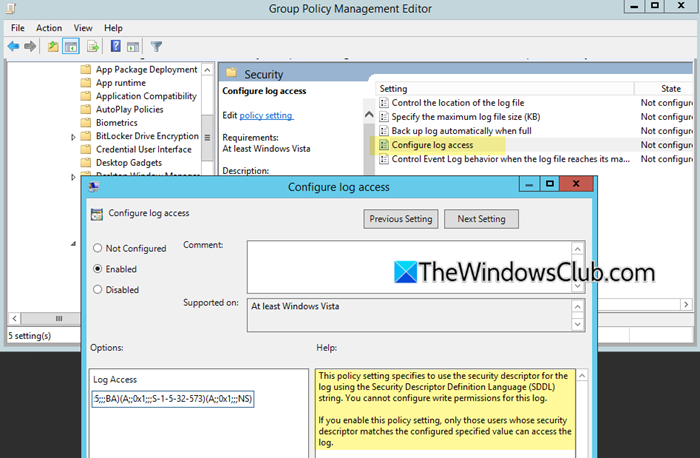
One of the most commonly reported causes of this error is incorrect permissions on the System Event Log. During startup, the Microsoft iSCSI Initiator Service attempts to write status or diagnostic events to the System Event Log for monitoring and troubleshooting. If the LocalSystem account (which runs MSiSCSI) doesn’t have sufficient permission to access the System Event Log, the write operation fails. Windows then terminates the service startup and records Event ID 7023.
A few users found that the issue started after enabling Windows Event Forwarding or applying an Event Log Access Group Policy, which modified the default security permissions of the System Event Log. After restoring the default permissions, the Microsoft iSCSI Initiator Service started successfully.
Inspect the current security descriptor of the System Event Log to determine whether its permissions have been modified. To do so, open an elevated Command Prompt and run the following command:
wevtutil gl SYSTEM
Then compare the displayed security descriptor with a known-good server running the same Windows version, a backup of the original configuration, or your organization’s documented Event Log policy. If the security descriptor differs, restore the default System Event Log permissions and restart your computer.
Note: If you’re unsure how to restore the default System Event Log permissions, contact your system administrator before making any changes. Applying an incorrect security descriptor can prevent Windows services from functioning correctly.
If your computer is connected to a domain, contact your system administrator and verify whether a Group Policy related to Windows Event Forwarding or Event Log Access was recently deployed. You can also check whether the issue disappears after temporarily removing the affected computer from the Organizational Unit (OU) where the policy is applied or by reverting the recent policy changes.
After making the necessary changes, restart the computer and check whether the Microsoft iSCSI Initiator Service starts successfully.
2] Restart the Windows Event Log service
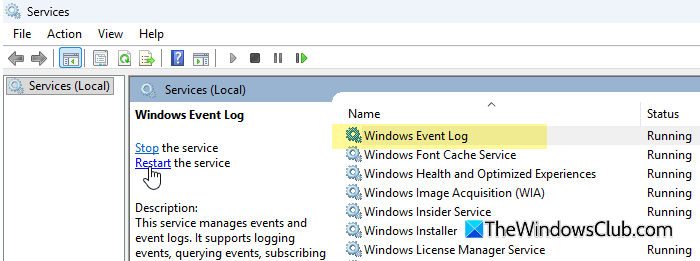
The Microsoft iSCSI Initiator Service may fail to start if the Windows Event Log service isn’t functioning correctly. Restarting the Windows Event Log service can help if it is temporarily unresponsive or hasn’t initialized correctly.
Press Win + R, type services.msc, and press Enter. In the Services window, locate Windows Event Log. If the service is running, right-click it and select Restart. If it isn’t running, right-click it and select Start.
If the Restart option is unavailable, restart your computer instead. Once Windows starts again, try starting the Microsoft iSCSI Initiator Service and check whether the error is resolved.
3] Check if endpoint security software is blocking the service
If the issue started after installing or updating an endpoint protection solution, review its logs to determine whether it is blocking the Microsoft iSCSI Initiator Service or the svchost.exe process hosting it. A user reported that the service started successfully after uninstalling CrowdStrike and removing an Event Forwarding Group Policy. However, they couldn’t conclusively determine whether the issue was caused by the endpoint security software, the Group Policy, or a combination of both.
If permitted by your organization’s security policy, temporarily disable the endpoint security software or create an appropriate exclusion for testing purposes. If the service starts successfully afterward, contact the software vendor for guidance on configuring the required exclusions.
4] Run SFC and DISM
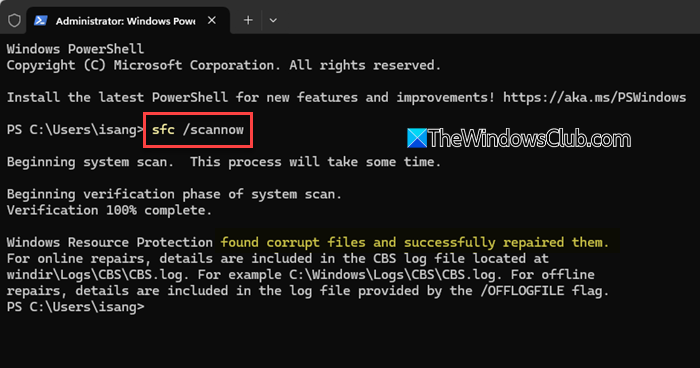
If the issue persists, the Microsoft iSCSI Initiator Service or one of its dependent Windows components may be affected by corrupted or missing system files. Running the System File Checker (SFC) and Deployment Image Servicing and Management (DISM) tools can help repair these files and restore normal service functionality.
First, open Command Prompt as an administrator and run the following command:
sfc /scannow
Wait for the scan to complete. If SFC detects and repairs any corrupted system files, restart your computer and check whether the Microsoft iSCSI Initiator Service starts successfully.
If the issue persists, run the following DISM command:
DISM /Online /Cleanup-Image /RestoreHealth
After DISM completes the repair, restart your computer and try starting the Microsoft iSCSI Initiator Service again.
The Microsoft iSCSI Initiator Service is not running
If the Microsoft iSCSI Initiator Service is not running, Windows won’t be able to connect to iSCSI storage devices over the network. This issue is different from the Access is denied error, as the service may simply be stopped, disabled, or failing to start due to an incorrect configuration. You may see the following message:
The Microsoft iSCSI service is not running. The service is required to be started for iSCSI to function correctly. To start the service now and have the service start automatically each time the computer restarts, click the Yes button.
To resolve the issue, follow these fixes:
- Ensure the Microsoft iSCSI Initiator Service is running and set its Startup type appropriately.
- Restart the Windows Event Log service.
- Verify the Event Log permissions if the service fails to start.
- Start the service manually using PowerShell or the Services console.
- Check that your Windows Firewall or third-party firewall isn’t blocking iSCSI communication.
Read: How to Install and use iSCSI Target to configure Storage Server.
How to start Microsoft iSCSI Initiator service?
To start the Microsoft iSCSI Initiator Service, press Win + R, type services.msc, and press Enter. Locate Microsoft iSCSI Initiator Service, right-click it, and select Start. If you want the service to start automatically with Windows, open Properties and change the Startup type to Automatic.
Do I need Microsoft iSCSI Initiator Service?
You only need the Microsoft iSCSI Initiator Service if your computer connects to iSCSI-based network storage, such as a SAN or certain NAS devices. Most home users do not use iSCSI, so the service can remain in its default state without affecting normal Windows operation. If your organization relies on iSCSI storage, keep the service enabled and running.
Read Next: Windows Remote Access Service (RAS) has encountered an error.
