
You may encounter VIDEO MEMORY MANAGEMENT INTERNAL Blue Screen if the video memory manager has encountered a condition that it is unable to recover from. It also generates a bug check with a value of 0x0000010E. In this post, we will see what can do if you encounter VIDEO_MEMORY_MANAGEMENT_INTERNAL BSOD.

This bug check is usually caused by a corrupt or malfunctioning video driver.
The VIDEO_MEMORY_MANAGEMENT_INTERNAL bug check has a value of 0x0000010E. This indicates that the video memory manager has encountered a condition that it is unable to recover from.
VIDEO_MEMORY_MANAGEMENT_INTERNAL Blue Screen
If you’re facing this issue, try the recommended solutions below (listed in no particular order) to see if they help resolve it.
- Run the Blue Screen Online Troubleshooter
- Update video/graphics drivers
- Run application in Compatibility Mode
- Run SFC scan
- Run DISM scan
- Perform System Restore
Let’s review the process for each listed solution.
If you can log in normally, good; otherwise you will have to boot into Safe Mode, enter the Advanced Startup options screen, or use the Installation Media to boot to be able to carry out these instructions.
1] Run the Blue Screen Online Troubleshooter
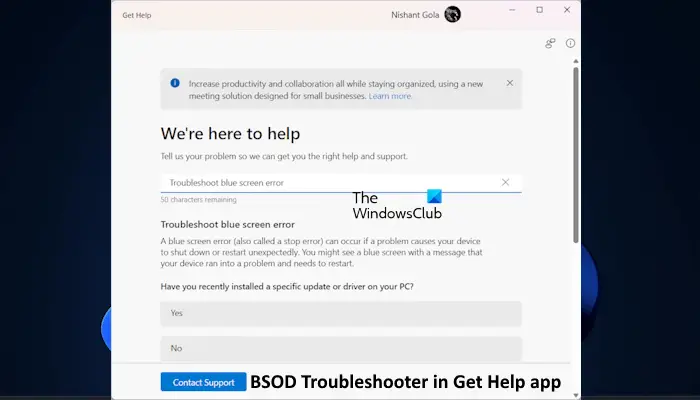
When attempting to fix BSOD errors, you can run the Blue Screen Online Troubleshooter. This wizard designed by Microsoft can easily help in resolving the issue. Alternatively, try the Get Help Blue Screen Troubleshooter.
If the troubleshooter can’t fix the issue, try the next solution.
2] Update video/graphics drivers
As already pointed out, this BSOD error is caused by a video driver behaving improperly. In this case, you can either update your drivers manually via the Device Manager, or you can get the driver updates on the Optional Updates section under Windows Update.
You can download the latest version of the video driver from the manufacturer’s website and install it.
3] Run application in Compatibility Mode
If you experienced this issue while trying to run an installed application on your Windows 11/10 device, you can try running that application in compatibility mode and see if the BSOD error is triggered again.
If the issue is still unresolved, try the next solution.
4] Run SFC scan
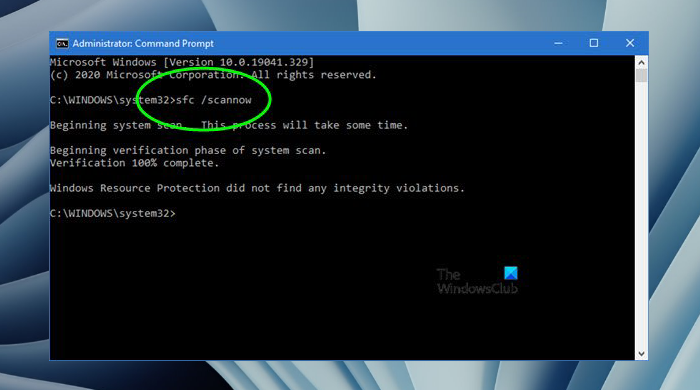
System File Checker (SFC) is a utility native to Windows 11/10 that allows PC users to scan for and restore corruptions in Windows system files.
5] Run DISM scan
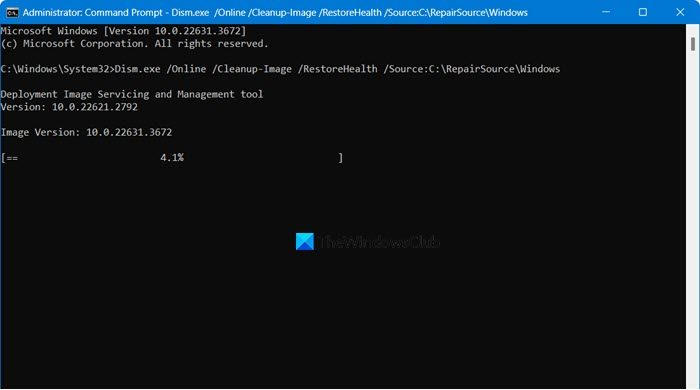
When your Windows 11/10 computer is facing issues with start-up, performance, or ‘unexpected’ errors including BSODs – one of the first things in the toolbox is the System File Checker which will detect and replace any corrupted or missing files on the local image.
However, sometimes the issue lies deeper within the image and SFC can’t repair it. In these situations, the next best option is to run a DISM scan to attempt to repair the underlying issue.
6] Perform System Restore
As a last option, this solution requires you to restore your system to an earlier point. This will restore your system to a point when it was working correctly.
I hope this helps!
How do I fix Memory Management error in Windows 11?
As the error message indicates, the memory management error is triggered by an issue with your RAM. So, you can run the Windows Memory Diagnostics Tool to determine if the RAM module has gone corrupt. Additionally, go through our guide to resolve MEMORY_MANAGEMENT 0x0000001A error.
Also Read: Chrome causing MEMORY_MANAGEMENT BSOD error.
