
When using OneDrive, if you receive Error 0x8007016A, The cloud file provider is not running, then it’s because of Files on Demand settings. It is one of the instances of the error message An unexpected error is keeping you from copying the file when you try to delete or move/copy folders or files located inside the OneDrive folder. In this post, we will suggest ways that will help you resolve the problem.
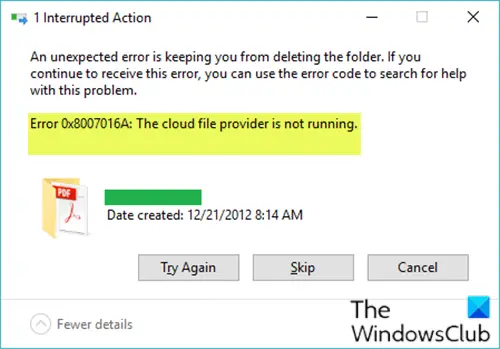
You may encounter this error due to one or more of the following reasons:
- Buggy Windows Update.
- Files On-Demand is enabled.
- OneDrive syncing is disabled or paused.
- The Power Plan is limiting the syncing feature.
- Corrupted/glitched OneDrive files/folder.
Before we go ahead, make sure the PC is updated. You can check by clicking on Check for update button in Update and Security. If any related updates are pending, install them, then restart.
What is Files on Demand in OneDrive?
OneDrive allows you to view the complete list of files and folders without downloading the file on the PC. You can then, at any time, choose to download a file and keep it only in the cloud if you want to save space. This feature is termed Files on Demand.
Fix OneDrive Error 0x8007016A, The cloud file provider is not running
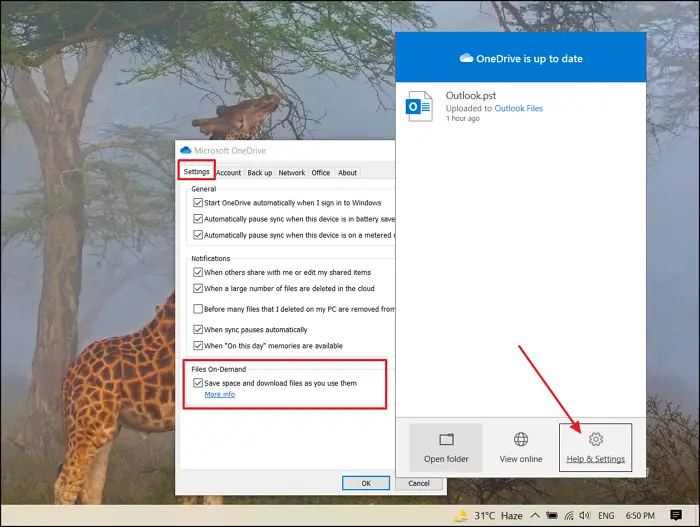
The error occurs when you try to remove, move or rename a file or folder. The warning message will point that whatever you are trying to do is not working. The main solution is to turn the Files On-Demand feature off and on again to resolve the issue.
If you’re facing this issue, try the recommended solutions below in any order to see if they help resolve it.
- Uninstall the buggy update
- Disable Files On-Demand feature
- Reset OneDrive
- Manually resume OneDrive syncing
- Switch Windows Power Plan (if applicable)
- Delete corrupted/glitched folder
- Uninstall and reinstall OneDrive.
Let’s review the process for each listed solution.
1] Uninstall buggy update
If you started encountering this issue after you installed a Windows update, you can simply uninstall the update, or better still, update Windows to the next latest build, if available.
2] Disable Files On-Demand
This solution requires you to disable Files On-Demand by unchecking the box associated with Save space and download files as you use them option and then proceed to delete the semi-synced files/folder (the folder that you’re encountering the error on) from OneDrive folder in File Explorer on your Windows device. This procedure is effective in instances where a file is not fully synced – it has a thumbnail, but the file-size reads 0 KB.
Before you disable Files On-Demand, make sure the main OneDrive service is running. If it isn’t, restart your computer or open an elevated command prompt and run the command below:
start %LOCALAPPDATA% \Microsoft\OneDrive\OneDrive.exe /client=Personal
Now to disable File On Demand:
- Right-click on the OneDrive icon on the System tray
- Select Help & Settings> Settings.
- Uncheck the box under Files On-Demand—Save Space and download files as you use them.
3] Reset OneDrive
After disabling Files On Demand, reset OneDrive as follows:
- Use Win + R to open the Run prompt
- Type and execute the following in the Run box, and press the Enter key to reset OneDrive
%localappdata%\Microsoft\OneDrive\onedrive.exe /reset
- Locate OneDrive App in the Start menu, and double-click to launch it
4] Enable Files on-Demand
After resetting is completed, you can manually resume OneDrive syncing.
- Once the reset is complete, right-click on the OneDrive icon on the Taskbar
- Select Help & Settings> Settings.
- Check the box under Under Files on Demand, and let the sync complete.
Once the sync is complete, you should no longer get this error. If it does not help, read on.
5] Switch Windows Power plan (if applicable)
This particular issue can also occur if you’re using a restrictive Power Plan that is actually interfering with OneDrive syncing, in order to conserve battery power. In this case, you can switch from your current power plan to another and see if that helps.
6] Delete corrupted/glitched folder
This solution requires you to forcibly remove the folder that’s triggering the error inside the OneDrive folder.
To delete the corrupted/glitched folder from the OneDrive folder on your Windows computer, do the following:
- Press Windows key + X to open the Power User Menu.
- Tap A on the keyboard to launch PowerShell in admin/elevated mode.
- In the PowerShell console, type or copy and paste in the command below and hit Enter.
- Replace the <OneDrive folder name> placeholder with the name of the folder you want to delete.
Remove-Item <OneDrive folder name> -Recurse -Force
Once the command runs successfully, restart your computer and see whether the issue is resolved. If not, try the next solution.
7] Uninstall and reinstall OneDrive
Reinstalling OneDrive should be the last resort. You don’t need to download OneDrive again as its setup files are always stored on your system.
- Press the Windows key + I to open Settings.
- Select Apps.
- Select Apps & features in the left pane.
- In the right pane, scroll to locate and click OneDrive.
- Select Uninstall.
- Now, navigate to the directory path below. Where the
UserNameplaceholder is your actual user profile name.
C:\Users\UserName\AppData\Local\Microsoft\OneDrive
- At the location, double-click the OneDriveSetup.exe file to run the installer.
After the installation completes, check whether the error persists.
Useful reads:
