
Cloud storage makes it easier to store and share large files with others online. OneDrive is one of the most popular cloud storage services for both personal and professional use. OneDrive has been a popular option for businesses with a Microsoft 365 subscription to manage their organization and data. You can easily share files with people outside your organization. In this guide, we show you how to share files on OneDrive with external users without any issues and manage the shared files.
How to share files and folders with external users in OneDrive for Business
If you use OneDrive for personal or work purposes, it is easy to share files with external users outside your organization or with users of other cloud or email services. You can share files on OneDrive with external users and manage them as follows.
- Configure in the SharePoint admin center
- Share files and configure options
Let’s get into the details of the process.
1] Configure in the SharePoint admin center
To share files with external users on OneDrive from your organization account that uses Microsoft 365 Business plans, you need to configure sharing options that allow you to share with external users.
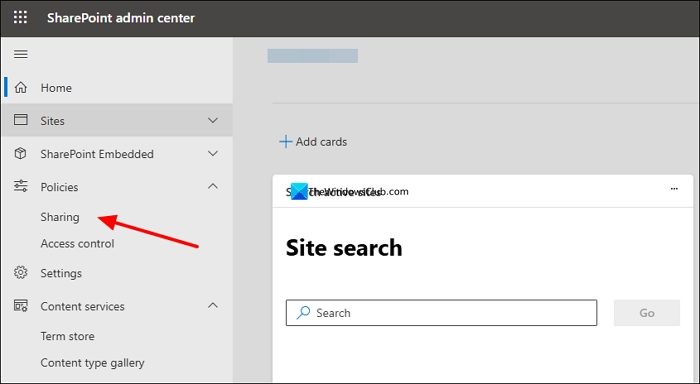
Access the SharePoint admin center of your Microsoft 265 Business account. Expand Policies and click Sharing. It helps you configure sharing policies.
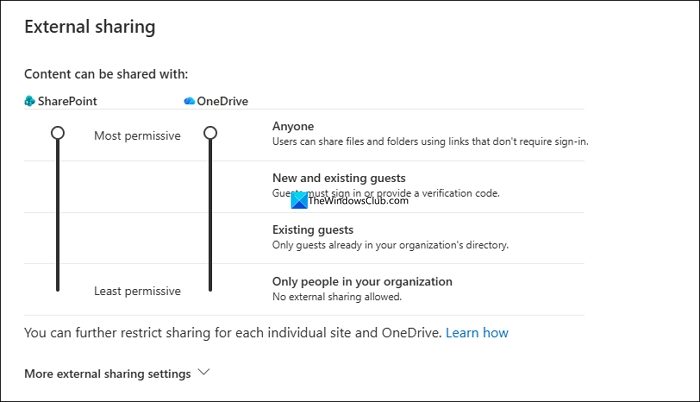
Then, on the Sharing page, find External sharing options. Slide the slider under OneDrive to change the saring settings. If you want to share files with anyone and let them access with links, you can keep it at Anyone.
Or you can change the options by sliding the slider. Now, under the File and folder links that can be the default mode when you share something via OneDrive to external users. If you want to share the files for only viewing, check the button beside View under Choose the permission that’s selected by default for sharing links. Similarly, to permit edit, select Edit.
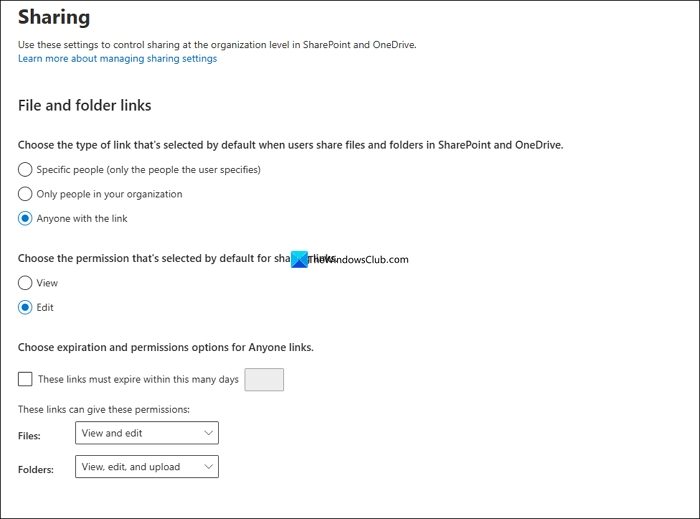
You can also configure these options individually for every file or folder while sharing on OneDrive. After successful configuration of sharing options, click Save to apply changes to your entire organization.
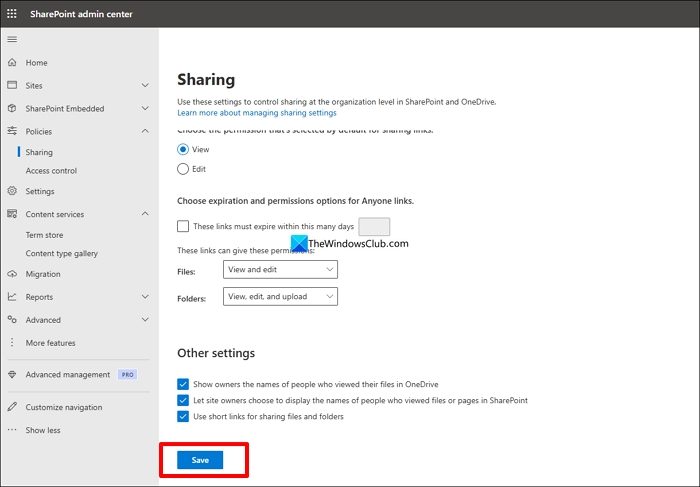
You and your organization’s members will now be able to share links with anyone outside your organization.
Related: How to share files and folders in OneDrive with others using a link.
2] Share files and configure options
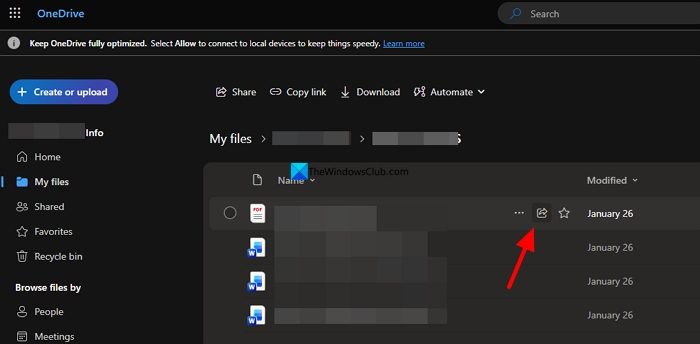
Open the OneDrive of your organization and browse the file or folder you want to share with external users of your organization. Hover over to the file or folder and click the Share button that appears.
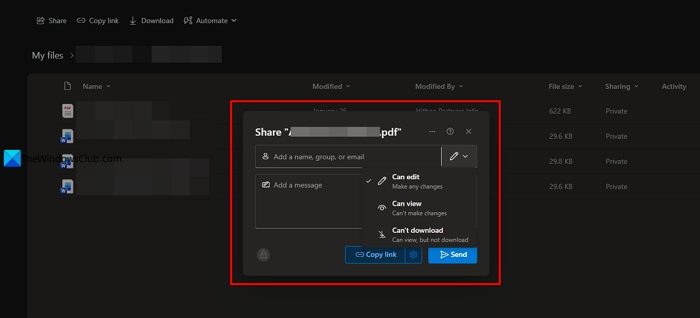
In the sharing option pop-up that appears, enter the contact details of the external users, check the drop-down button beside the pen icon and select if they can edit, or view, or restrict them from downloading the file using Can edit, can view, and Can’t download options.
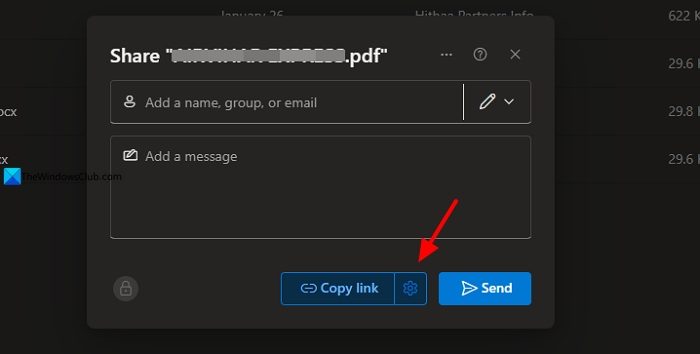
To configure link options, click the Gear icon beside Copy link.
In the Link settings, choose who the link works for. You can also set an expiration date, and a password to protect the file from unauthorized access. After configuring everything, click Apply to save changes.
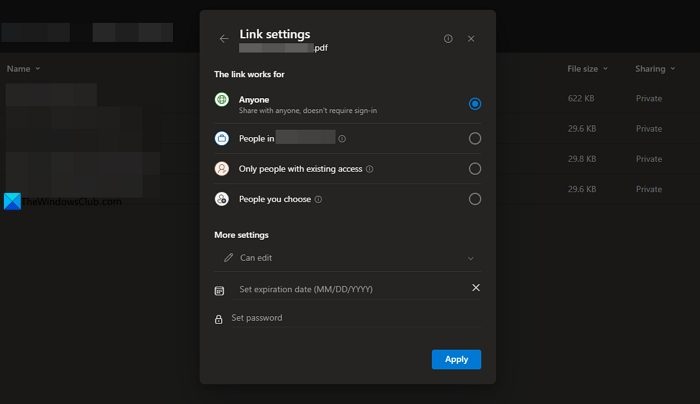
It will now close the link settings, and show you share options. Click Send to share the file.
If you failed to configure the expiration date or related options and want to stop sharing files with the external users, hover over th file and click the three-dot icon. Select Manage access from the options.
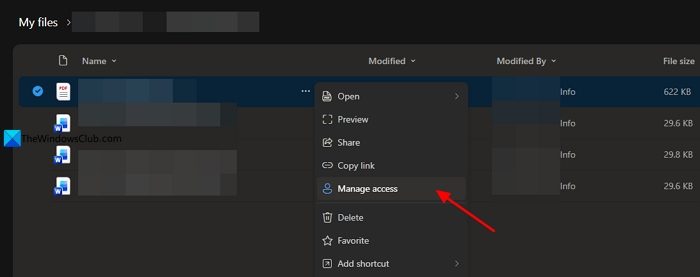
In the Manage access options, click Stop sharing button to stop the file from being accessed by the external users of your organization.
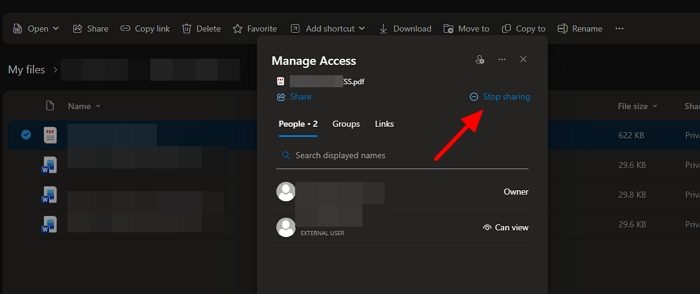
This way you can share files with external users on OneDrive and restrict them from accessing them.
Read: OneDrive shared folders not showing in File Explorer
Can I share a OneDrive file with someone who doesn’t have OneDrive?
You can share a file with someone who doesn’t have a OneDrive, an Outlook account, or any Microsoft-related account. All you need is an email address to share files. You can enter the other person’s email address in the sharing options to configure access. If the other person does not even have an email address, you can just copy the link and share it with them in a chat app. You need to configure the file to allow anyone with the link to access it.
How do I enable external sharing on OneDrive?
To enable external sharing on OneDrive, you need to enable the SharePoint admin center of your Microsoft 365 Business account. Then, under the Policies, you will find Sharing options. Configure the sharing options as per your requirement. Then, head to OneDrive and share files by hovering over the file or folder and clicking the Share button.
Related read: OneDrive shared folder not syncing or updating
