
OneDrive is quite an impressive tool for storing your files in the cloud. But did you know sharing your files and folders with relative ease is possible? The answer to that question is a yes. From our extensive experience with Microsoft OneDrive, we can say that it doesn’t take much to share files and folders.
How to share a file or folder in OneDrive with others
In this article, we will explain the best way to share folders in OneDrive. We will do this on the website rather than in the app, since it’s easier to use, at least from our point of view.
Now, we should point out that there are two ways to share folders with friends and family in OneDrive. One way is to copy a link, and the other is to email those who are important.
- Launch the OneDrive website
- Select the folder you want to share
- Click on Share
- Customize the link options
- Enter a name or email address
Let us discuss this in more detail.
1] Launch the OneDrive website
OK, so the first step to sharing folders is to visit the OneDrive website and be sure to sign in using your Microsoft account credentials.
Read: How to add, upload, store, create, use files in OneDrive.
2] Select the folder you want to share
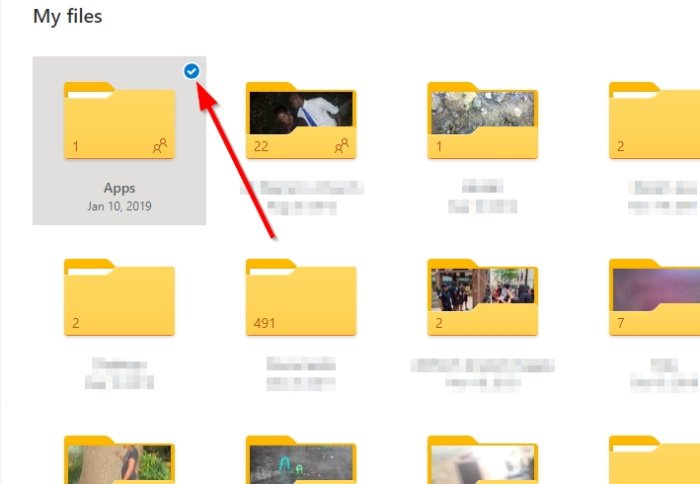
From within OneDrive, after you’ve signed in with your credentials, please locate the folder you want to share and click on the small circle at the upper corner. You can also choose multiple folders to share, but bear in mind that this feature is not available in school and work accounts.
Read: How to setup Folder Protection for OneDrive account.
3] Click on Share
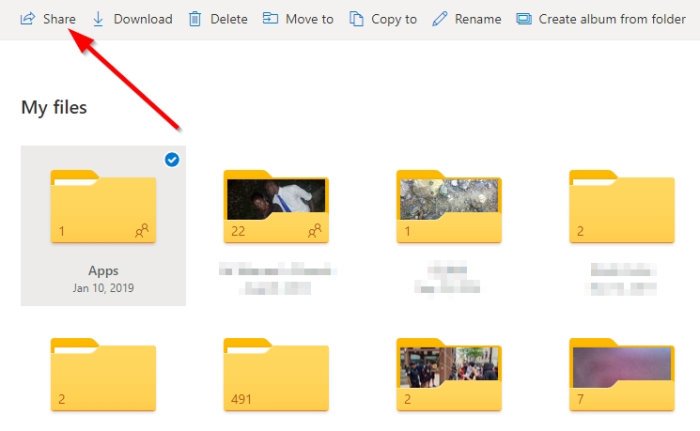
After selecting the circle icon, look at the top to see the Share button. Click on it right away. Doing so should automatically showcase a dropdown menu with a few options.
Read: How to encrypt and secure OneDrive files.
4] Customize the link options

In the dropdown menu, you should see a section labeled “Anyone with the link can edit.” Click on that because we will determine how the shareable link should work.
From the menu, you can select Allow Editing to allow folks to edit the folder’s contents. You can also set an expiration date for the link, a password to gain access to the folder, and the ability to select Specific People.
Make your selection(s), then hit the Apply button.
Read: Tips to secure OneDrive account.
5] Enter a name or email address
We’ve now reached the point where it is time to share your folder. To do so, add the email address or name of third parties to the box, and finally, click on Send.
Alternatively, you can choose to select Copy Link to create a shareable link. Once that is done, a new section will appear with a link you can share. Copy it, then manually share it with families or friends. You can even post it on your website.
Now read: Share files and folders with external users in OneDrive for Business.
