
Some users find that OneDrive shows an offline status even though they are connected to the internet. This issue prevents OneDrive from syncing files to the cloud. Internet connection issues are among the most common causes of this problem. This article lists some effective fixes that you can use if OneDrive is showing offline on your Windows 11/10 computer. Some users also reported that the issue occurred with the OneDrive web version.
OneDrive is showing offline on Windows 11
Use the following fixes if OneDrive is showing offline on your Windows 11 PC. Before proceeding, check for Windows updates manually.
- Switch to another available network
- Check the service status
- Unlink and relink OneDrive
- Clear OneDrive cache
- Disable VPN or proxy (if applicable)
- Disable Antivirus and Firewall
- Uninstall and reinstall OneDrive
- Clear your browser cache and cookies
- Disable your browser extensions
- Reset your network
All these fixes are explained in detail below:
1] Switch to another available network
An unstable internet connection is the most common cause of this issue. Switch to another available network and see if it helps. You can use your mobile data and connect your system to the internet through a mobile hotspot. If this fixes the issue, that means the problem is with your WiFi. Power cycling the router can help in this case.
Follow these steps:
- Turn off your WiFi router.
- Unplug its adapter from the wall socket.
- Wait for a few minutes.
- Plug the adapter back into the wall socket and turn on the router.
- Wait till your router initializes and connects to the internet.
Now, check if the issue persists.
2] Check the service status
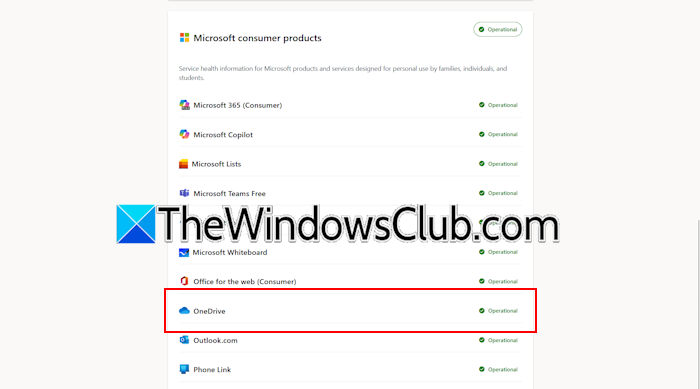
The issue might be with Microsoft servers. To confirm this, check the service status.
Follow these steps:
- Visit the official Microsoft website.
- Scroll down to the Microsoft consumer products section.
- Click Show products.
- See the status of OneDrive. It should show as operational.
If the status does not show as operational, you need to wait till Microsoft fixes the issue.
3] Unlink and relink OneDrive
Sometimes, OneDrive issues occur due to a temporary glitch. In such a case, unlinking and relinking OneDrive works. To unlink OneDrive, follow these steps:
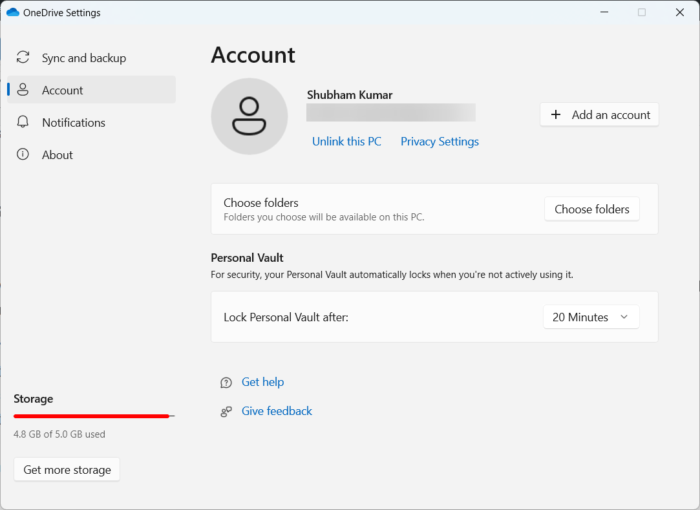
- Click on the OneDrive cloud icon on your Taskbar.
- Click the gear icon in the top right corner and select Settings.
- In its settings, select Account on the left.
- You will see the Unlink this PC link. Click on that. Restart your system.
Now, click on the cloud icon on your Taskbar and enter your Microsoft account credentials to relink OneDrive.
4] Clear OneDrive cache
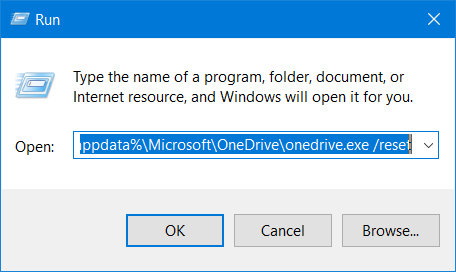
The corrupted OneDrive cache files might be causing this issue. To confirm this, clear the cache. You can do so by resetting OneDrive. Launch the Run command box and run the required command. Windows will launch OneDrive after resetting it. Now, check if the issue is fixed.
5] Disable VPN or proxy (if applicable)
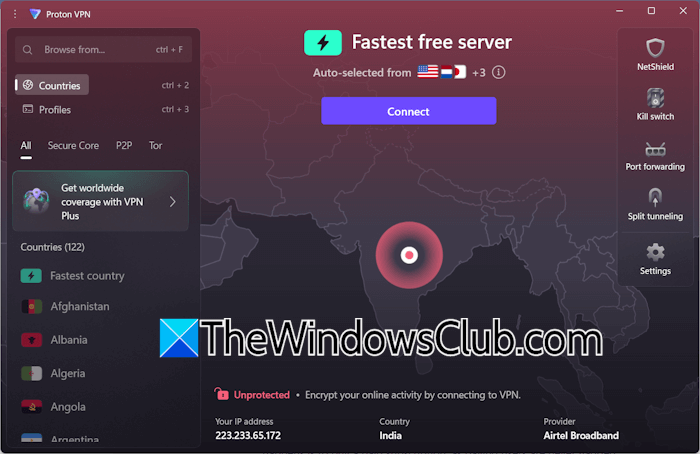
Many users use VPN to make their network secure. In addition to making your network secure, a VPN also decreases the internet speed. This may affect some applications. That might be the case with you. To confirm this, disconnect from the VPN. If you use a Proxy in place of a VPN, disable it too.
If the issue does not occur after disconnecting from the VPN or disabling the Proxy, that means your VPN or Proxy was preventing OneDrive from connecting to the network. In such a case, you can connect to another VPN server. If this does not help, contact your VPN provider or switch to another VPN (if you use a free VPN).
6] Disable Antivirus and Firewall
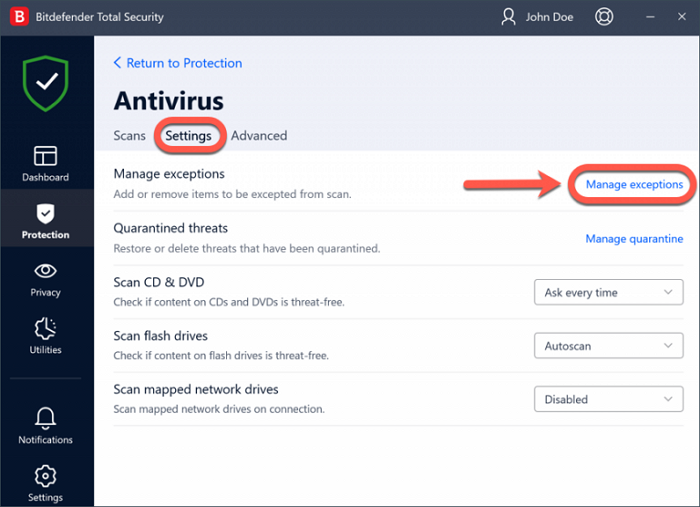
Your antivirus or firewall might be conflicting with OneDrive, preventing it from connecting to the network. To check this, disable your antivirus and firewall and see if the issue is fixed. If so, you need to add OneDrive to your antivirus exception list. If you do not use any third-party antivirus, add OneDrive to Windows Security as an exception. The OneDrive exe file is located at the following path:
C:\Program Files\Microsoft OneDrive
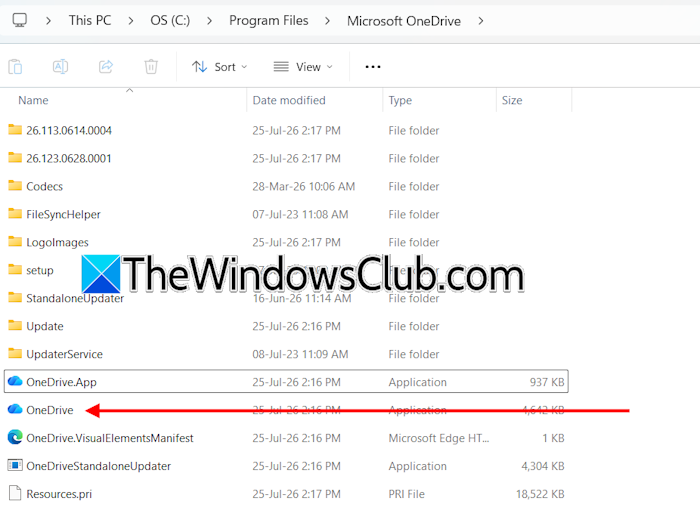
Copy the above path, paste it into the address bar of File Explorer, and hit Enter. When you navigate to the above path, you will find two executables: OneDrive.App and OneDrive. Select the OneDrive exe file to add it as an exception. Also, allow OneDrive through your third-party or Windows Defender firewall.
7] Uninstall and reinstall OneDrive

If the issue persists, you can uninstall and reinstall OneDrive. Uninstall OneDrive via Windows 11 Settings, then restart your system. Now, download and install it.
8] Clear your browser cache and cookies
Some users encountered this issue with the OneDrive web application. According to them, when they browse the My files folder in the OneDrive web application, they see either a blank screen or the following message:
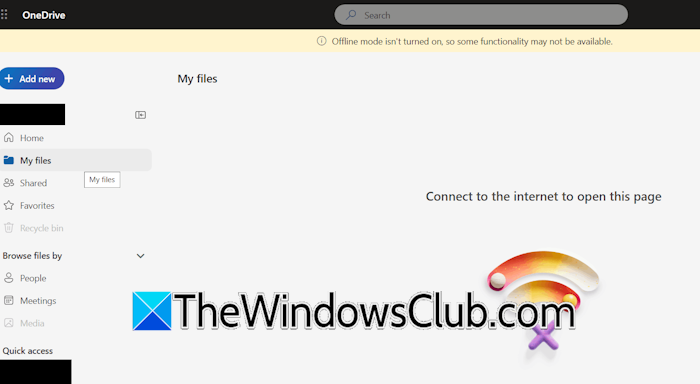
Offline mode isn’t turned on, so some functionality may not be available.
Connect to the internet to open this page.
If you encounter the same error message with the OneDrive web application, clear your web browser cache and cookies. You can also clear cache and cookies only for OneDrive in your web browser.
9] Disable your browser extensions
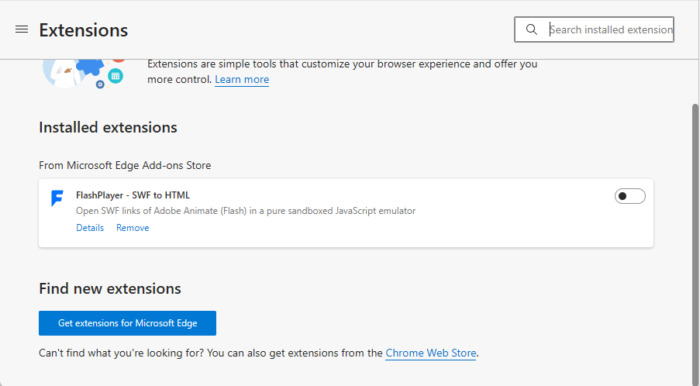
Sometimes, browser extensions cause problems with some websites. This can be the case with you. To confirm this, disable all the extensions in your web browser or log in to OneDrive in Private or Incognito mode. If this works, the next step is to find the culprit. For this, start enabling the extensions one by one. Reload the OneDrive page every time you enable an extension. When the issue reappears, the extension you have just enabled is the culprit. Now, remove that extension and look for its alternative.
10] Reset your network
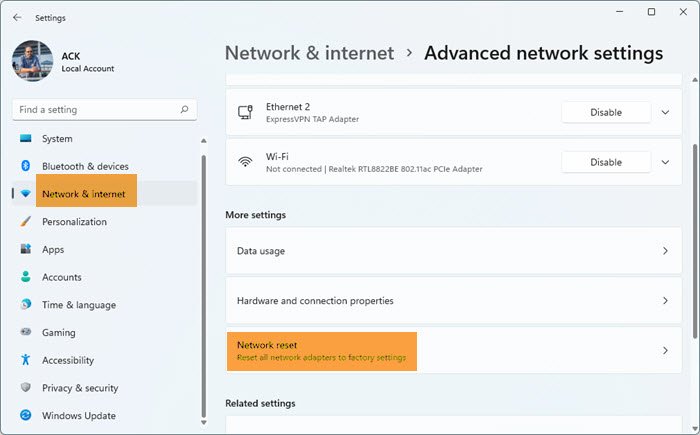
The last fix is to reset your network. This step reinstalls all the network adapters and sets the networking components to their default state. Windows restarts your system automatically after 5 minutes to complete the network reset process. Therefore, save all your pending work before proceeding.
That’s it. I hope this helps.
Why is OneDrive showing offline?
The biggest reason for this issue is a poor internet connection. Switch to another available network to confirm this. Another cause is a VPN or Proxy. If you are connected to a VPN or Proxy, disconnect from it. Sometimes, the issue is a temporary glitch that can be fixed simply by resetting or reinstalling OneDrive.
How do I turn OneDrive back online?
To turn OneDrive back online, connect to an active internet connection. If you are having issues with your current network, try to power cycle your WiFi router. If this does not work, flush the DNS cache or reset your network.
Read next: We couldn’t find your OneDrive folder.
