
The most annoying issue is one which isn’t there, but you keep getting it. One such error is — We couldn’t find your OneDrive folder. According to forum reports, the error message occasionally pops up and could appear after a Windows Update. The best part is that all your files and OneDrive-linked folders are available, but for some reason, OneDrive assumes a setup is needed.
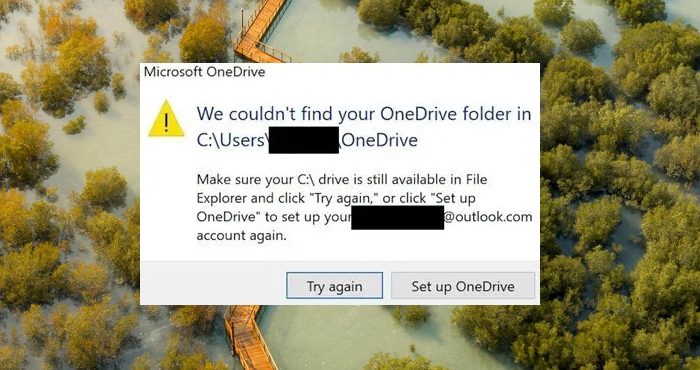
We couldn’t find your OneDrive folder
When you get this message and click either on Try again or Set up OneDrive, it keeps looping. Meaning even if you follow the wizard of Set up OneDrive, it still displays the error message. Some users have tried it all, i.e., uninstalling/reinstalling OneDrive, restarting the computer, and selecting a different OneDrive folder location. So here is what I think would be the best solution to resolve the problem.
- Reset the OneDrive local data folder.
- Change the location of the OneDrive Folder.
You can always try removing the software, reinstalling it, and adding the account again, but it may not help. So go ahead and try these.
1] Reset the OneDrive local data folder
- Open the Run prompt using the WIN + R keys
- Type the following command, and click the OK button to execute it.
%localappdata%\Microsoft\OneDrive\onedrive.exe /reset
- You should see a Command Prompt window appear briefly.
- Search for OneDrive in the Start menu.
- Click to open it.
Since you have reset the data, you may be prompted to set it up again. If so, follow the instructions and point to the existing OneDrive location.
The error should not appear anymore.
Read: How to reset OneDrive on Windows, Mac, or Android
2] Change the location of the OneDrive Folder
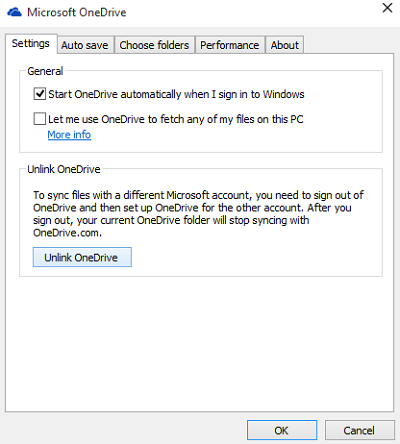
Most users will have the default path, including the Username. Instead, I suggest locating the OneDrive Folder to a different drive or location. Once you have reset OneDrive, I think it’s a good idea to relocate the OneDrive folder to another drive. Again, it’s not a permanent fix.
Conclusion
I hope the post was easy to follow and helped you resolve the “We couldn’t find your OneDrive folder” issue on your Windows PC. It can be fixed mainly by reinstalling OneDrive or changing the location, so take a backup of the critical files or ensure they are backed up.
Why can’t I see my OneDrive folder?
Several factors could prevent your OneDrive folder from being visible, such as connectivity problems, the OneDrive application not being active, incorrect settings, synchronization issues, outdated software, limited storage, or interference from the antivirus/firewall. To address this issue, you can verify the folder’s location, ensure online access, and follow troubleshooting steps to diagnose and fix the problem.
How do I get my OneDrive folder back?
If you cannot find it on your PC or Mac, then it’s best to check online. You may have deleted it, and restoring it from the trash is easy. Go to onedrive.live.com and then go to the Recycle bin. Locate the folder, right-click, and restore it.
