
While uploading files to OneDrive, if you are getting The names of some OneDrive items contain characters that prevent syncing error, this solution will fix the issue within moments. It happens when you use invalid characters in the files’ names. If it happens, you can eliminate this issue by renaming the file.
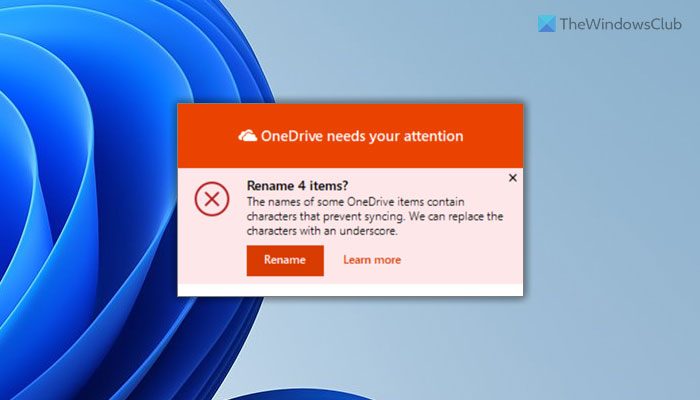
The entire error message says something like this:
The names of some OneDrive items contain characters that prevent syncing. We can replace the characters with an underscore.
The main reason why you are getting this error is that you have used invalid characters in the file names. Whether you use OneDrive, OneDrive for Work, OneDrive for School, or anything else, you cannot use these aforementioned characters. Instead, you can use other characters, such as underscores, etc., to differentiate your files.
OneDrive doesn’t support or allow some characters in the name. For example, you cannot use these characters in your file names:
" * : < > ? / \ |
If you start or end the file name with a space, you will get the same error. Also, you cannot use a period. Therefore, to fix this issue, you need to rename your files.
The following are also not allowed:
- Reserved names:
CON,PRN,AUX,NUL,COM0–COM9,LPT0–LPT9,desktop.ini, or_vti_
- Special file markers: Files starting with
~$
- Path length: Total file path must stay under 400 characters
- Folder depth: Individual subfolder names must remain under 255 characters
The names of some OneDrive items contain characters that prevent syncing
To fix The names of some OneDrive items contain characters that prevent syncing error, follow these steps:
- Use Rename option
- Rename your file manually
To learn more about these steps, continue reading.
1] Use Rename option
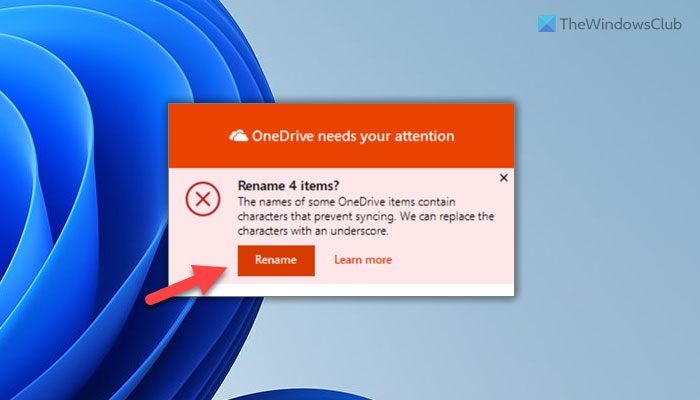
When OneDrive displays this error, it also shows a Rename option. You can use this option to rename your file immediately. Whether you have one or one hundred files with the same issue, you can get it fixed within moments with the help of this Rename option.
For your information, OneDrive replaces all the invalid characters with an underscore. For example, if you have a file called .myfile, it will be renamed as _myfile.
As said earlier, it makes the necessary changes in all files at once. That said, if you do not want to customize the names, you can simply click the Rename option to save time.
Related: OneDrive keeps renaming files automatically
2] Rename your file manually
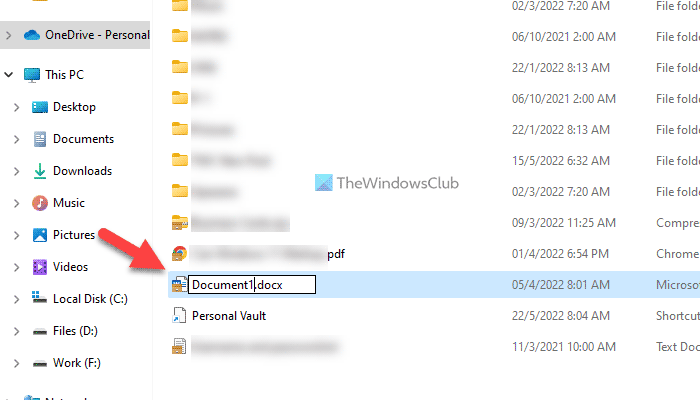
It is yet another solution that works when you need to customize the names as per some requirements. If you want to follow an instruction to rename your file, you need to remove or replace all the invalid characters manually.
That’s all! Hope this guide helped.
What characters can OneDrive not sync?
OneDrive cannot sync these characters: ” * : < > ? / \ |. If you have these characters in your file names, you need to replace them with something else that OneDrive supports. Otherwise, you will encounter the above-mentioned error message while trying to upload them to OneDrive.
What characters are not allowed in SharePoint?
Whether it is SharePoint or OneDrive, the list of invalid characters is the same. You can check the list above to get an overview of the invalid characters that SharePoint does not support. To get around this problem, you need to rename the file as per the official guidelines.
Read:
