
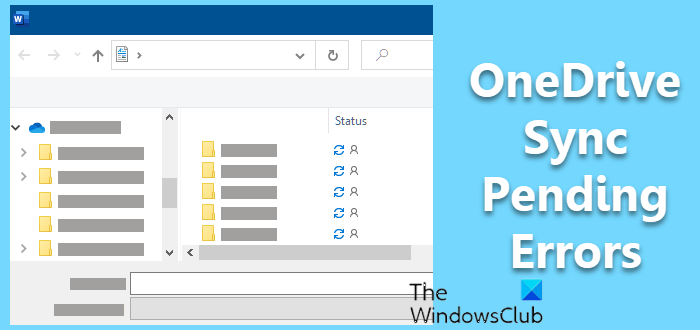
This post features different solutions to try if you face Sync Pending error in OneDrive. OneDrive is a popular cloud storage service available for Windows. You can use it to store crucial files and share them with your colleagues. But like any other cloud storage service, it isn’t free from problems. Many users have reported that when using the service on a Windows PC, the synced files show a Sync Pending status. The problem mainly occurs while viewing in the Open or Save window. Worry not if you are also struggling with the same problem. Try the solutions below to resolve the issue.
Fix OneDrive Sync Pending error
Here’s how to fix the Sync Pending error in OneDrive. You may see the status of Sync Pending when viewed in an Open or Save window:
- Check server status
- Close the file from everywhere
- Pause OneDrive syncing
- Change the folder
- Change OneDrive settings
- Disable Files On-Demand
- Clear Office Document Cache
- Enable Hidden items
- Reset OneDrive
Now, let’s check out all these solutions in detail.
1] Check server status
It happens very rarely, but if OneDrive servers are down, you will most likely deal with the problem in question. OneDrive servers can go down during maintenance or due to other technical issues. In either case, you will not be able to access the platform. You can use any server status-check website to check for any issues with OneDrive servers. If so, you can’t do anything but wait until the problem is fixed.
2] Close the file from everywhere
The issue will occur if the file you try to sync is open in another location. To solve the problem, close the app permanently from all locations. Once done, try syncing it again and check whether the problem is fixed. If yes, you are good to go. But if the problem persists, try the next solutions.
See: How to remove shared files from OneDrive, Google Drive, Dropbox
3] Pause OneDrive syncing
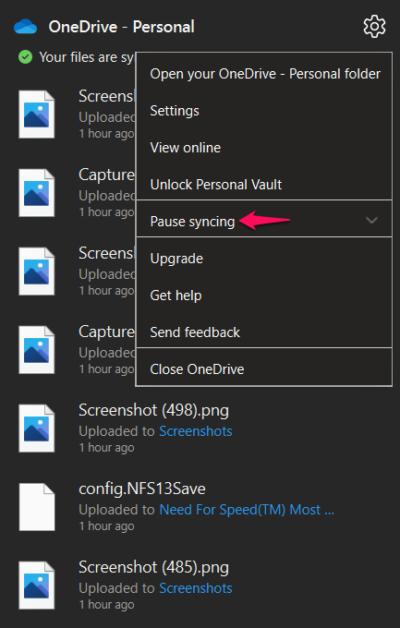
The next thing you can try is to pause the sync, resume it and check if it makes any difference. As it turns out, the problem occurs due to a temporary glitch, and you can pause and resume the syncing process to resolve the issue. Here’s how it’s done.
- Click on the OneDrive icon present on the Taskbar.
- Click on the Gear icon present and the top right corner of the elevated window.
- Choose Pause syncing from the context menu.
- Now restart your system, and open OneDrive from the Task Manager again.
- Click on the Gear icon, and choose Resume syncing.
Check if the problem is fixed or not. If not, try the next solution.
See: How to move a file from OneDrive to Google Drive
4] Change the folder
The problem can occur if there’s an issue with the folder you are trying to upload the files. In this case, the best thing you can try is to change where you upload the file. So, open This PC, then open OneDrive. Create a new folder, and make it the default upload location. Check whether it solves the problem.
5] Change OneDrive settings
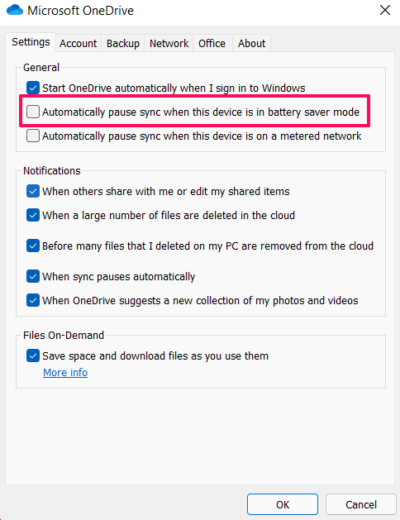
Misconfigured OneDrive settings may also be why you’re experiencing the problem in question. OneDrive comes with a feature that automatically stops the sync process when the device is in battery saver mode. You will have to disable this feature to solve the problem. To do so, follow the steps below.
- Open OneDrive from Taskbar.
- Click on the Gear icon and choose Settings from the context menu.
- Switch to the Settings tab.
- Uncheck the Automatically pause sync when this device is in the battery saver mode option.
- Click on OK to save the changes.
Now, restart your system and check if the problem is fixed or not.
Read: Fix OneDrive Error Code 0x80070005
6] Disable Files On-Demand
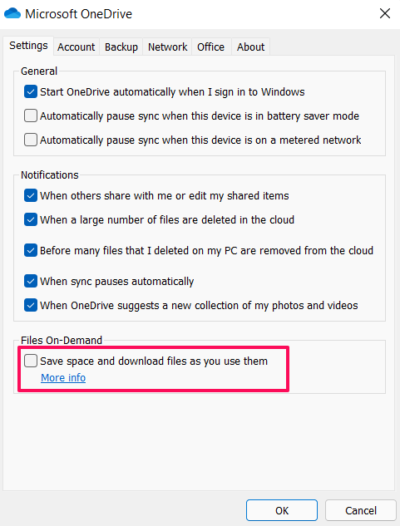
OneDrive Files On-Demand is a great way by which you can manage all the synced files without downloading them. If this feature is enabled, you can access all the files in File Explorer. But on the downside, it can also be a primary cause of the mentioned issue. So, disable this feature and check if it makes any difference. Here’s how.
- Open OneDrive > Gear icon > Settings.
- Switch to the Settings tab.
- Under Files On-Demand, uncheck Save space and download files as you use them option.
- Click on OK to the prompt that pops up.
Read: Fix OneDrive won’t start
7] Clear Office Document Cache
Clearing Office Document cache can be an effective solution in the situation. Go through the process and check if it solves the issue.
8] Enable Hidden items
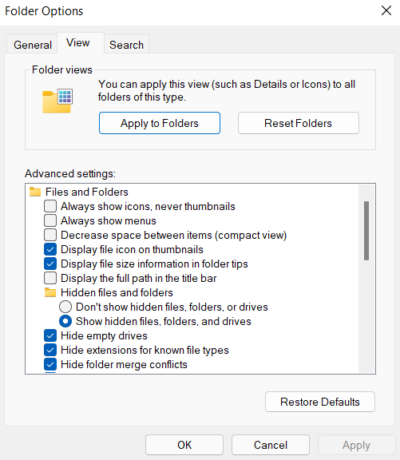
If you cannot locate the file that is triggering the issue, it is likely hidden. In this case, you’ll first need to unhide the file, then follow the rest of the steps. Here’s what you need to do.
- To begin with, open the File Explorer and click on three vertical dots.
- Navigate to Options > View > Show hidden files, folder, and drives.
- Now, make a new folder, copy all the files from the Pending status folder and paste it into the newly created folder.
- Delete the Sync pending folder.
8] Reset OneDrive
If none of the steps were helpful, the last thing you can try is to reset OneDrive. Here’s how it’s done.
Open the Run dialogue box on your system by pressing Windows + R shortcut key.
%localappdata%\Microsoft\OneDrive\onedrive.exe /reset
Type the following and press the Enter key.
It will reset OneDrive on your system. Restart, and set up OneDrive again.
Read: How to fix OneDrive sync issues & problems on Windows
What causes Sync Pending error in OneDrive?
There can be multiple reasons behind the Sync Pending error in OneDrive. But among all, the most common reason you’re facing the problem is server downtime. The issue can also occur due to a corrupted upload folder and misconfigured OneDrive settings.
Why is OneDrive not opening on startup?
OneDrive will not open automatically on startup if you have disabled it via Task Manager. To solve the problem, you can try these fixes: check OneDrive settings, enable OneDrive in Task Manager, enable OneDrive in Windows Settings, and change the Registry settings.
