
Metadata is an important aspect of images, videos, documents, etc. The metadata helps us know the details of the file: when it was created, edited, which software was used, author, etc. Without metadata, the ownership and the authenticity of a file cannot be proved. When we upload files to cloud storage, they preserve the metadata. However, some users are seeing metadata issues with files on OneDrive. In this guide, we show you what to do when OneDrive changes metadata on files after uploading.
OneDrive can change or strip file metadata after uploading, especially with images and documents. This behavior is often due to sync conflicts, mobile app uploads, or background processes in Office that update timestamps or EXIF data.
OneDrive changes Metadata on files after uploading
When you find OneDrive changing metadata on files after uploading, it is not your mistake. OneDrive treats every uploaded file as new and strips the metadata, and adds the upload time, date, etc. as the new metadata. It applies to all kinds of standalone files, folders, etc. These are some methods that can help you retain or find metadata.
- Ensure the files are saved with metadata
- Upload via OneDrive sync options on Windows
- Make sure the files are not being opened or edited
- Zip the files and upload them
- Other suggestions.
Let’s get into the details and use them.
1] Ensure the files are saved with metadata
Check if the original files contain metadata. Right-click on the files and select Properties. Then, click the Details tab to see the metadata or the EXIF data.
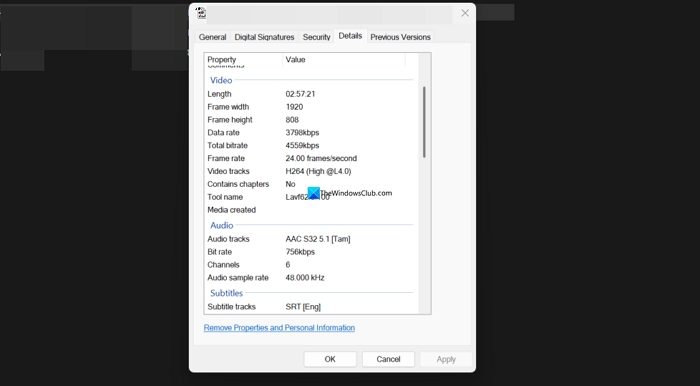
If you do not find any details in the file, make sure the software you are using to create and save files is legitimate and that metadata saving is enabled. Aside from Adobe software, it is impossible to use settings to enable or disable metadata. By default, when we install any program and use it to create something, the metadata is saved automatically. If the metadata is not saved for any reason, reinstall the program from official sources.
If you find the metadata in the Details panel, use the below methods.
2] Upload via OneDrive sync options on Windows
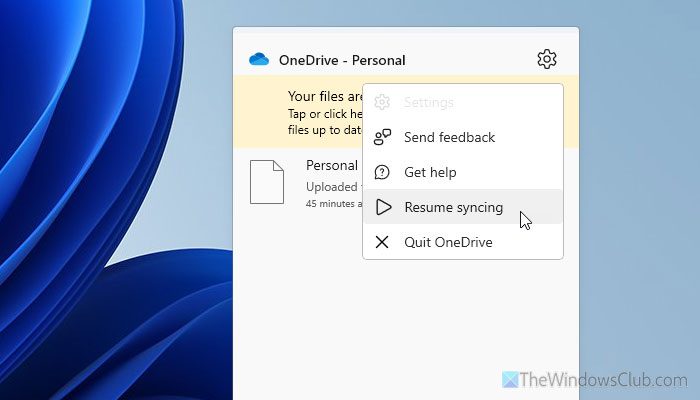
The OneDrive app is installed by default on Windows 11. Use it to upload files from your PC or sync your files to OneDrive. This way, OneDrive does not remove metadata from the files. It just syncs the files from your PC to OneDrive along with its metadata. The flipside of this method is that when you delete, move, or make any changes to the original file, the changes are reflected in OneDrive. It cannot be treated as a backup, but just a convenience of accessibility anywhere. To back up your data with its metadata intact, you must use an external storage drive.
Read: Use OneDrive to restore deleted files or previous versions
3] Make sure the files are not being opened or edited
If you are finding missing metadata in documents like .docx, .xlsx, .pdf, etc., it might be due to changes made to them. If the file is opened after uploading to OneDrive and changes are made, the metadata keeps updating. You can find the changes using the version history. Hover over the file and click the three-dot icon. Then, select Version history.
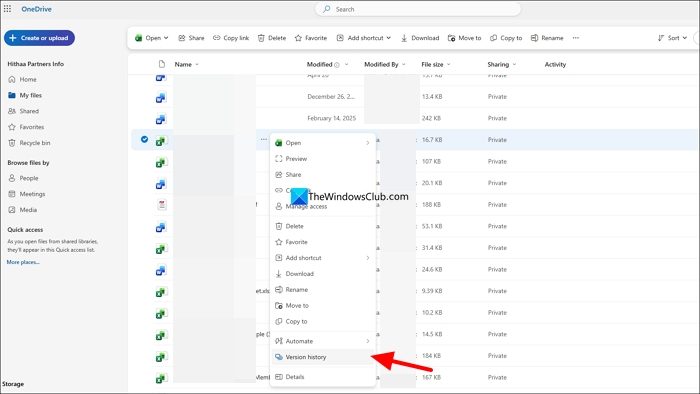
It will show you all the details, including the original date the file was created in its version history.
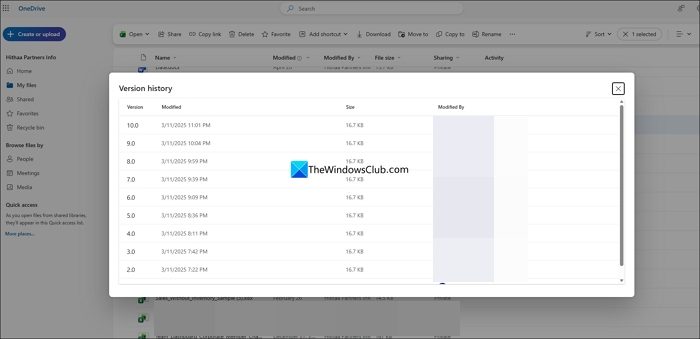
This way, you can find metadata for files created in OneDrive using Microsoft 365 programs. The version history keeps on updating whenever you open it and make changes.
4] Zip the files and upload them
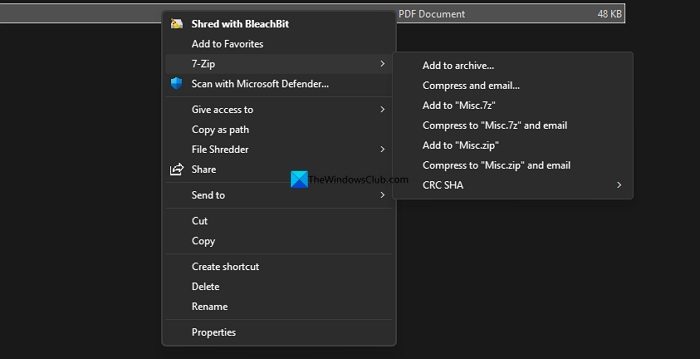
If you have many files you do not access regularly but want to store on OneDrive without losing metadata, the simplest option is to zip the files and upload the zip file to OneDrive. The files in the zip file retain their original metadata, and you can see it whenever you access the files. The flipside is that you have to download the entire zip file and unzip it to access a single file.
5] Other suggestions
- Make metadata edits locally first, then let OneDrive sync.
- If sync keeps reverting changes, temporarily pause OneDrive sync, edit metadata, then resume.
- Check file permissions—restricted permissions can block metadata updates
- Avoid using the OneDrive mobile app for bulk photo backups.
- Copy photos manually via USB/SD card into a OneDrive-synced folder on your PC. This preserves EXIF metadata.
- Use the OneDrive web interface to confirm whether metadata changes persist.
- Monitor Version History in OneDrive Online to see if changes are content vs. metadata-only.
- Disable or uninstall third-party apps that integrate with OneDrive, as they may interfere with metadata.
Read: OneDrive overwriting files with older versions; How to recover?
How to see metadata in OneDrive?
To see the metadata of a file in OneDrive, select the file, right-click on it, and select Details. You will see the file details on the side panel. The metadata mostly contains the date and time the file was created. If you want to see the detailed EXIF data, you have to download the file and view it in Properties, or use an EXIF data viewer.
Can I add metadata to OneDrive?
No, you cannot manually add metadata to OneDrive. Metadata is hard to add, and there are some dedicated metadata editing programs that help you do it. You can edit the metadata using those programs and upload the files with changed metadata via the OneDrive app on your Windows PC.
Related read: OneDrive is missing from File Explorer in Windows 11.
