
OneDrive comes pre-installed on Windows 11. We can sync files and folders on our PC to the OneDrive associated with the Microsoft account on our PC. Everything goes well until we need to add another OneDrive account to the same PC to sync a different set of files and folders. If you are wondering how to add multiple OneDrive accounts on a Windows PC, this guide is for you. We will show you everything you need to know about adding and managing multiple OneDrive accounts.
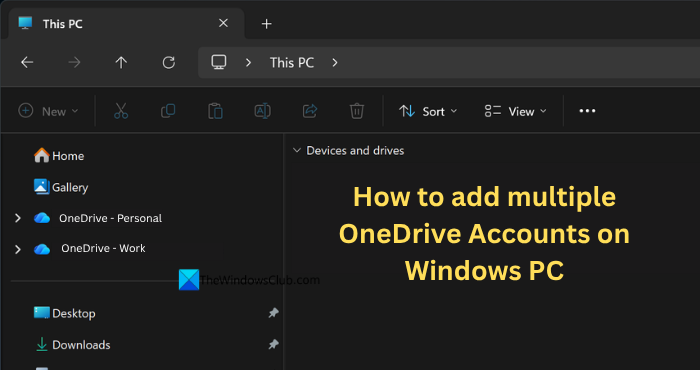
Can I add two OneDrive accounts?
Yes, you can add two or more OneDrive accounts. There is a catch to it. You can add only one personal OneDrive account, but you can have multiple work or school accounts. Microsoft limits us to adding only one personal OneDrive account on a Windows PC. It also allows you to sync files and folders to only one OneDrive account.
How to add multiple OneDrive Accounts on Windows PC
If you have multiple OneDrive accounts to add to your Windows PC, here’s how you can add and manage them efficiently.
- Click the OneDrive icon in the System Tray
- Sign in with an account
- Click the OneDrive icon again in the System Tray
- Go to OneDrive Settings
- Click Add an account
- Enter credentials
- Choose if you want to sign in to all apps and websites
Let’s get into the details.
OneDrive is installed by default with Windows 11. When you add a Microsoft account while setting up the PC, it automatically signs in to OneDrive too. If, for some reason, your account is not added to OneDrive, you can sign in easily. Click the OneDrive icon in the System tray. Then, click Sign in.
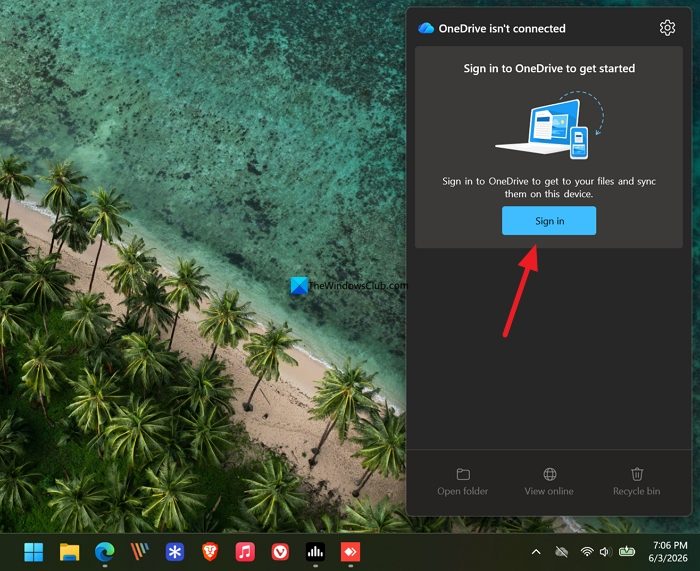
Then, enter the credentials of your personal or Microsoft account. After signing in, it will automatically sync a few folders like Desktop, Documents, Pictures, etc. Now, to add a work OneDrive account to your personal Windows PC, click the OneDrive icon in the System tray again. Click the gear icon and select Settings.
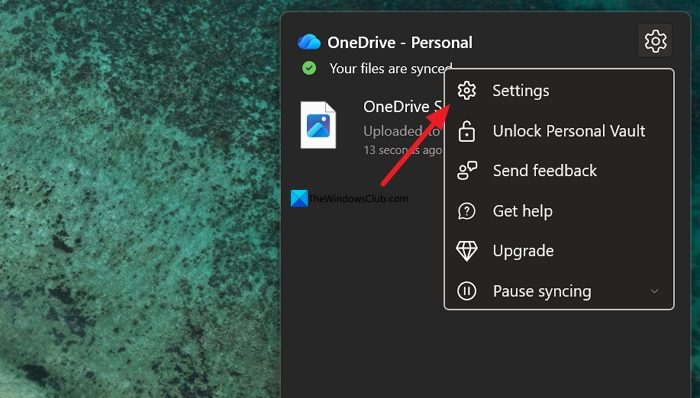
Select Account in the Settings. Then, click the Add an account button.
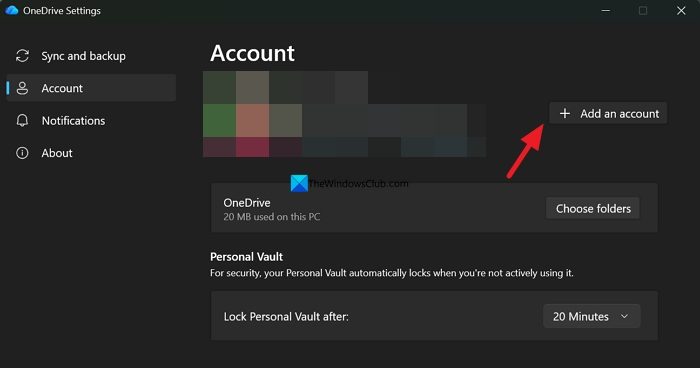
Enter the credentials of your work or school OneDrive account and click Sign in.
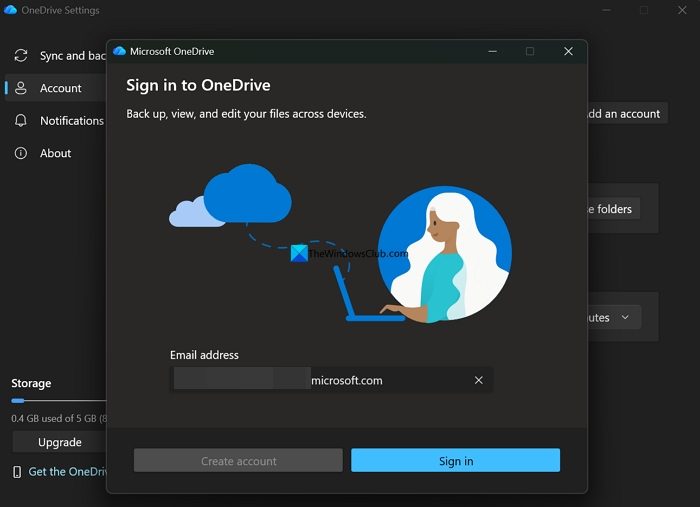
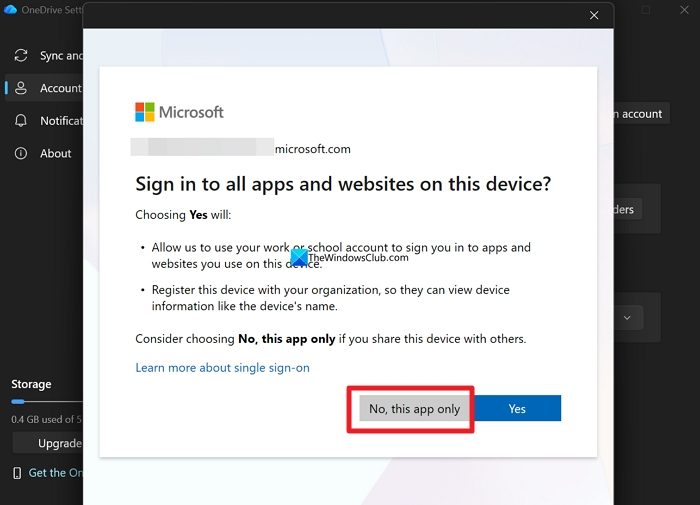
After successfully entering the credentials, it will ask you if you want to Sign in to all apps and websites on this device?. Click No, this app only to only add OneDrive account. If you click Yes, your PC will be added to your organization, and you will lose your administrator privileges along with it.
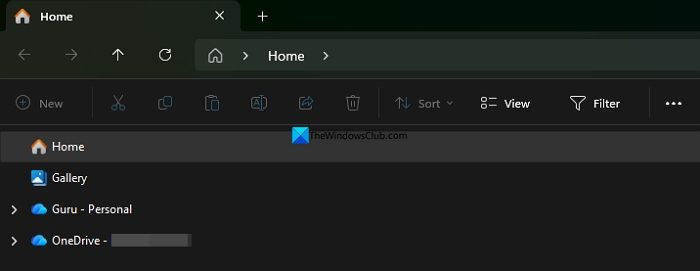
It will add two OneDrive folders/accounts in the File Explorer. You can click on any drive to access the data, like another folder on your PC.
You must always stay connected to the internet to access, add, and manage files. OneDrive only syncs data from your PC. If you want to sync some files or data to another OneDrive account added to your PC, you have to open the second OneDrive in File Explorer and create a new folder or file to save them on the drive.
If you want some files or folders on your PC to be accessible from OneDrive, even when you are not connected to the internet, you can do so easily. Open the OneDrive in the File Explorer, right-click the folder or file, and select Always keep on this device.
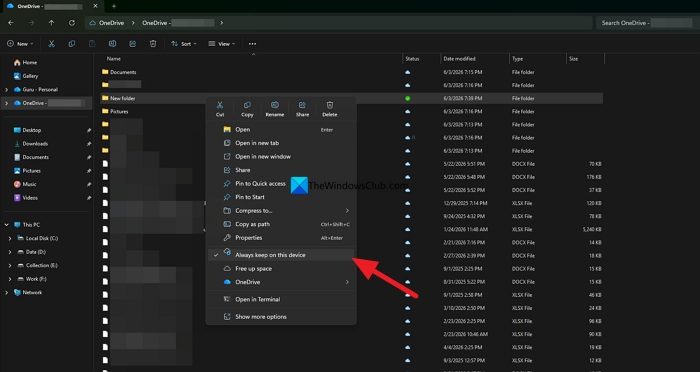
It will make the file or folder permanently accessible to you even if you’re offline. These folders or files will disappear when you remove the OneDrive account from your PC. To remove a OneDrive account from your PC, click the OneDrive icon on the System tray, click the gear icon, and select Settings. Then, go to Account. Under the account, click Unlink this PC.
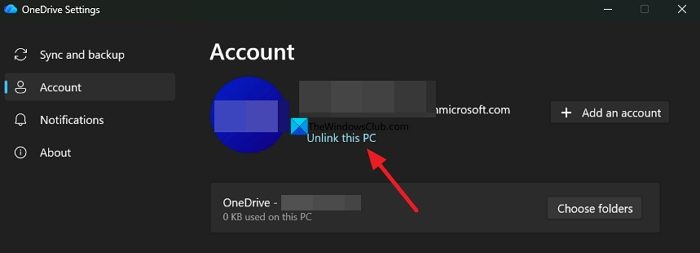
It will remove that particular OneDrive from your PC.
Read: OneDrive overwriting files with older versions; How to recover?
Microsoft OneDrive is a file hosting service and synchronization service operated by Microsoft as part of its web version of Office. It allows users to store files and personal data like Windows settings or BitLocker recovery keys in the cloud, share files, and sync files across Android, Windows Phone, and iOS mobile devices, Windows and macOS computers, and the Xbox 360 and Xbox One consoles. Users can upload Microsoft Office documents to OneDrive.
OneDrive offers 5 GB of storage space free of charge, with 100 GB, 1 TB, and 6 TB storage options available either separately or with Office 365 subscriptions.
Read: How to find out which Microsoft Account you’re using with OneDrive.
Why can’t I add a second OneDrive account?
If you are trying to add a second OneDrive account on your Windows PC, it is not possible. You can only add one personal OneDrive account and multiple school or work accounts. The limit is strictly enforced by Microsoft. To bypass it, you may have to switch to another cloud storage service.
Related read: OneDrive won’t start in Windows 11.
