
Microsoft has been integrating all its tools to make them easier for users to access. It also strengthens every individual element of Microsoft. One such case is with OneDrive. Now, you can find it as a cloud folder in File Explorer. However, at times, the OneDrive folder is missing from Windows Explorer. If you encounter this issue, then please read through this article.
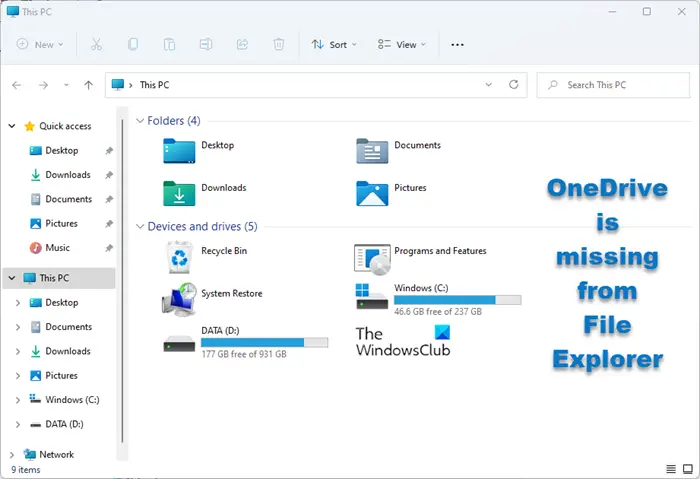
OneDrive is missing from File Explorer
Try the following solutions sequentially to resolve the issue in discussion:
- Restart the computer
- Reset OneDrive
- Uninstall and reinstall OneDrive
- Registry Level fix
1] Restart the computer
At times, simply restarting your system can resolve the issue discussed. It could be an issue with the session and rebooting the system can be helpful.
2] Reset OneDrive
Many users have confirmed that resetting Microsoft OneDrive resolves the issue. However, the command line to reset Microsoft OneDrive can be different for different systems. The procedure to reset Windows is as follows:
Press Win+R to open the Run window and then type the following command in the Run field.
%localappdata%\Microsoft\OneDrive\onedrive.exe /reset
If you get the error “Windows cannot find…” upon running this command then, you would have to use another command which is as follows.
C:\Program Files\Microsoft OneDrive\onedrive.exe /reset
If this command doesn’t work either, then use the next one.
C:\Program Files (x86)\Microsoft OneDrive\onedrive.exe /reset
Once the reset is done, you would have to start Microsoft OneDrive manually. Click on the Start button and search for OneDrive in the Windows Search bar. Click on the application and sign-in again.
For most users, this will help. Else, proceed with the following solutions.
3] Uninstall and reinstall OneDrive
If everything else fails, you can consider uninstalling Microsoft OneDrive and reinstalling it.
Right-click on the Start button and select Settings.
In the Settings window, go to Apps >> Apps and Features.
Search for Microsoft OneDrive. Click the 3 dots next to it, then select Uninstall.
After this, go to Office.com to reinstall Microsoft OneDrive on your system.
4] Registry Level fix
While this case is rare, a certain Registry level problem can cause the issue in discussion.
Press Win+R to open the Run dialog, then type regedit. Hit Enter to open the Registry Editor window.
In the Registry Editor window, go to the following path:
HKEY_LOCAL_MACHINE\SOFTWARE\Policies\Microsoft\Windows
Right-click on the Windows key and select New > Key.
Name the key OneDrive and save it.
In the right pane, right-click in the open space and select New > DWORD (32 bit).
Name the DWORD entry DisableFileSyncNGSC.
Double-click on DisableFileSyncNGSC to open its properties.
Change the Value Data of the entry to 0. Click on OK to save the settings.
Related reads:
Will I lose files if I uninstall OneDrive?
No, you won’t lose files if you uninstall OneDrive, because they are stored in the cloud. After reinstalling OneDrive and logging in with your Microsoft credentials, the data will sync again. The data will be restored, at least to show. Now, while the files will exist on the cloud, they won’t be usable till downloaded.
If you downloaded any files from OneDrive to your system, after reinstalling, the files in the OneDrive folder in File Explorer will need to be downloaded again. However, if any file is removed from that folder, it will be treated as an offline file.
Read: Recover missing OneDrive files from the folder
Why are my files not saving to OneDrive?
It could be a problem with the internet connection or corrupt OneDrive-related system files. Once you have resolved the network connection issue, try resetting OneDrive to resolve the issue. Furthermore, you can check the additional methods to try when OneDrive is not syncing.
