
If you cannot open or save files in OneDrive or Documents folder in Windows 11/10, then one of these three suggestions may help you fix the issue.
While Team Microsoft keeps updating and fixing the operating system, some users still face functionality issues in Windows 11/10. One of the commonly reported issues includes the opening of documents files in ‘Read Only’ mode or some error saying “Can’t open or save files” while trying to save files under (C:\Users\…)
Some other related errors include, You don’t have permission to save in this location. Contact the administrator to obtain permission regardless of whether the user is an Administrator or not.
Before you begin, check if you have downloaded and installed the latest Windows Updates.
Cannot open or save files in OneDrive folder
Documents and OneDrive are the two folders that generally face this file-saving issue. If you are experiencing this issue, Microsoft’s support team suggests trying the following. Let us take the example of the OneDrive folder.
- Allow access to OneDrive folder
- Use icals command
- Check if the permissions and system owner settings.
1] Allow access to OneDrive folder
Open Run box, type %userprofile% into the Run box and hit Enter. Click open the OneDrive folder. If you are prompted to allow access, click Yes. You should not have any problems saving files here now.
If this does not help, read on.
2] Use icals command
Right-click on your Windows Start button and select Command Prompt (Admin)
Type the following command and hit Enter:
cd %userprofile%
Then type the following command and hit Enter:
cd OneDrive
Next type the following command and hit Enter:
icacls %userprofile%\OneDrive /inheritance:e
If it is the Documents folder that is giving you trouble, type Documents instead of OneDrive.
If this has worked for you, great, else proceed to the other solution.
3] Check if the permissions and system owner settings are correct
To check or change the permissions, right-click on the problem folder > Properties and click on Security Tab. Click on Edit, and change the permissions where required.
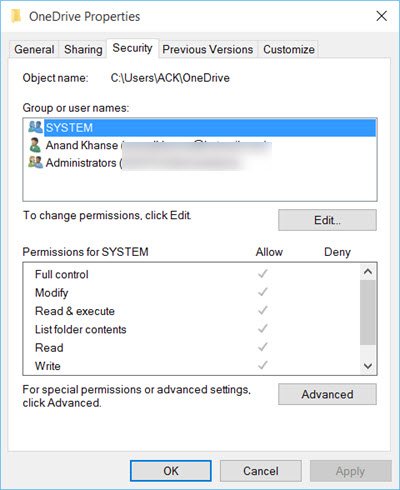
Apply the changes and Save.
These suggestions may help you resolve your issues of opening or saving files. Do let us know if it helped you – or if you have any other ideas.
See this post if you face OneDrive sync problems & issues.
These posts may also help you:
- How to take full Ownership of Files & Folders in Windows
- How to change File and Folder permissions in Windows.
