
When intentionally copying files to the OneDrive directory, you may see a message An unexpected error is keeping you from copying the file. There are various error codes related to this error such as error code 0x80070570, 0x80004005, 0x80071129, 0x80071771, 0x80070057, 0x80070780 and 0x8007016A. The main cause of this error is interference with the Microsoft Account registration, which is causing this block. In most cases, the same Microsoft Account is registered twice for OneDrive on the same computer. In this article, let’s explore how to troubleshoot this error.
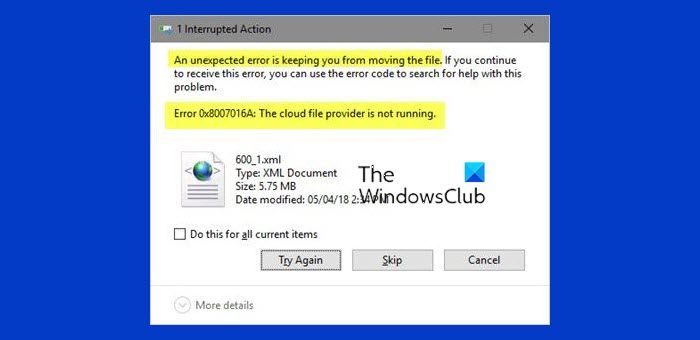
An unexpected error is keeping you from copying the file
There are some really simple methods that will be helpful in troubleshooting this error:
- Uninstall OneDrive.
- Unlink your Microsoft Account from OneDrive.
- Other fixes.
1] Uninstall OneDrive
There are two ways by which one can uninstall OneDrive on Windows 10.
If you are using Windows Command Prompt follow these methods:
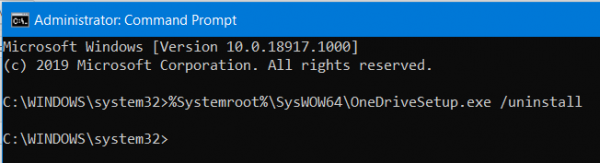
Run Command Prompt with Administrator rights.
Execute the following command depending upon the architecture of OneDrive installed on your computer:
- x64: %Systemroot%\SysWOW64\OneDriveSetup.exe /uninstall
- x86: %Systemroot%\System32\OneDriveSetup.exe /uninstall
Get the latest version of OneDrive from the official server and run the executable file.
Go through the setup of OneDrive and the error you were facing must be fixed now.
In case you are using Windows PowerShell, follow this:
- Run Windows PowerShell with Admin privileges.
- Navigate to the parent directory for OneDrive inside the command line.
- Execute the following command: Remove-Item “OneDrive folder name” -Recurse -Force
- Get the latest version of OneDrive from the official server and run the executable file.
- Go through the setup of OneDrive and the error you were facing must be fixed now.
2] Unlink your Microsoft Account from OneDrive
You have to unlink and then re-setup your account.
Select the OneDrive icon to launch the Activity Center.
Select More and then select Settings.
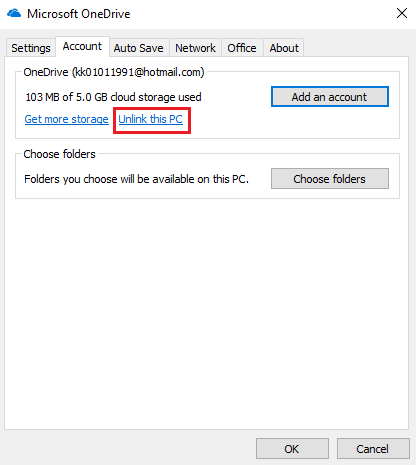
Click on Unlink this PC.
You will get the Welcome to OneDrive wizard. Follow the on-screen instructions to proceed.
Read: 0x802A0002, Shutdown was already called on this object or the object that owns it
3] Other fixes
OneDrive’s sync capabilities are tightly integrated into the Windows 111/0 operating system. Anything created or moved to a sync-enabled location automatically transfers across devices linked to that Microsoft Account. But if you encounter the error mentioned above, you can try following our guide on how to fix Duplicate OneDrive folders in Explorer on Windows.
Related:
- An unexpected error is keeping you from Renaming the folder
- An unexpected error is keeping you from Deleting the file.
I hope this guide helps you.
Read: Error 0x80070570, The file or directory is corrupted and unreadable.
