
Some users encountered a Blue Screen error while turning ON the Memory Integrity feature in Windows 11. Memory Integrity is a part of the Core Isolation security feature that prevents malware from inserting malicious code into high-security processes in Windows 11 computers. Therefore, it is important to turn this feature on. This article lists some fixes for the Memory Integrity Blue Screen in Windows 11.

Memory Integrity Blue Screen in Windows 11
Use the following fixes for the Memory Integrity Blue Screen in Windows 11.
- Check for Windows Update
- Test your RAM
- Disable XMP profile (if applicable)
- Check for corrupt drivers
- Update BIOS and Chipset driver
- Restore your system
- Reset your PC
All these foxes are explained below in detail:
1] Check for Windows Update
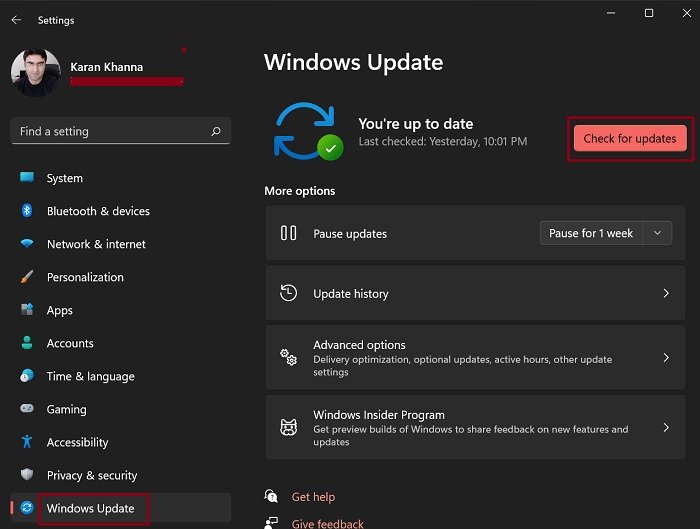
Your system crashes with a Blue Screen error every time you turn ON Memory Integrity. This can be due to a bug. Check for Windows Update manually and install the same if available.
2] Test your RAM
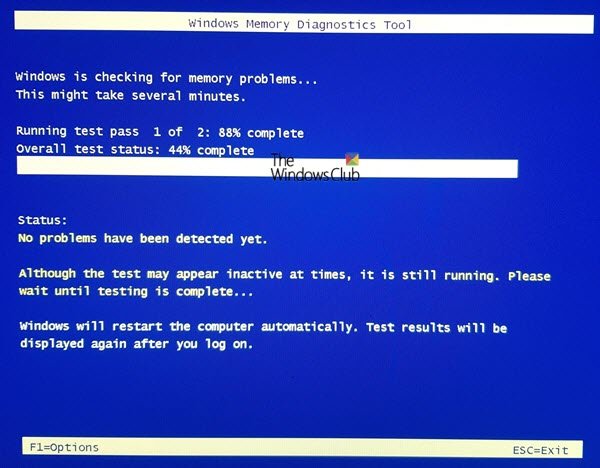
Since your system is crashing with a Blue Screen error while turning ON the Memory Integrity feature, the issue may be associated with the memory. Your RAM might be faulty. To check this, test your RAM by using the built-in Windows Memory Diagnostic Tool. If your RAM is faulty, consider replacing it.
Read: Memory Integrity turns off due to incompatible driver
3] Disable XMP profile (if applicable)
If your RAM supports XMP profile and you have enabled it, the problem might be occurring due to it. To confirm this, disable the XMP profile and then turn the Memory Integrity ON. If this works, you can enable the XMP profile again after enabling Memory Integrity.
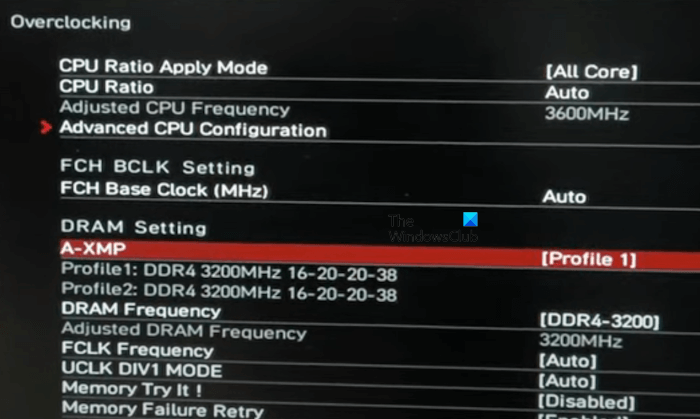
Different brands use different terms for the XMP profile. Therefore, based on the make of your motherboard, you may find DOCP or EOCP in place of XMP. DOCP, EOCP, and XMP are the same terms used to overclock RAM. DOCP is an XMP profile equivalent, used in ASUS motherboards. EOCP is another XMP equivalent, used in Gigabyte motherboards.
Refer to the user manual of your motherboard manufacturer to know how to disable the XMP profile.
4] Check for corrupt drivers
The next step is to check for corrupt drivers. Corrupt drivers can also trigger Blue Screen error while enabling Memory Integrity in Windows 11. To check corrupt drivers, follow these steps:
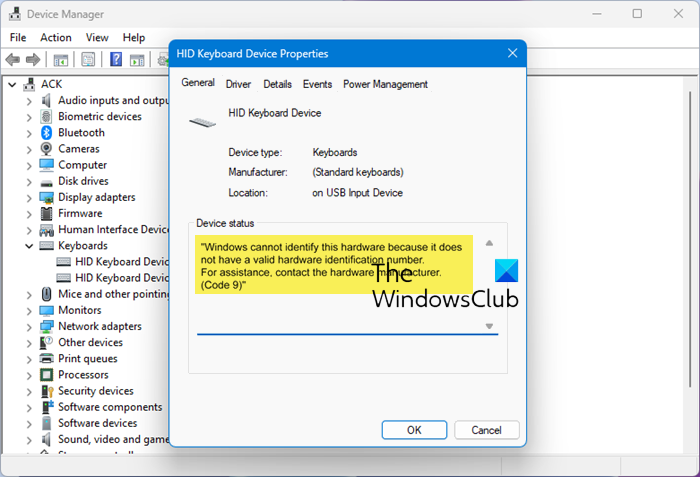
- Open the Device Manager.
- Expand all the branches.
- Look for the warning sign (yellow exclamation mark).
- Double-click on the driver that shows the warning sign to open its Properties. Read the Device status message under the General tab. It will show the error code and the error message.
- The error code will be one of the Device Manager error codes. Now, troubleshoot the error accordingly.
You can also try reinstalling the corrupt driver. Right-click on the corrupt driver and select Uninstall device. Now, visit the official website of your computer manufacturer and download the latest version of the driver. Run the executable file to install the driver.
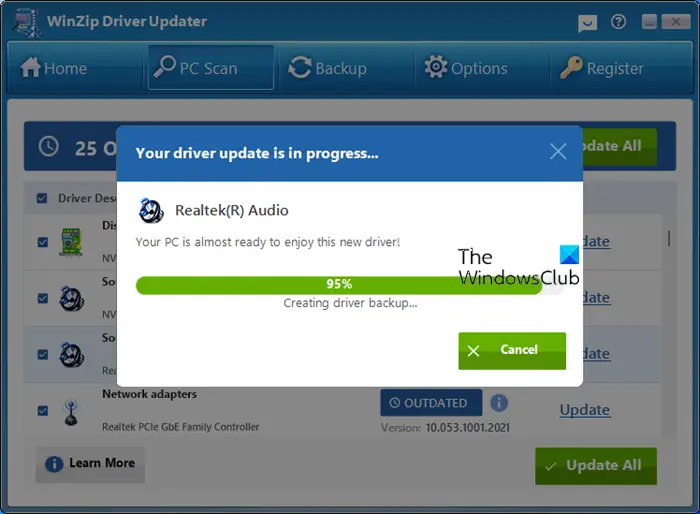
If there is no warning sign in the Device Manager, open the Optional Updates page in Windows 11 Settings and check if any driver updates are available there. If yes, install all of them. Alternatively, you can also use Driver Updater software to update all your device drivers with a single click.
5] Update BIOS and Chipset driver
Updating the BIOS to the latest version makes the system more stable by improving hardware compatibility. Check the currently installed version of BIOS on your system. Open System Information, and you will see the current BIOS version there. Now, visit the official website of your computer manufacturer and check the BIOS version available there. If an updated BIOS version is available, download and install it.
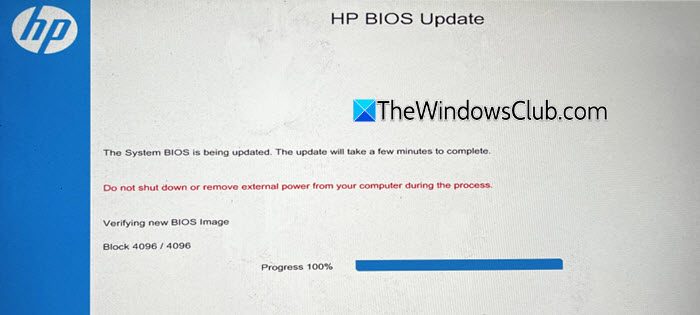
While installing the BIOS update, it is mandatory to provide a continuous power supply to your system. An interruption in the power supply during a BIOS update breaks the motherboard. If you have a laptop, connect the charger and turn on the switch, even if your laptop is completely charged.
We also suggest you update your chipset driver.
6] Restore your system
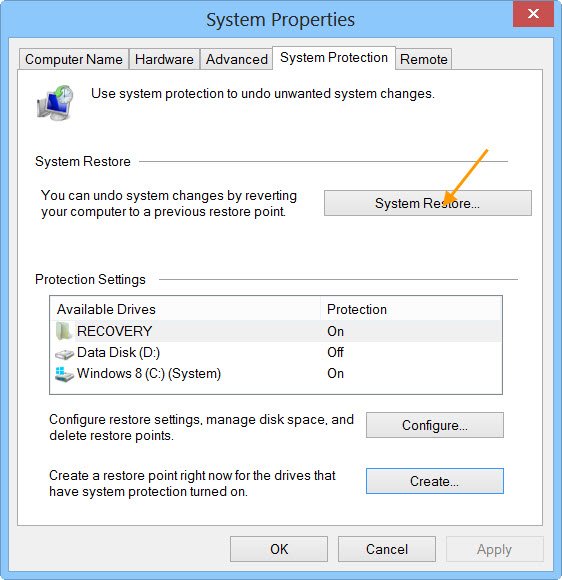
Try to restore your system to its previous working state using System Restore. Run System Restore and select the restore point created on the date before the problem occurred. Click Next and follow the on-screen instructions to restore your system.
7] Reset your PC
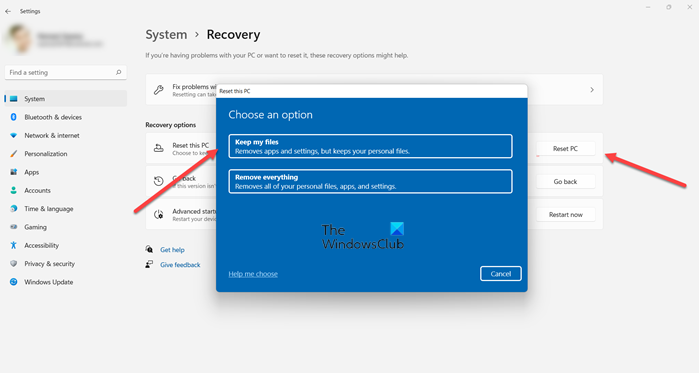
The last resort is to reset your PC to the factory default settings without deleting your data. The Keep my files option will save your data while formatting the system. However, we recommend you back up all your important files before proceeding.
That’s it. I hope this helps.
How to fix the RAM causing blue screens?
If RAM is causing a Blue Screen error on your system, it may be faulty. A computer shows multiple signs when the RAM is going to die. If you notice these signs, test your RAM using the Windows Memory Diagnostic Tool. If the RAM is faulty, replace it.
What is Memory Integrity in Windows 11?
Memory Integrity is a feature in Windows 11 that protects your system from malware by preventing malicious code from accessing and modifying the core operating system files. It works by creating an isolated environment using hardware virtualization.
Read next: No internet after Blue Screen on Windows.
