
Some Windows users have noticed that after they have recovered from a Blue Screen, they have no internet access. This issue can be due to a missing, corrupted or faulty network driver, or some misconfiguration. In this post, we are going to see what you can do if there is no Internet after a Blue Screen in Windows 11/10.

No internet after Blue Screen on Windows 11
If there is no Internet after a Blue screen in your Windows 11/10 computer, you can follow the steps mentioned below.
- See if WiFi or Ethernet is disabled
- Check if the network driver is present in the Device Manager
- Reset BIOS
- Clear CMOS
- Repair system files
Let us talk about them in detail.
1] See if WiFi or Ethernet is disabled
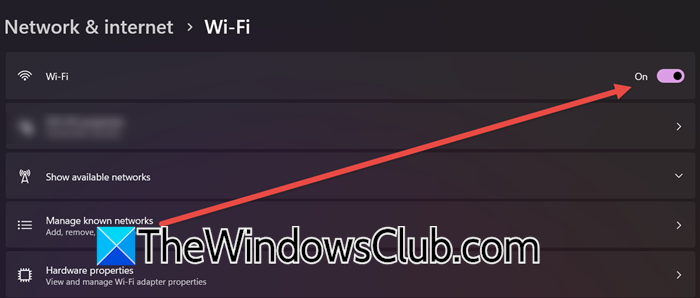
First of all, we need to check and ensure that the network device on your computer is not disabled after the Blue Screen. They can be disabled by Windows when trying to get rid of the Blue Screen, or maybe it is caused by some system failure.
To check this, open Settings by Win + I, go to Network & Internet > WiFi, and then see if the toggle is enabled. If it is disabled, you can turn it on.
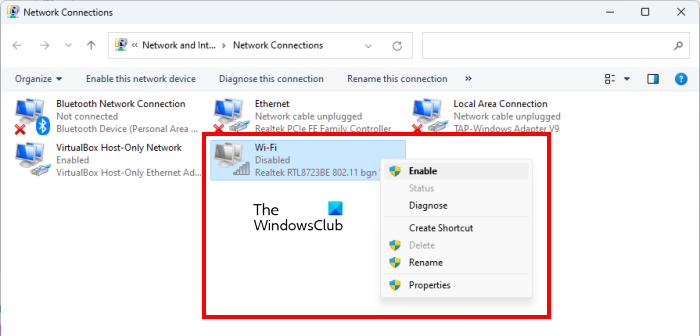
Additionally, open the Control Panel, navigate to Network & Internet > Network and Sharing Center, and click on Change adapter settings. Now, check if your Wi-Fi is disabled, if it says “Disabled”, right-click on it, and select Enable. Do the same with the Ethernet adapter.
Read: Windows could not find a driver for your Network Adapter
2] Check if the network driver is present in the Device Manager
The Device Manager allows you to check all the network devices connected to your computer and their respective drivers. You need to search for “Device Manager” from the Start Menu, expand Network adapters, and see if the driver is there.
If you see anything remotely close to a network adapter, right-click on it, and select Properties. And then check the Device Status. Some users tend to see a message that says “Windows cannot initialize the device driver for this hardware. (Code 37)” or Windows could not find a driver for your Network Adapter.
To resolve it, you can download or update the latest version of the Network driver. Since your Internet is not working, you may have to download the driver from your friend’s computer and transfer it to your computer using a USB drive.
Read: How to install WiFi drivers for Windows 11
3] Reset BIOS
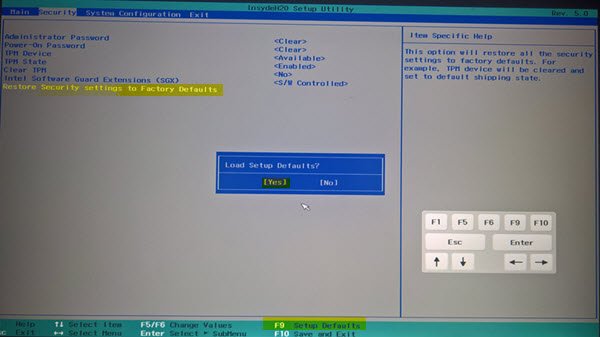
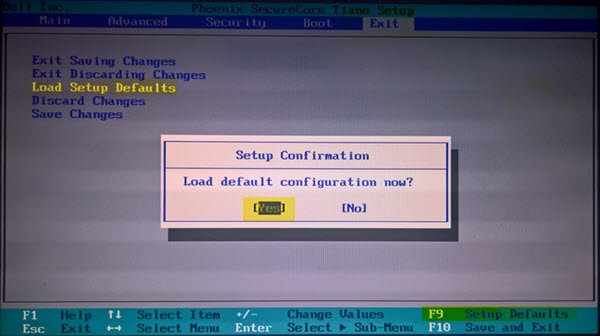
BIOS (Basic Input/Output System) is firmware that initializes hardware components and starts the operating system when a computer powers on. It performs a Power-On Self-Test (POST) to check if essential hardware is functioning correctly before loading the OS. If due to the Blue Screen, some changes were made to the BIOS, we have to revert them, as that can potentially prevent network adapters from being detected. Let us go ahead and reset the BIOS. Hopefully, this will do the job for you.
4] Clear CMOS
CMOS stores BIOS configuration, date and time, and hardware settings. Since we are not able to connect to the network adapter, let us go ahead and clear the CMOS. This reset everything that it stored and will resolve the issue. You can go ahead and clear the CMOS battery to see if this helps. Once done, open Windows and try connecting to the Internet. Hopefully, this will do the job for you.
5] Repair system files
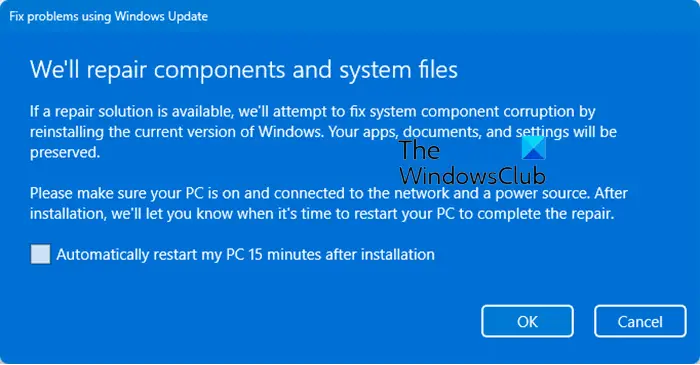
If nothing works, we can probably say that the issue is due to corrupted system files. You can follow one of the methods mentioned below to repair system files.
- Run System File Checker to find out corrupted files and repair them.
- Use DISM to repair the System Image.
- Repair Windows using Windows Update.
We hope that you are able to resolve the issue using the solutions mentioned in this post.
Read: Blue Screen of Death Causes and Solutions
Can BSOD cause data loss?
Yes, a Blue Screen of Death (BSoD) can cause data loss if it happens while files are being written or modified. If the system crashes before saving changes, documents or programs might become corrupted or lost. In some cases, the hard drive itself can be affected, leading to file system errors. Regular backups help prevent permanent loss in case of unexpected crashes.
Read: How to Recover Data after Blue Screen of Death in Windows 11?
Can Wi-Fi cause a blue screen of death?
Yes, Wi-Fi can contribute to a Blue Screen of Death (BSoD) if there are issues with the network driver, misconfigurations, or underlying system failures. A faulty driver can cause conflicts within the operating system, leading to crashes.
Also Read: Fix Blue Screen after installing Wi-Fi card on Windows PC.
