
This post features solutions to fix COD Warzone error code 0x8000FFFF/0x0000000 in Windows 11/10. Call of Duty: Warzone is a free-to-play battle royale video game developed by Infinity Ward and published by Activision. The game was recently released for Microsoft Windows. But some users have been complaining about the COD Warzone Error Code 0x8000FFFF/0x0000000. Keep reading this post to learn how you can fix it.
To fix error codes on Warzone, check if your device meets the minimum requirements. It’s possible your device doesn’t meet the minimum requirements to run COD Warzone. However, Outdated or corrupted graphics drivers can also be responsible for why COD Warzone errors can occur.
Fix COD Warzone Error Code 0x8000FFFF/0x0000000
Try the following suggestions to resolve the error code 0x8000FFFF/0x0000000 in COD Warzone on your Windows 11/10 PC:
- Check System Compatibility
- Scan the Game Files
- Run Warzone as an Admin
- Update Graphics Drivers
- Turn Off Windows Defender Firewall
- Reinstall COD Warzone 2
Now let us see these in detail.
1] Check System Compatibility
Before getting started with different troubleshooting methods, check if your device meets the minimum requirements. It’s possible your device doesn’t meet the minimum requirements to run COD Warzone. The minimum requirements to run Warzone are:
- OS: Windows® 11/10 64 Bit (latest update)
- Processor: Intel® Core™ i3-6100 / Core™ i5-2500K or AMD Ryzen™ 3 1200
- Memory: 8 GB RAM
- Graphics: NVIDIA® GeForce® GTX 960 or AMD Radeon™ RX 470 – DirectX 12.0 compatible system
- DirectX: Version 12
- Network: Broadband Internet connection
- Storage: 125 GB available space
2] Scan the Game Files
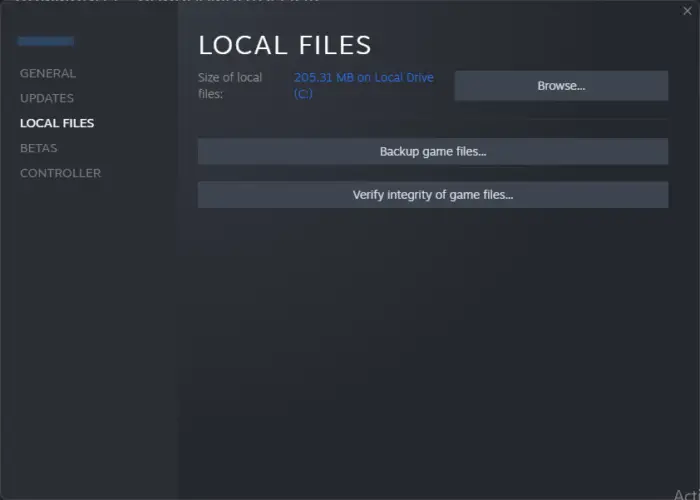
The game files can get corrupted due to a bug or a recent update. This could also be the reason why this issue is troubling you. To fix this, Verify the game files of game files on Steam and scan the game files on the Battle.net client.
On Steam
- Open Steam and click on Library.
- Right-click on Call of Duty Warzone 2.0.exe from the list.
- Select Properties > Local Files
- Then click on Verify Integrity of Game Files.
On Battle.net
- Launch the Battle.net client and click on Call of Duty Warzone 2.0.
- Click on the Gear icon and select Scan and Repair.
- Now click on Begin Scan and wait for the process to complete.
- Close the Battle.net launcher, and restart your PC once done.
3] Run Warzone as an Admin
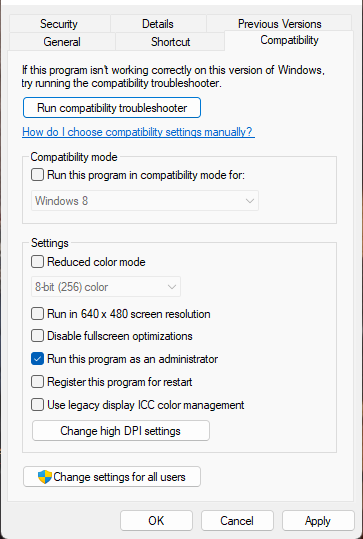
Running the game as an administrator makes sure the game doesn’t crash due to a lack of permissions. Here’s how to do it:
- Right-click on the Call of Duty Warzone 2.0.exe shortcut file on your device.
- Click on Properties.
- Navigate to the Compatibility tab.
- Check the option Run this program as an administrator.
- Click on OK to save changes.
4] Update Graphics Drivers
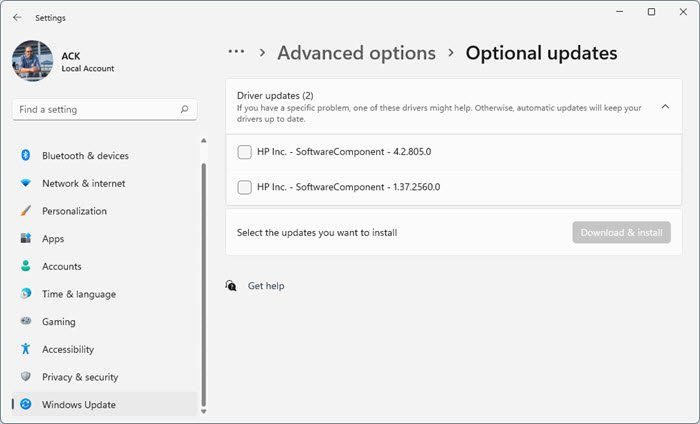
Outdated or corrupted graphics drivers can also be responsible for why COD Warzone error code 0x8000FFFF/0x0000000 occurs. Update your device’s Graphics drivers and check if the issue gets fixed. Here’s how you can do it:
- Open Settings and navigate to Settings > Update & Security > Windows Update.
- Right under it, look for a clickable link—View optional updates.
- Under Driver Updates, a list of updates will be available, which you can choose to install if you are facing an issue manually.
You can also search for driver downloads for your system online and then search for the driver’s name on the site. Visit your computer manufacturer’s website, or you may visit the graphics hardware manufacturers’ site.
You can also use free Driver Update software or tools like AMD Driver Autodetect, Intel Driver Update Utility or Dell Update utility to update your device drivers. NV Updater will keep NVIDIA Graphic Card Driver updated.
Fix: COD Modern Warfare Flickering and White Screen Issue.
5] Turn Off Windows Defender Firewall
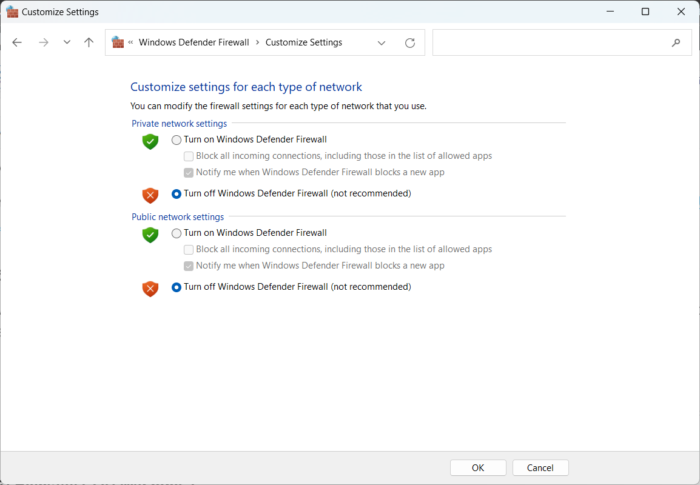
Windows Defender Firewall sometimes makes games and apps malfunction. Turn it off and check if it fixes the Warzone error code 0x8000FFFF/0x0000000. Here is how you can do it:
- Click on Start, search for Windows Defender Firewall and select Open.
- Click on Turn Windows Defender Firewall on or off in the left pane.
- Now, check the option that says Turn off Windows Defender Firewall under both Private and Public network settings.
- Click on Ok to save the changes.
6] Reinstall COD Warzone
If none of the workarounds mentioned above were able to help you, the game’s core files might be corrupted. To fix this, remove all COD Warzone files from your system, and reinstall it.
Similar error codes:
- 0x8000ffff Outlook error
- Error Copying File or Folder, Catastrophic failure
- 0x8000FFFF Catastrophic Failure System Restore error
- Error 0x8000FFFF, Catastrophic failure in Printer
- 0x800ffff Windows Update or Microsoft Store Error
- Media Player Error 0xc00d11cd, 0x8000ffff; Can’t Play Music
- COD Warzone Error Code 0x8000FFFF/0x0000000.
