
This post helps to fix the 0x8000fff error in Outlook when adding data files. Some users have reported that when they attempt to create or open an Outlook Data File (.pst) on their Windows 11/10 system, the Outlook application fails to do so. Instead, an error message is displayed with error code: 0x8000ffff. You can see the entire error message in the image below. This can happen if there’s a problem with the Outlook data file itself, the Outlook profile, or if you’re using the Mail Setup or Mail applet to add a data file. To solve this problem, you can use the working solutions covered in this post.
An unknown error occurred, error code: 0x8000ffff.
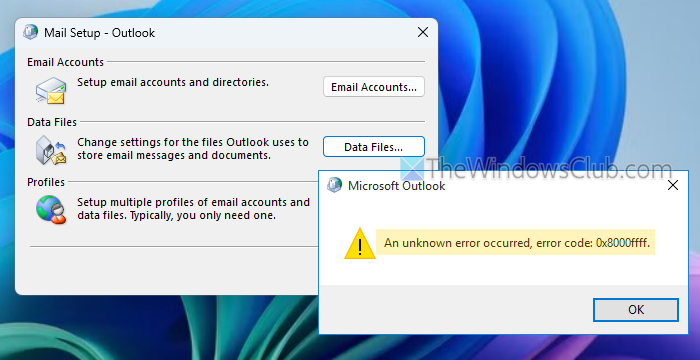
Unknown error 0x8000ffff in Outlook
If you receive an error code 0x8000ffff in Outlook when adding a data file on your Windows PC, use the following fixes:
- Use the Inbox Repair Tool (SCANPST.EXE)
- Add your Outlook Data file using Account Settings
- Create a new Outlook profile
- Repair Microsoft Office.
Let’s check these fixes.
1] Use the Inbox Repair Tool (SCANPST.EXE)
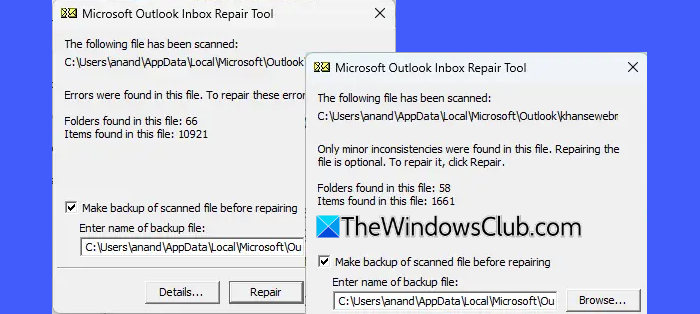
If the data file that you’re trying to add is damaged or contains errors, you can use the Microsoft Outlook Inbox Repair Tool (SCANPST.EXE) to diagnose and repair the corrupt Outlook data file. It’s an integrated tool in Outlook that helps repair the Inbox folder in Outlook or a damaged data file. You can find SCANPST.EXT file in any of the following locations:
C:\Program Files (x86)\Microsoft Office\root\Office16
C:\Program Files\Microsoft Office\root\Office16
Open this tool, select your Outlook data file to scan, and start the Repair process. This should help.
2] Add your Outlook Data file using Account Settings
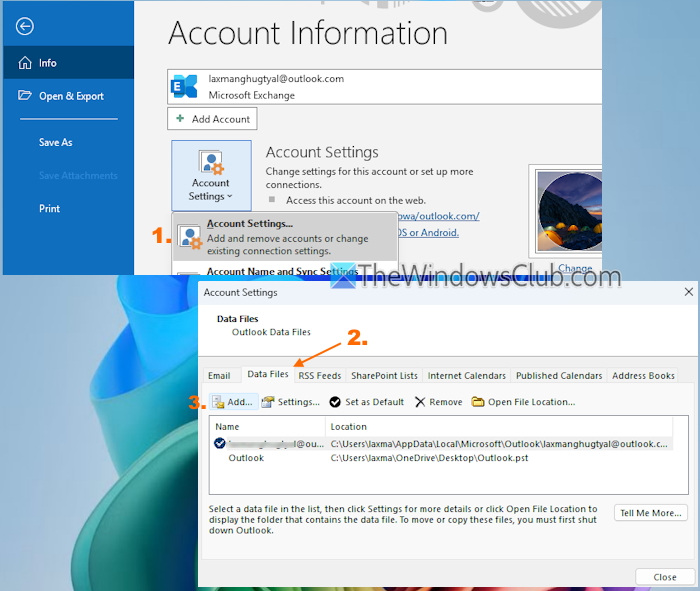
This is the most suitable solution to fix Outlook error 0x8000ffff when adding a data file. This error code mainly occurs when users try to add or create an Outlook data file using the Mail Setup (or Mail (Microsoft Outlook)) in Control Panel. To fix the problem, you need to add the data file using the Account Settings from the Outlook application and not the Mail applet. Here are the steps:
- Open the Outlook application on your Windows 11/10 PC
- Access the File menu
- Open the Account Settings drop-down menu and select the Account Settings… option
- In the Account Settings window, switch to the Data Files tab
- Use the Add… button to create a new file or open an existing data file
- Press OK.
You will be able to add or create an Outlook data file without any trouble.
Related: Outlook Exported PST File Empty
3] Create a new Outlook profile
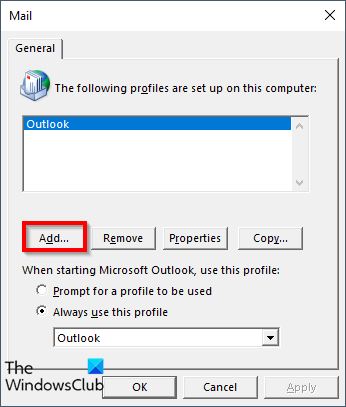
This fix worked for one of the users who had the same issue on a domain-joined machine. He deleted the problematic user profile and created a new one to fix the problem. So, create a new Outlook profile, complete the account setup, and check if the problem is solved.
4] Repair Microsoft Office

In case nothing works, you can repair the Microsoft Office suite.
That’s all.
Similar error codes:
- 0x8000FFFF Catastrophic Failure System Restore error
- Error 0x8000FFFF, Catastrophic failure in Printer
- 0x800ffff Windows Update or Microsoft Store Error
- Error Copying File or Folder, Catastrophic failure
- Media Player Error 0xc00d11cd, 0x8000ffff; Can’t Play Music
- COD Warzone Error Code 0x8000FFFF/0x0000000.
How do you fix Your Outlook data file cannot be configured?
If you try to open Outlook and receive an error saying Your Outlook data file cannot be configured, free up the disk space, and try again. If the problem occurs with the offline Outlook data file (.ost), recreate the data file to solve the problem. Additionally, if the problem is with a PST file, you can use the built-in SCANPST.EXE tool to repair your PST file and get rid of this Outlook data file error.
How to restore data files in Outlook?
If your original data file (*.pst) is lost or damaged, you can use the backup copy of it to restore your Outlook data. For this, open Outlook > File menu > Open & Export > Import/Export. In the Import and Export Wizard, select Import from another program or file, press Next, and complete the import process.
Read next: Something is wrong with one of your data files and Outlook needs to close.
