
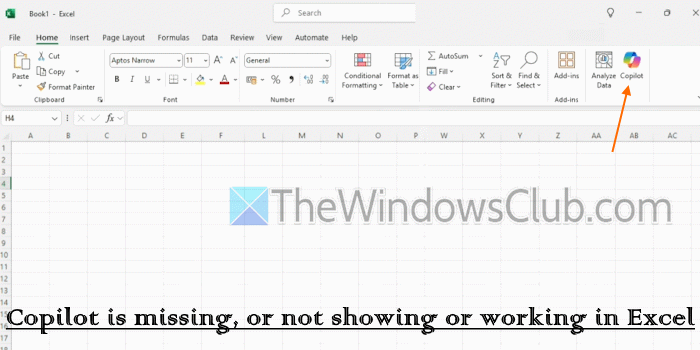
Copilot is present in the Home tab of the Excel desktop app in Microsoft Office and Excel for Microsoft 365 with a valid Microsoft 365 subscription and/or Copilot license. However, some users have complained that Copilot is missing, not showing, or not working in Excel. Some users find that the Copilot button is disabled or greyed out or doesn’t appear in the Ribbon, while other users are able to use it in Excel Web App and Word, but not in the desktop version or Microsoft 365 Excel app. We have covered some working solutions to fix this problem.
Why is Copilot not showing up in Excel?
Copilot may not be visible or show in Excel if you aren’t using the correct account or license, or if the Excel app is outdated. It also won’t show up if you have customized the Ribbon and accidentally removed the Copilot button. Additionally, if Copilot is blocked by your Privacy Settings, there are account conflicts, or internet connectivity issues, Copilot won’t show or work in Excel. Copilot is also not supported if Shared Computer Activation (SCA) is used.
Copilot is missing, or not showing or working in Excel
If Copilot is missing, not showing, or not working in Excel, use these solutions:
- Update Office
- Reset the Ribbon
- Enable Copilot in Excel Options
- Check if you are using the Correct account
- Refresh or Update your License
- Switch to the Monthly Enterprise Channel or Current Channel
- Check the Privacy Settings
- Run Copilot Troubleshooters to fix License and Connectivity issues.
Let’s check these solutions.
1] Update Office
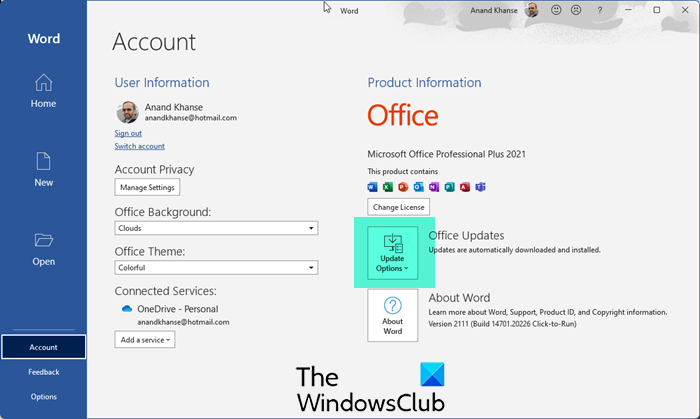
If the Excel app is outdated, you may face trouble using Copilot in Outlook. So, update Office or Microsoft 365 to the latest build. Open the Excel app, go to File > Account > Update Options > Update Now.
2] Reset the Ribbon
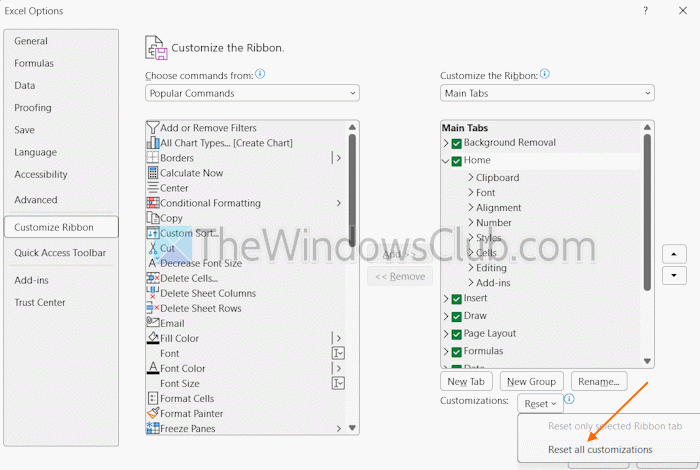
If you have customized the Ribbon and accidentally removed the Copilot button from the Home menu, you can bring it back or simply reset the Ribbon to default. For this, right-click on the Ribbon and select the Customize the Ribbon option. An Excel Options window will open with Customize Ribbon settings. There, open the Reset drop-down menu (on the bottom-right part), and select Reset all customizations.
3] Enable Copilot in Excel Options
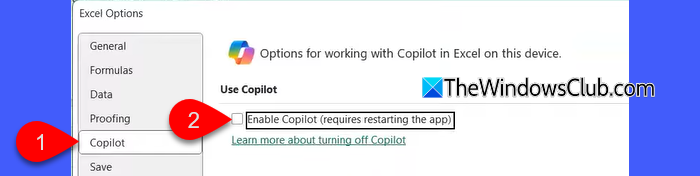
In the Microsoft 365 Excel app version 2501 and later, if you are signed in with a personal Microsoft account, an Enable Copilot setting is available to turn on or off Copilot in Excel. If that setting is turned off, Copilot won’t be visible in the Home tab of Excel. If this is the reason for your problem, you can enable Copilot in Excel Options. Here are the steps:
- Open the Excel app
- Click File > Options. This will open an Excel Options window
- Select Copilot from the left sidebar
- Tick the Enable Copilot option
- Press OK and restart Excel.
Related: Copilot not working in Word
4] Check if you are using the Correct account
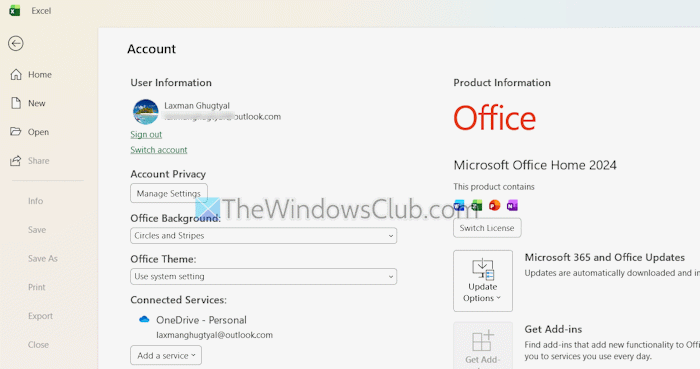
To use Copilot in Excel, you must be using the correct account. Copilot is not available in a Microsoft 365 Basic account. You must have Copilot Pro or a Microsoft 365 Personal or Family subscription. If you are signed in with multiple accounts, switch to the correct account.
If you are a business user, you should have a Microsoft 365 Business Premium, Business Basic, Business Standard, F3, E3, F1, or E5 subscription, and Microsoft 365 Copilot.
Additionally, if you are an education customer (student or faculty) and using a university subscription, you must be assigned a Microsoft 365 A5, A1, or A3 license. You can sign in to your Microsoft account and access the Subscriptions page to check.
5] Refresh or Update your License
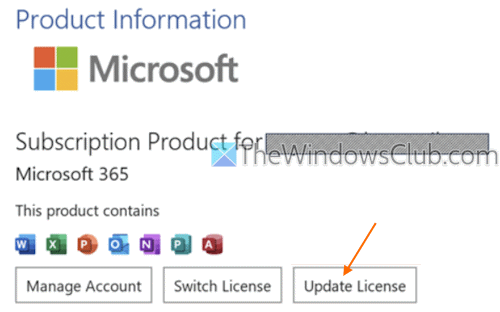
Sometimes, a newly assigned license can also take some time, which can prevent Copilot from appearing. If you have a valid license and Copilot is not working or showing, you should refresh or update your license. For this:
- Open any Microsoft 365 app (Excel, Word, or PowerPoint)
- Select File > Account
- Click on the Update License button
- Completely close Excel and other Microsoft 365 apps. This will help in refreshing the license.
Read: Copilot not working in PowerPoint
6] Switch to the Monthly Enterprise Channel or Current Channel
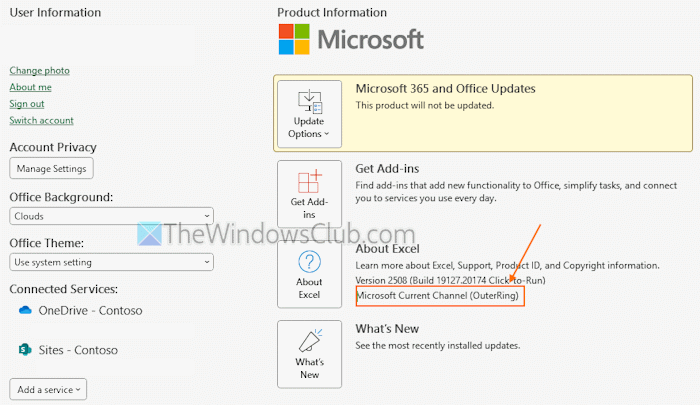
This option is suitable for business users. Microsoft 365 Copilot features aren’t available in the Semi-Annual Enterprise Channel. So, you need to switch to the Monthly Enterprise Channel or Current Channel to use features assigned to your Copilot license.
You can open Excel and navigate to File > Account > About Excel to check the update channel your organization is using. If it is a Semi-Annual Enterprise Channel, you can contact the technical support or internal help desk for assistance.
Also read: How to use COPILOT in Excel?
7] Check the Privacy Settings
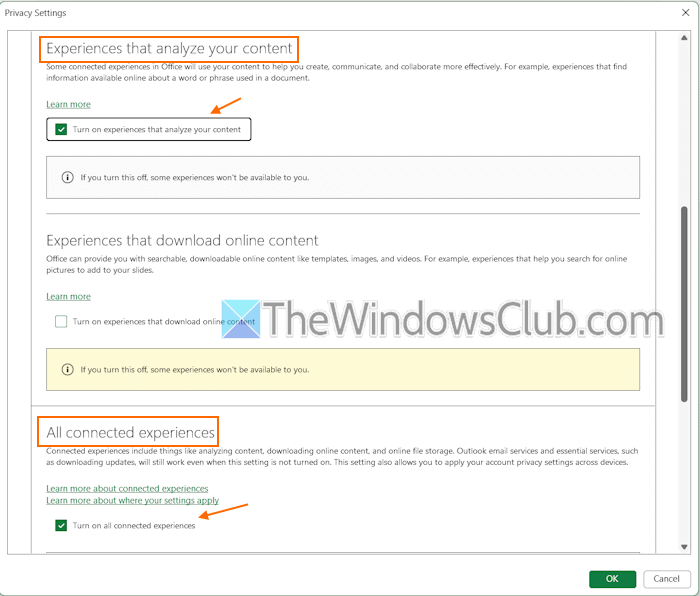
If you disable connected experiences in the Microsoft 365 Excel app (All connected experiences and Experiences that analyze your content settings), this could be the reason that Copilot is missing, not showing, or not working in Excel. You need to turn on these settings to solve the issue. Here are the steps:
- Open the Excel app
- Click File > Account
- In the Account Privacy section, press the Manage Settings button. A Privacy Settings window will open
- Scroll down and tick the Turn on experiences that analyze your content option
- Tick the Turn on all connected experiences option
- Press the OK button in the Restart Required pop-up
- Restart the Excel app.
8] Run Copilot Troubleshooters to fix License and Connectivity issues
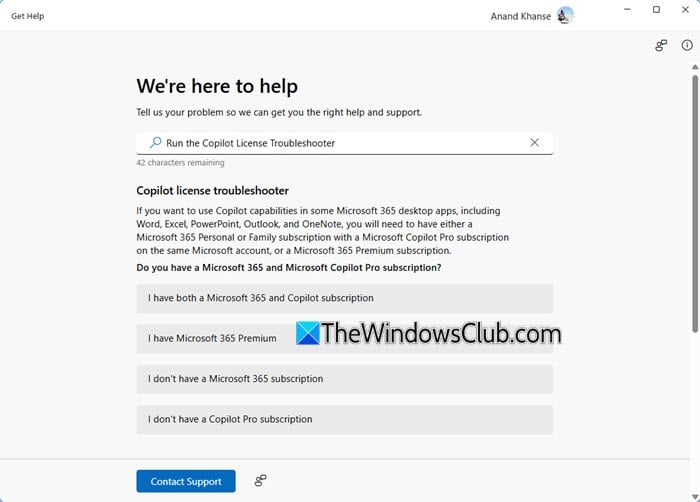
Windows 11 comes with Copilot License Troubleshooter and Copilot Connectivity Troubleshooter that can be used via the native Get Help app. If you face trouble in accessing Copilot in any Microsoft 365 apps (including Excel), you can run Copilot troubleshooters to fix license and connectivity issues. You can provide your consent to run a troubleshooter and proceed further to find the problem and get assistance.
If none of these solutions help, you should reinstall Microsoft 365 or Microsoft Office.
That’s all.
Now read: 10 Copilot prompts for Excel
How do I turn on Copilot Agent Mode in Excel?
You can turn on Edit with Copilot (previously marketed as Agent Mode) in Excel with a few simple steps. Open a new workbook in Excel Web App. After this, go to Home > Copilot, and the Copilot Chat sidebar will open. Click on the Tools icon and select Edit with Copilot to create and edit your workbook side by side with Copilot.
Read next: Copilot shows blank screen.
