
This article guides you on what to do if the Ctrl Shift Arrow keys are not working in Excel. The Ctrl Shift Arrow key combination in Excel is used to jump to the last filled cell while highlighting everything in between. However, some users report that pressing Ctrl+Shift+Arrow Keys does nothing in Excel. As a result, they have to manually select the data, which can be time-consuming and inconvenient when working with large datasets.
Ctrl+Shift+Arrow Keys are not working in Excel
If the Ctrl Shift Arrow keys are not working in Excel, the following solutions will help you fix the problem:
- Turn off Scroll Lock
- Test another keyboard
- Disable all add-ins
- Reinstall the keyboard driver
- Update your keyboard management software (if applicable)
- Check the issue in a Clean Boot state
- Repair or reinstall Office
All these fixes are explained in detail below:
1] Turn off Scroll Lock
Sometimes, Scroll Lock gets enabled accidentally while typing, and you may not even notice it. This might have happened in your case. Press the Scroll Lock key one more time and see if that works.
2] Test another keyboard

The issue may be with your keyboard. To verify this, connect another keyboard and check whether the Ctrl + Shift + Arrow Keys shortcut works correctly. If yes, your original keyboard might be faulty. If another keyboard is unavailable, you can use the On-Screen Keyboard. Click Windows Search and type OSK. Select the On-Screen Keyboard from the search results. Now, using your mouse, click Ctrl, then Shift, and then any one arrow key. Replace your original keyboard if it is faulty.
3] Disable all add-ins
Sometimes, issues in Microsoft Office applications occur due to the installed add-ins. This can be happening in your case. To confirm this, disable all the add-ins in Excel. The following steps will guide you on this:
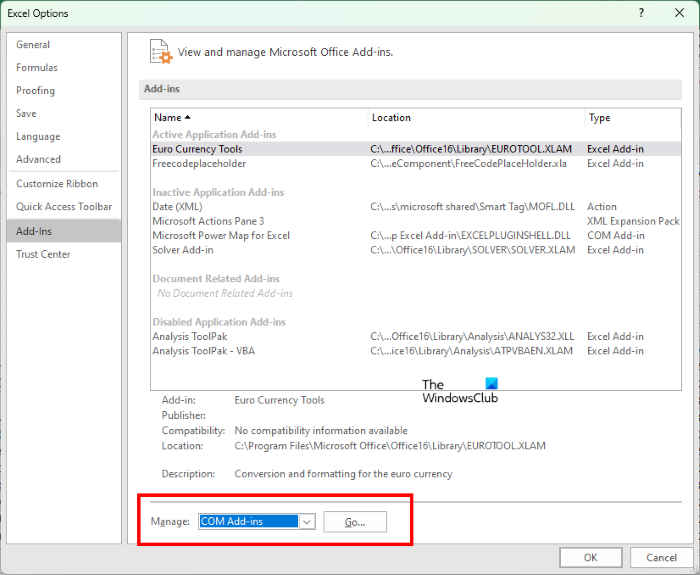
- In Excel, click File > Options > Add-ins.
- Select COM Add-ins in the drop-down on the right, and click GO.
- A new window will appear showing you all the installed and active COM add-ins.
- Uncheck all the checkboxes to disable the add-ins.
- Click OK to save.
Now, check whether you can use the Ctrl Shift Arrow keys. If the issue persists, disable the Excel Add-ins too. If the issue disappears after disabling the add-ins, this means that one of the add-ins is triggering this problem. To identify the problematic add-in, enable one add-in at a time and check whether you can use the keyboard shortcut. Repeat the step until the issue reappears. When the issue starts occurring again, the add-in you have just enabled is the culprit.
4] Reinstall the keyboard driver
You can also try reinstalling your keyboard driver. Follow these steps:
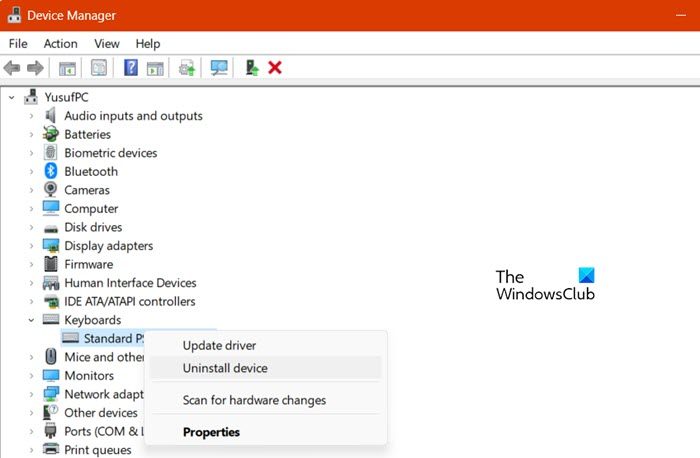
- Open the Device Manager.
- Expand the Keyboards branch.
- Right-click on your keyboard driver and select Uninstall device.
- Scan for hardware changes or restart your system. Windows will automatically reinstall the missing driver.
5] Update your keyboard management software (if applicable)
If you use a gaming or premium keyboard, it may be managed by dedicated software provided by the manufacturer. An outdated version of this software can sometimes cause issues with the keyboard. Update the software to the latest version and check if the issue is resolved.
6] Check the issue in a Clean Boot state

A third-party service might be triggering this problem. To confirm, troubleshoot in a Clean Boot State. Launch MSConfig and disable all the third-party services to enter the Clean Boot State. Be careful while disabling the third-party services. Mistakenly disabling all the services will make your system unstable, and you have to reinstall Windows. Once you are in the Clean Boot state, launch Excel and check if the issue persists. If not, one of the disabled services is causing this problem. To confirm, enable some of the services and restart your system. Check whether the issue reappears. If not, enable some more services and restart your system again. When the issue reappears, one of the services you have just enabled is the culprit.
7] Repair or reinstall Office
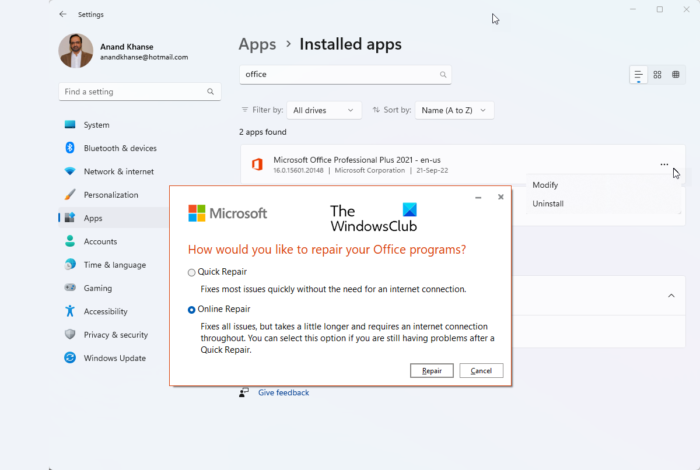
Corrupt Office files also cause problems with Office applications. Repair Office using the Online Repair option. This process will take time. If the problem continues after repairing Office, you may need to uninstall and reinstall Office. Before proceeding, make sure you have the product activation key, as you’ll need it to activate your Office version after reinstallation.
That’s it. I hope this helps.
How do I enable Ctrl+Shift+Down Arrow in Excel?
There is no need to enable Ctrl+Shift+Down Arrow in Excel, as it is a keyboard shortcut that works by default in all Office applications, including Excel. However, if the shortcut is not working, try another keyboard to confirm whether your keyboard is faulty.
Why is the Ctrl Down arrow not working?
If Ctrl+Down Arrow is not working in Excel, make sure your data is continuous. If there is a blank cell anywhere in the column, Excel will stop at that cell instead of jumping to the last filled cell.
Read next: Conditional formatting not applying to all cells in Excel or Google Sheets.
