
Microsoft Excel is one of the most widely used spreadsheet applications for organizing, analyzing, and managing data. Previously, it was a bit challenging to organize large datasets in Excel because users had to remember complex formulas. However, after the introduction of AI, managing datasets has become easier.
While AI-powered tools have made Excel tasks much easier, many of them require users to copy data from Excel repeatedly, paste it into an AI chatbot, and then copy the generated formulas back into their spreadsheets. This process can be time-consuming and slow down productivity. This issue was addressed when Microsoft integrated Copilot into all Office applications, including Excel. However, it is only available in Microsoft 365. Grok AI has eliminated this limitation. This article shows how to use Grok AI for composing Complex Excel Formulas using natural language.
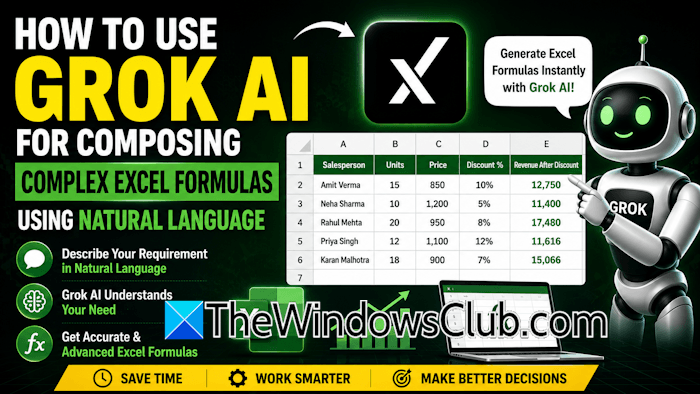
How to use Grok AI for composing complex Excel Formulas using natural language
Grok AI is available as an add-in for Microsoft Office applications, including Microsoft Excel. Unlike Microsoft Copilot, which is available only for Microsoft 365 users, Grok AI is available for Microsoft Office Home. Since it is available as an Add-in, you do not need to use any other AI application. Instead of switching between AI applications and Excel, you can describe the action in natural language, and Grok will generate and apply the appropriate Excel formula. In this article, we will discuss how to use Grok AI for composing complex Excel formulas using natural language.
How to install Grok AI in Excel
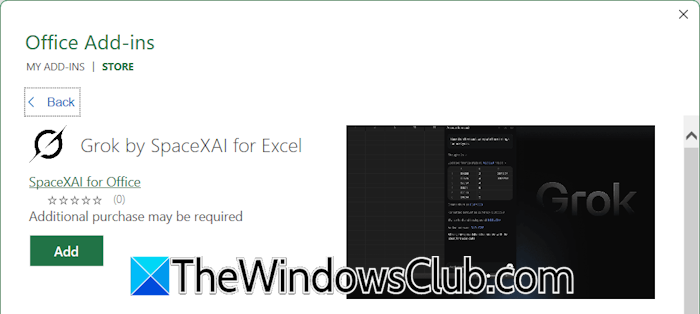
Before proceeding, let’s see how to install Grok AI in Excel. Visit the official XAI website and click the Add to Excel button. A new Microsoft Marketplace tab will open. Now, click Get it now and follow the instructions. Alternatively, you can install it directly from the Add-ins Store. For this, follow these steps:
- Launch Microsoft Excel.
- Create a new blank worksheet.
- Click Add-ins > More Add-ins under the Home tab. This will open the Office Add-ins Store.
- Search for Grok.
- Select Grok by SpaceXAI for Excel.
- Click Add.
After installation, it will appear on the Ribbon. Click on it to use it in your Excel spreadsheet.
Grok AI offers several powerful features for working with Excel datasets. Some of the most useful ones are explained below:
- Ask about your data
- Write formulas
Let’s start.
1] Ask about your data
Analyzing a large dataset can be quite challenging, especially if you do not remember complex Excel formulas. This limitation is overcome by Grok AI, which lets you analyze data using natural language. Grok AI can help you analyze your data within a few seconds. You can ask questions about your dataset in natural language and get instant answers. This is better than creating filters and remembering formulas.
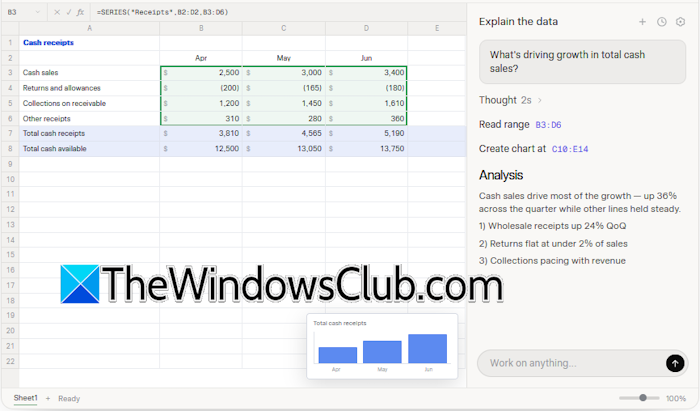
For example, depending on your dataset, you can ask questions like:
- Which product generated the highest sales?
- What is the average monthly revenue?
- Name the salesperson who achieved the best performance.
- Which products were sold on Tuesday in the North region?
This conversational approach saves time and makes it easier to understand complex datasets without manually applying formulas.
2] Write formulas
Previously, it was challenging to manage large datasets because you had to remember complex formulas. But now with Grok AI, you do not need to invest time in remembering complex Excel formulas. Grok AI can do calculations for you by applying the correct formulas. You just have to type a prompt in natural language. After providing the required prompt, it generates and applies the required formula, helping you save time and reduce the chances of errors.
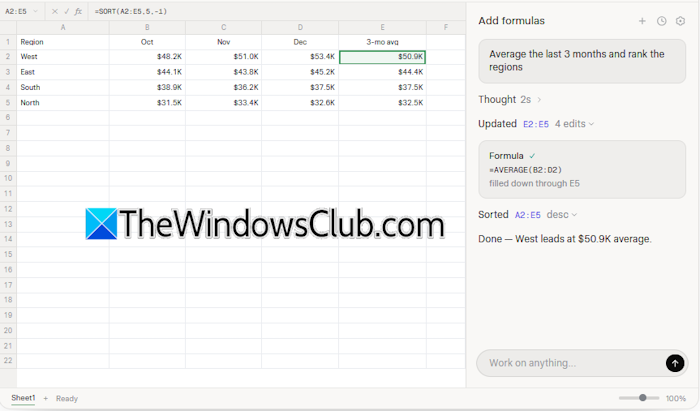
Some example use cases of Grok AI in Excel are:
- Calculate the total sales of each product.
- Find the highest sales value.
- Count records that meet a specific criterion. Here you have to define the specific criteria in your prompt.
- Calculate total sales after discount.
Suppose you want to calculate the final revenue for each order after applying the discount percentage. Instead of manually writing the required formulas, you can describe the requirement to Grok in natural language. Grok AI will use the advanced functions to generate the required formula and show you the final result in your spreadsheet. Have a look at the following example prompt:
Calculate the final revenue for each order after applying the discount percentage. The formula should be easy to understand and should not return any errors when empty cells are encountered.
If your sales dataset contains the names of salespersons, and you want to identify a particular salesperson based on the requirement. For example, a salesperson who generated the highest total revenue after discounts. Instead of manually analyzing the dataset, you can ask Grok AI to generate the required Excel formula using a simple prompt. Have a look at the example prompt:
Write an Excel formula that returns the name of the salesperson who generated the highest total revenue after discounts. The formula should update automatically whenever the sales data changes.
The result of the above prompt is dynamic, which means you do not need to change the formula every time you update data in your Excel spreadsheet.
Run scenarios with Grok AI in Excel
Business is always unpredictable. Market conditions, customer demands, and costs can change at any time. Grok AI has a powerful feature that allows you to run different scenarios to predict the future. You just have to give a prompt in simple language.
Suppose you want to predict how a change in pricing, discounts, or sales volume might affect your business revenue. In this case, you can ask Grok to run a scenario analysis on your current dataset.
Have a look at the following example prompt:
Predict the next quarter’s revenue if sales are increased by 20% while the discount rates remain the same.
The above prompt will show how much profit your organization will make if total sales are increased by 20%.
Let’s take another example. You want to increase the discount percentage to attract more customers and gain an advantage over your competitors. In this case, you can use the following prompt:
Estimate how the overall revenue would be affected if the average discount is increased from 5% to 10%.
The above prompt will help you estimate how much you can safely increase the discount percentage without significantly affecting your overall revenue, so you can make the correct decision.
That’s it. I hope this helps.
Can Grok create an Excel spreadsheet?
Yes, Grok AI can create an Excel spreadsheet, but the process is different from ChatGPT. Unlike ChatGPT, it does not generate a downloadable Excel file. Instead, it gives you code. Copy that code and paste it into Notepad. After that, save the file as <filename.csv> and select All Files in the Save As drop-down. When you open the file, it will open in Excel.
How to use AI to write Excel formulas?
To use AI to write Excel formulas, you have to define your requirement to the AI tool by writing a good prompt. For example, if you want to calculate the average of a dataset, upload the Excel file to the AI tool and ask it to write the formula to calculate the average of the required data in the spreadsheet. Now, copy the generated formula and paste it into your Excel spreadsheet.
Read next: How to use Copilot in Excel.
