
If you have accidentally uninstalled the default speakers from your Windows 11 or 10 computer, resulting in no sound, this post will help you resolve the issue. Windows recognizes the default speakers through their respective drivers. If the driver is uninstalled by mistake, the default speakers stop working.
Accidentally uninstalled the default speakers in Windows 11/10
Use the following solutions if you have accidentally uninstalled the default speakers from your Windows 11/10 computer.
- Scan for hardware changes
- Check for Windows Update
- Run Audio Troubleshooter
- Download the default speaker driver from the manufacturer’s website
- Use the dedicated software to update your system
- Reset BIOS
- Perform System Restore or reset your PC
All these fixes are explained below in detail.
1] Scan for hardware changes
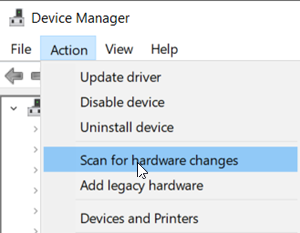
The first step is to perform a scan for hardware changes. Scan for hardware changes is a feature provided in the Device Manager that reinstalls the missing or uninstalled drivers. If this does not work, restart your computer and see if the problem is fixed.
2] Check for Windows Update
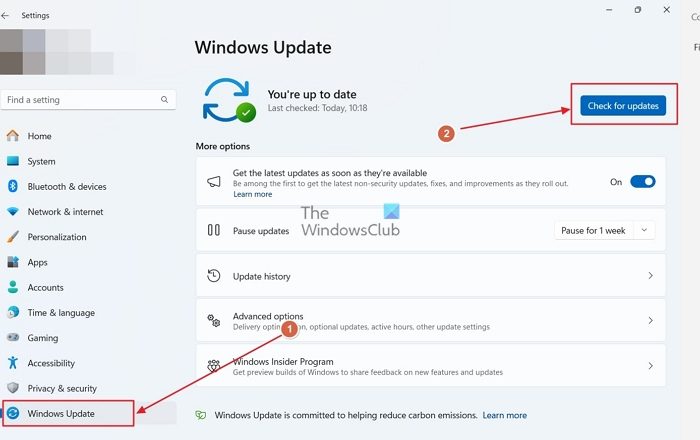
The next step is to check for Windows Update. Since you have uninstalled the default speaker by mistake, a Windows Update can restore its driver. If an update is available, download and install it.
3] Run Audio Troubleshooter
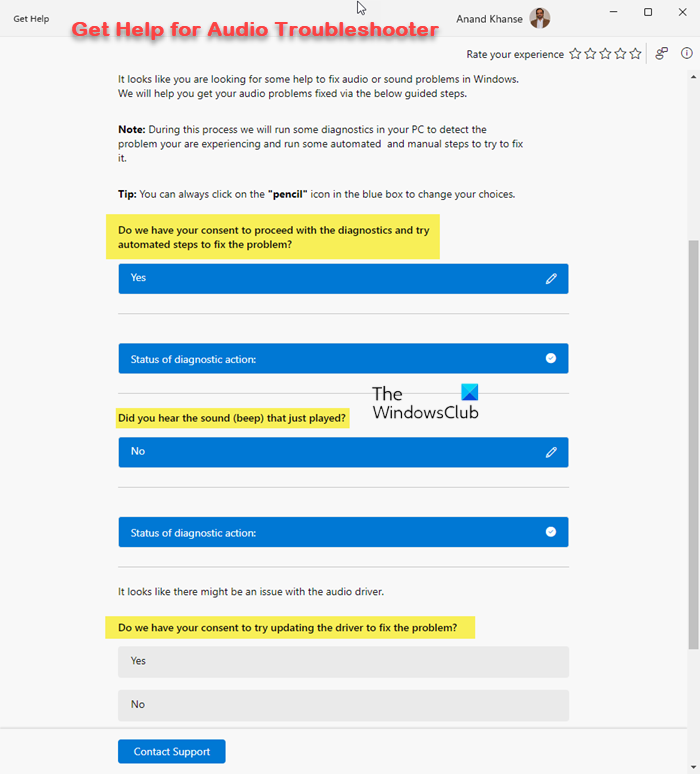
Audio Troubleshooter is an automated tool in Windows 11 that fixes sound issues. It runs automated tests on your system and tries to fix the issue. Running this tool can help restore the mistakenly uninstalled default speaker driver. You can use the Get Help app to run Audio Troubleshooter.
4] Download the default speaker driver from the manufacturer’s website
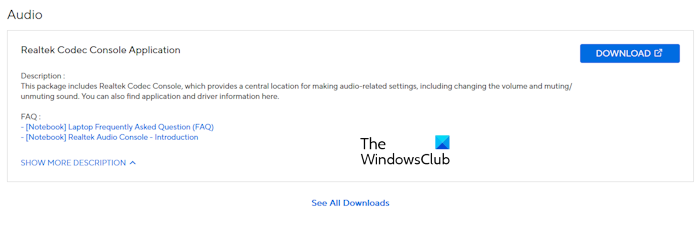
One way to resolve this sound issue is to download the missing speaker driver from the official website. If you have uninstalled the Realtek Audio Driver, you can download it from the official website of Realtek. However, computer manufacturers also provide all required drivers for every model on their official website. You can also download your default audio driver from the official website of your computer manufacturer.
5] Use the dedicated software to update your system
Computer manufacturers also provide dedicated software. Users can manage their computers easily using these tools. Some of these tools are:
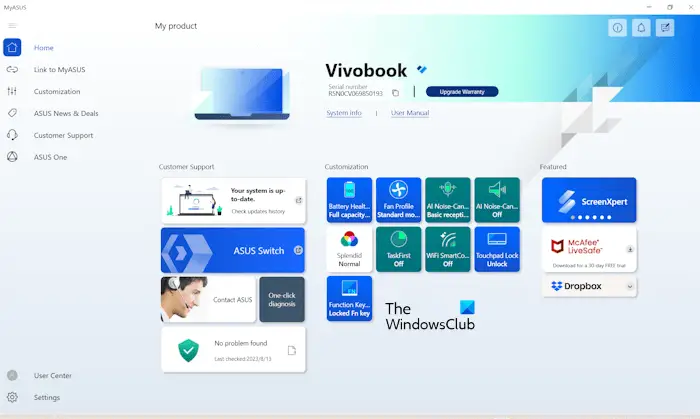
- MyASUS app,
- Dell SupportAssist or Dell Update utility
- HP Support Assistant
- Lenovo System Update, etc.
These tools help you keep your system up to date. Depending on your computer brand, you can download the required software and use it to scan your system. It will automatically detect the missing driver and reinstall it.
6] Reset BIOS
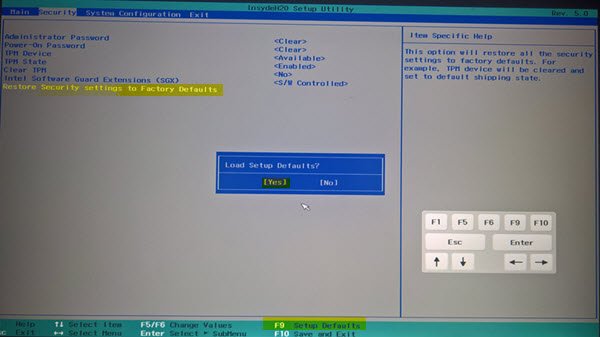
Resetting the BIOS to the default values can help fix this issue. To perform this action, you need to enter your system’s BIOS using the required BIOS key. Refer to the user manual of your system to know the correct BIOS key.
7] Perform System Restore or reset your PC
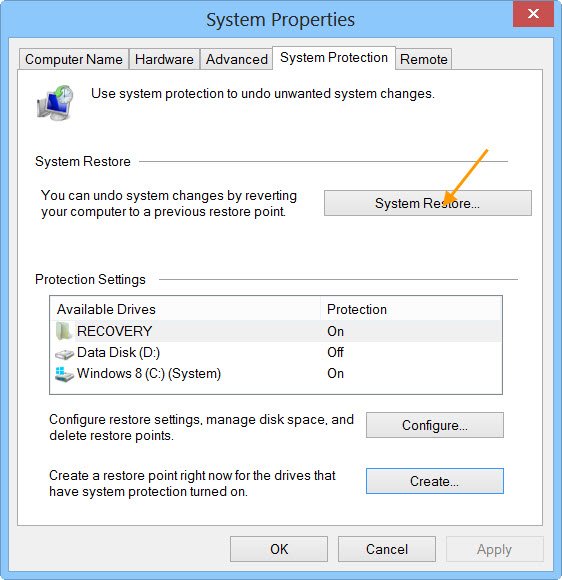
If the above fixes did not help you restore the default speakers, you can restore your system. System Restore is a built-in tool in Windows 11 that restores the computer to a previous point in time. While performing this action, select the date before which the problem did not exist. The System Restore will restore the default speakers but uninstall any application installed after the selected date.
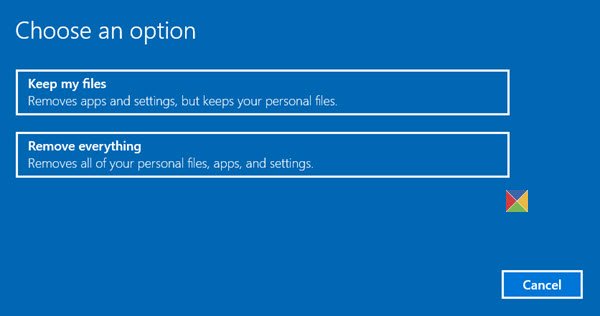
If no restore points exist on your system, the last resort is to reset your PC. Select the Keep my files option while resetting your PC, as it will not delete your data. However, taking a backup of all important files is strongly recommended.
Accidentally deleted audio drivers on Windows 11
Audio drivers build a communication link between the operating system and the audio devices. When an audio driver is corrupted or uninstalled, the respective audio device stops working. If you have accidentally deleted the audio drivers from your system, you can use the following fixes:
- Restart your system
- Use the Scan for hardware changes feature in the Device Manager
- Download the audio driver from the official website of your computer manufacturer and install it manually
- Perform a System Restore.
If none of these fixes worked, reset your PC to the factory default settings.
How to install audio drivers in Windows 11
To install audio drivers on your Windows 11 computer, visit your computer’s manufacturer’s official website and download the latest driver. After visiting the official website, enter your computer model name to browse compatible drivers. Now, search for the audio driver and download it. After that, run the installer file to install the audio driver.
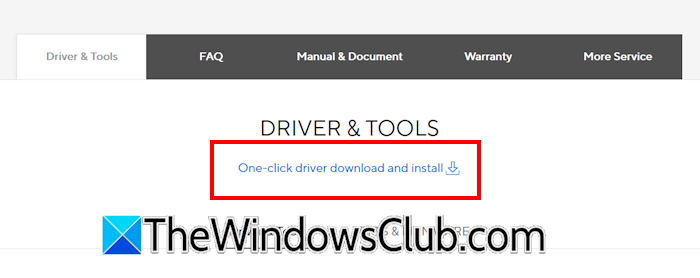
Alternatively, you can also use the Scan and install feature to install the missing drivers on your system. Most computer manufacturers provide this feature. You will be able to access it after signing into your registered email ID.
You can also use the dedicated software developed by your computer manufacturer to install audio drivers and other missing or outdated drivers.
To install the driver of an external speaker, connect the speaker to your system. Windows 11 will automatically install the required driver for your speaker.
I hope this helps.
Read next: Accidentally deleted the Graphics card driver in Windows.
