
Troubleshooting computer problems could never have been easier. Windows 11/10 has some excellent in-built troubleshooting wizards that will help you resolve any problems your Windows PC may be facing. Let’s see how we can access these Windows Troubleshooters.
If you want to troubleshoot issues with Windows using the built-in Windows Troubleshooters, you can use any of the methods mentioned below.
Open Windows Troubleshooters from Settings Troubleshoot page in Windows 11
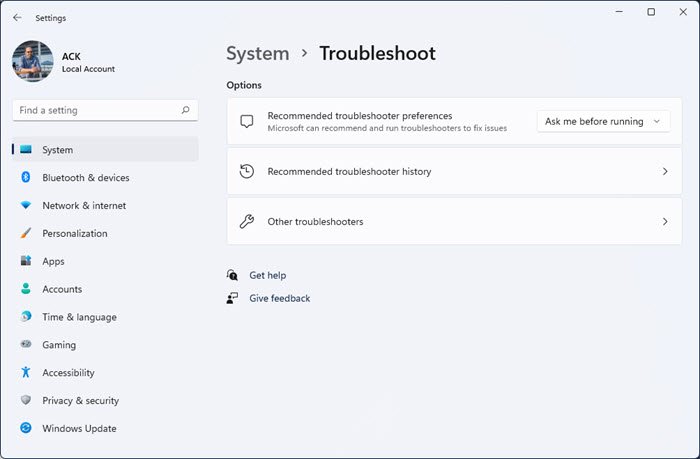
You can run Troubleshooters using the Troubleshoot page in Windows Settings. To do this:
- Open Windows Settings
- Click on System settings
- On the right side, click on Troubleshoot
- Select Other troubleshooters
- This opens the window for the troubleshooters.
- Select the one of your choice.
Open Windows Troubleshooters from Get Help app in Windows 11
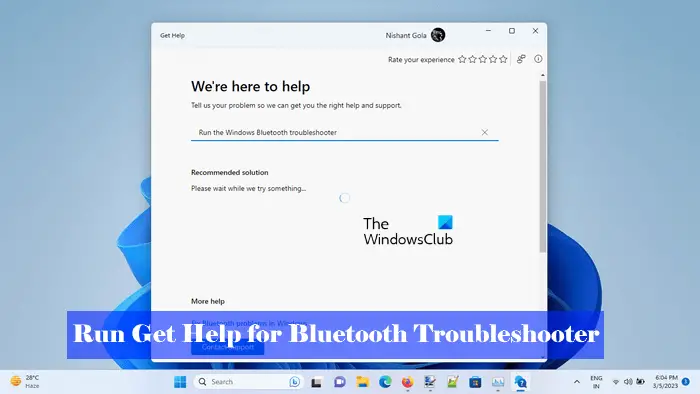
Since Microsoft will remove the MSDT-based Windows Troubleshooters, we can use the Get Help app.
All you have to do is open the built-in app and then search for the troubleshooter, for example, “Troubleshoot Blue screen error”. You will get a list of tweaks you can do to resolve the issue along with the Blue Screen troubleshooter. You can also try Get Help Camera, Bluetooth, Printer, Copilot and other troubleshooters.
Open Windows Troubleshooters from Control Panel in Windows 11/10
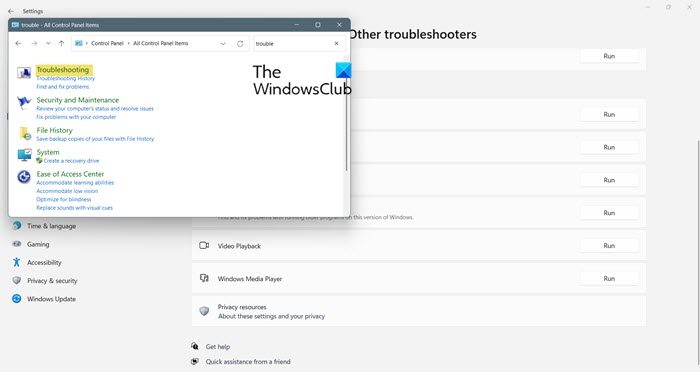
To access these Windows Troubleshooters and wizards from the Control Panel, open the app, search for Troubleshooting, and click on it.
On Windows 11/10, this act will open Settings, where you can go to Other troubleshooter and find the following troubleshooting utilities.
- Audio
- Network and Internet
- Printer
- Windows Update
- Background Intelligent Transfer Service
- Bluetooth
- Camera
- Program Compatibility Troubleshooter
- Video Playback
- Windows Media Player
On Windows 10, earlier versions, you could see all the wizards that will help you to troubleshoot the following problems.
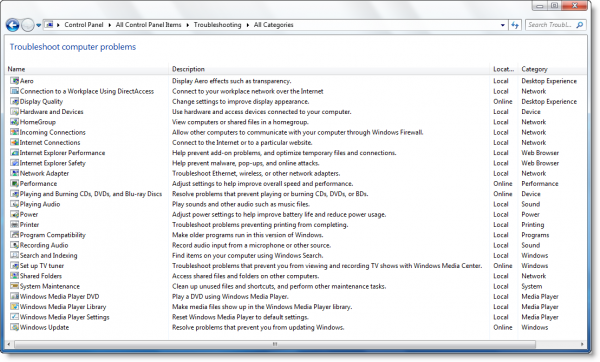
– Aero issues
– Connect to workplace network
– Improve Display Appearance
– Hardware & devices
– HomeGroup issues
– Incoming Connections which allow other computers to communicate with your computer
– Internet Connections
– Internet Explorer performance problems
– Internet Explorer safety issues to prevent malware attacks
– Troubleshoot Ethernet, wireless & other network adapter problems
– Adjust settings to improve overall PC performance
– Resolve problems which prevent playing or burning of CDs, DVDs or BDs
– Troubleshoot if unable to play Sounds or other Audio files
– Improve battery life and reduce power usage
– Troubleshoot Printer
– Make older programs run in Windows 7
– Troubleshoot Recording Audio issues
– Troubleshoot search & indexing
– Troubleshoot problems that prevent you from viewing and recording TV shows with Windows Media Center
– Unable to access shared files
– Perform maintenance tasks
– Unable to play DVD with WMP
– Unable to make media files show in WMP
– Reset WMP to default settings
– Troubleshoot Windows Updates
Clicking on Advanced in any module will give you the option to uncheck ‘Apply repair automatically’.
TIP: Here is a list of Direct Commands to open Windows Troubleshooters directly. You can also run a Troubleshooter from the command line.
To troubleshoot & fix specific problems in Windows 11 and Windows 10, download and use our freeware FixWin Utility.
How to fix troubleshoot problems in Windows 11?
The best way to resolve any Windows problem is by using the built-in troubleshooter. We recommend you use the Get Help app to resolve the issue. It is pre-installed; you just have to open it and register your concern to find solutions.
Also Read: Windows 11 Problems, Issues with solutions and fixes.
