
If Microsoft Office is not opening after an update in Windows 11, here is what you can do to resolve this problem. Whether you encounter this problem after updating Windows 11 or Microsoft Office, you can try these solutions to troubleshoot the issue.
Why is Office not opening after an update?
If Office is not opening after the update, these could be the reasons:
- The update has not been installed correctly. In other words, you are trying to open the Office app during the update.
- The Office license is no longer valid after installing a major update.
- Another third-party Office application is creating a conflict.
- The Windows Update is broken or has a glitch.
Office not opening after Update
If Office is not opening after an update, follow these solutions:
- Uninstall recent Windows Update
- Repair Office
- Re-enter the licensing details
- Reset Office registry keys
- Open Office apps in Safe Mode
- Run System File Checker
- Disable all add-ins
To know more about these solutions, continue reading.
1] Uninstall recent Windows Update
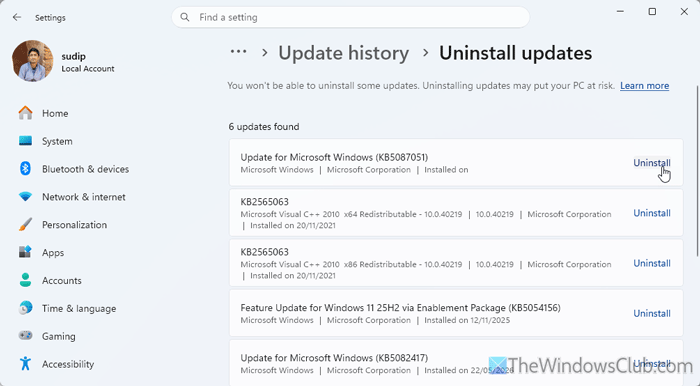
At times, this problem may arise when you install a faulty or glitchy Windows Update. If you have installed an update and the Office problem started immediately after installation, it is highly recommended to uninstall the update immediately.
To uninstall a Windows Update, open the Windows Settings panel first. Then, go to Windows Update > Update history > Uninstall updates.
Here you can find all the updates that can be uninstalled. Find the update and click on the corresponding Uninstall button.
Once done, restart your computer and check whether it resolves the issue or not.
2] Repair Office
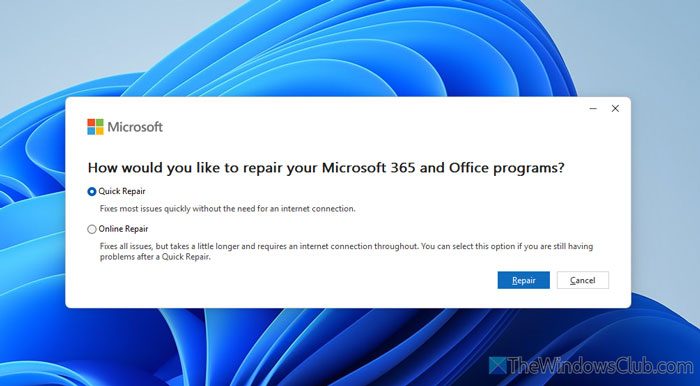
If there are some issues with the Office update, it can be fixed by repairing the installation. To repair Microsoft Office or Microsoft 365, press Win+I to open the Windows Settings first. Then, go to Apps > Installed apps. Find Microsoft 365 or Office, click on the three-dotted icon, and select Modify.
Next, choose the Quick Repair option, and click the Repair button. However, if it doesn’t work, choose the Online Repair option.
3] Re-enter the licensing details
At times, your Office installation may fail to fetch licensing details and, as a result, may not open. If so, it is suggested to remove the existing license and re-enter it. In other words, we suggest resetting the license.
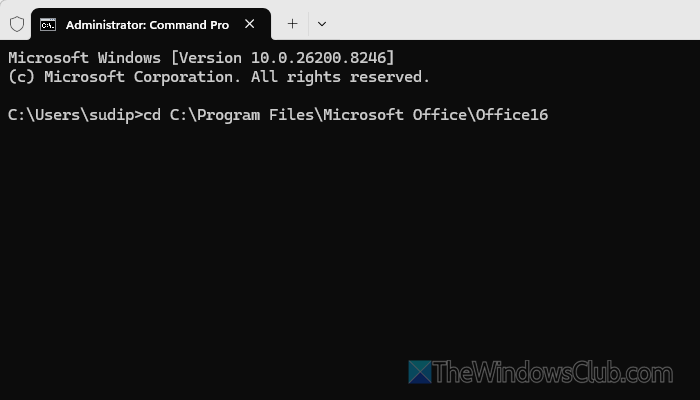
To remove Microsoft Office product key, open Command Prompt instance of Terminal with administrator privileges and access the Office path.
cd C:\Program Files\Microsoft Office\Office16
Next, enter this command to check the last 5 keys of the license:
cscript ospp.vbs /dstatus
Copy these characters and enter this command:
cscript ospp.vbs /unpkey:last-5-characters
Once done, reopen any Office program and enter the license key. In case you use a digital license, you can enter it here.
Read: How to use the Office Licensing Diagnostic Tool
4] Reset Office registry keys
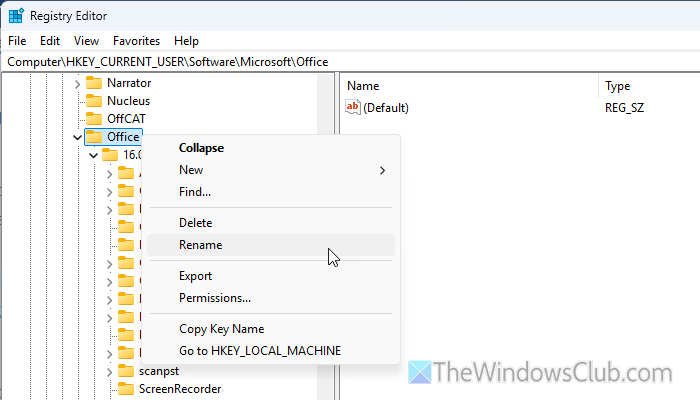
When you install Office, it creates a few registry keys that you can tweak to make various changes. If you encounter the aforementioned problem, it is recommended to temporarily reset those registry keys and check whether it resolves the issue.
Before going with this step, it is highly recommended to follow this guide to create a backup of registry keys.
Once done, press Win+R to open the Run prompt, type regedit, click the OK button, and click on the Yes button on the UAC prompt. Next, navigate to this path:
HKEY_CURRENT_USER\Software\Microsoft\Office
Right-click on the Office key and select the Rename option. Next, enter any other name that you can recognize later. Once done, reopen Office.
5] Open Office apps in Safe Mode
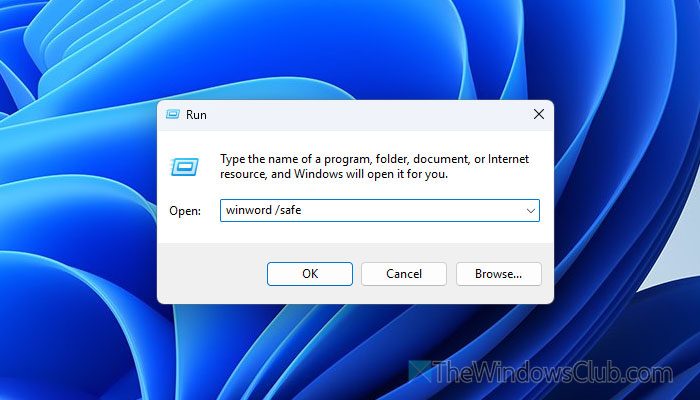
At times, incorrect settings, corrupt system files, and similar issues may cause such a problem. In such situations, you can try opening the Office app in Safe Mode. Every app requires a different command to open in Safe Mode.
For example, you can use winword /safe for Word, excel/safe for Excel, etc.
You can also click on a Word file after holding the CTRL and double-click on it. It will ask you whether you want to start the corresponding program in Safe Mode.
If you can open the Office app only in Safe Mode, it suggests you have issues with system files.
Read: Microsoft Word won’t open on Windows PC
6] Run System File Checker
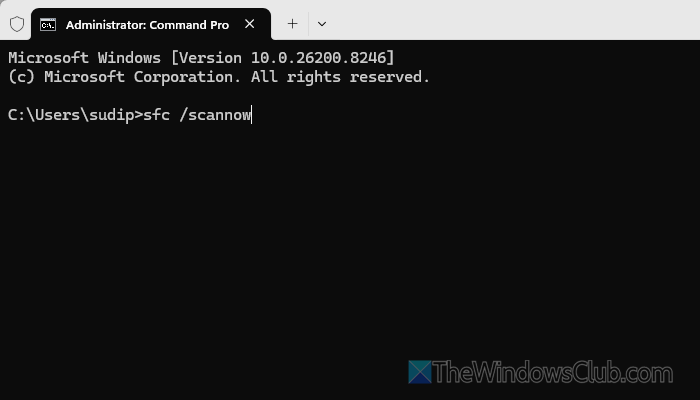
This problem may arise when system files are corrupted and Office cannot retrieve them correctly. If so, you can use the built-in command-line tool called System File Checker. It scans for corrupt files and repairs them automatically.
To run the System File Checker, press Win+X > select Terminal (Admin) and click the Yes button. Next, enter this command:
sfc /scannow
Once done, restart your computer and check if you can open Office programs or not.
Read: Run System File Checker in Safe Mode, Boot Time or Offline on Windows 11
7] Disable all add-ins
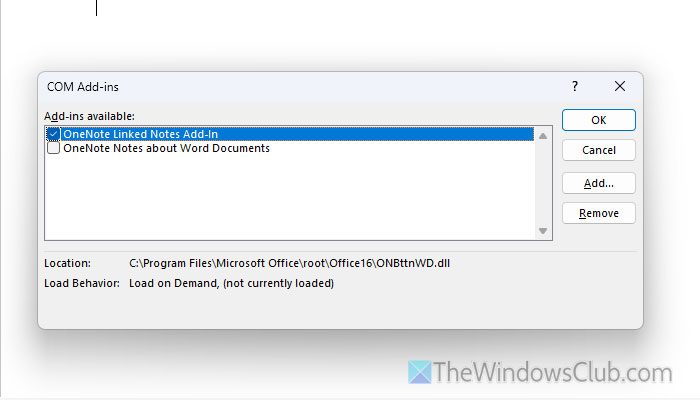
If you have recently installed many add-ins and the problem started right after that, it is recommended to disable them. However, this solution only works if you can open Word, Excel, PowerPoint, etc., for a short time.
To disable all add-ins, open Microsoft Word first and go to File > Options > Add-ins.
Select COM Add-ins and click the Go button. Remove the tick from all the checkboxes and click the OK button.
Once done, check whether the problem is resolved.
Read: View, manage, install, and remove Add-ins from Office programs
How to fix Microsoft Office not opening?
If Microsoft Office does not open in Windows 11, you can use the built-in repair tool to repair the Office installation. You may also disable add-ins by opening Office in Safe Mode (hold Ctrl while launching) to identify the offending Office add-in. If issues persist, reinstall Office after backing up settings and files.
Read: Office documents do not open after upgrading Windows 11
How do I repair Microsoft Office update?
To repair Microsoft Office, open Windows Settings and go to Apps > Installed apps. Click on the three-dotted icon and select Modify. Then, choose the Quick Repair option and click the Repair button.
