
Resetting a PC gives us a chance to wipe it clean to factory settings by removing everything, or to remove apps and settings to fix issues. When errors are not fixable, or when we want to improve a PC’s performance by removing everything and reinstalling the necessary apps, the “Reset this PC” option works like a charm. After resetting a PC, performance improves, and a lot changes. However, at times we may see some issues randomly. Unable to connect to the internet after resetting a PC is one of them. If you are facing the same issue, follow this guide to know what to do when your PC cannot connect to the internet after a Reset on Windows 11.
Cannot connect to the Internet after Reset on Windows 11
After resetting your PC for optimal performance or for any reason on Windows 11, and you cannot connect to the internet, these fixes will help you resolve the issue.
- Run Network and Internet troubleshooter
- Check Network Adapters in Device Manager
- Install missing drivers via USB Tethering
- Reset TCP/IP
- Flush DNS cache
- Reset Network Settings
- Manually download and install network drivers
Let’s see how we can implement each of these methods and fix the issue.
1] Run Network and Internet troubleshooter
The first thing you need to do when there are any kind of internet and network issues on Windows 11 is to run the Network and Internet troubleshooter. It is available in the Settings app. Open the Settings app, click System, go to Troubleshoot > Other troubleshooters. Click Run beside Network and Internet.
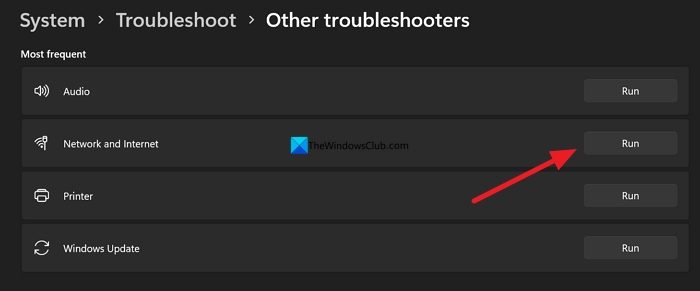
Upon running successfully, it recommends fixes to resolve the issue.
2] Check Network Adapters in Device Manager
Every device or peripheral is listed in the Device Manager under some category. Similarly, all network devices are listed under Network adapters in the Device Manager. If there is any issue with any network adapter, the errors can be seen in the Device Manager. Open the Device Manager and expand Network adapters. Check the listings and see if there are any error triangles on the listings. If any adapter is disabled, enable it by right-clicking on it and selecting Enable device.
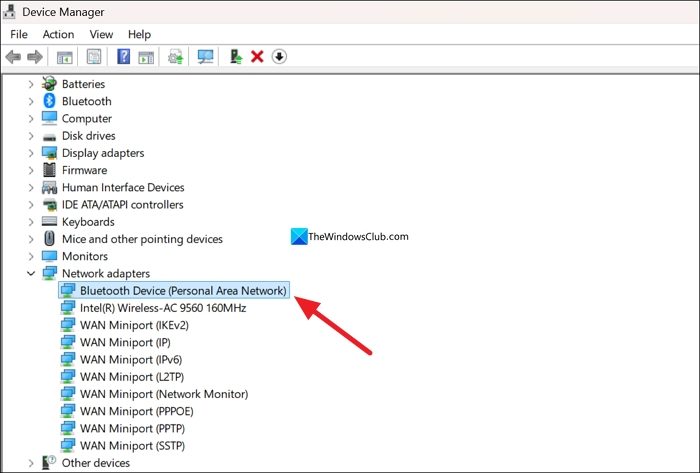
If they are enabled, you can now connect to the internet.
3] Install missing drivers via USB Tethering
When you open Device Manager and see issues with some network adapters, you can fix them automatically by installing the drivers afresh, as the drivers might be corrupted or not installed properly during the reset process. The only way to connect to the internet is via USB Tethering. Connect your smartphone to your Windows PC using a USB cable, and select USB Tethering on your phone.
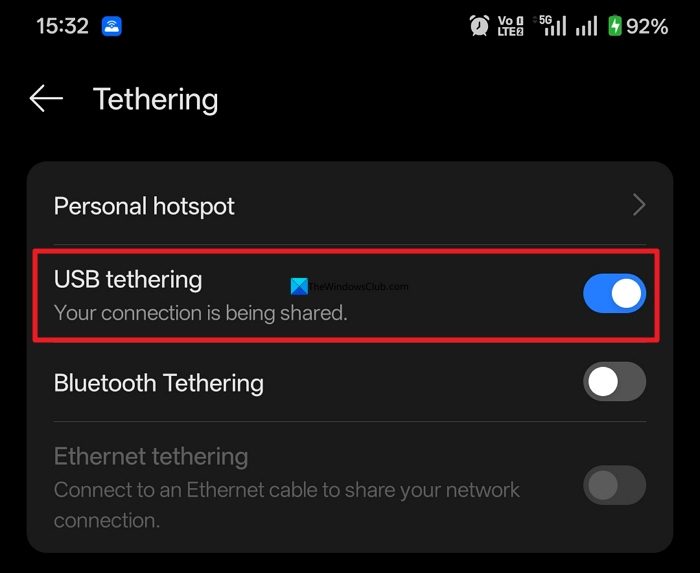
Your PC will automatically connect to it and create an Ethernet connection in Network & internet in the Settings app. Now, in the Settings app, click Windows Update and check for updates. The missing drivers will be installed automatically. Restart your PC after the installation is complete.
4] Reset TCP/IP
Transmission Control Protocol/Internet Protocol settings decide how your PC communicates with the network. The settings may have been messed up, or they might not be working as expected. This makes it hard to connect to the internet. Resetting the TCP/IP settings can fix the issue and let you connect to the internet. Open Command Prompt as an administrator and run the following commands.
netsh winsock reset

netsh int ip reset
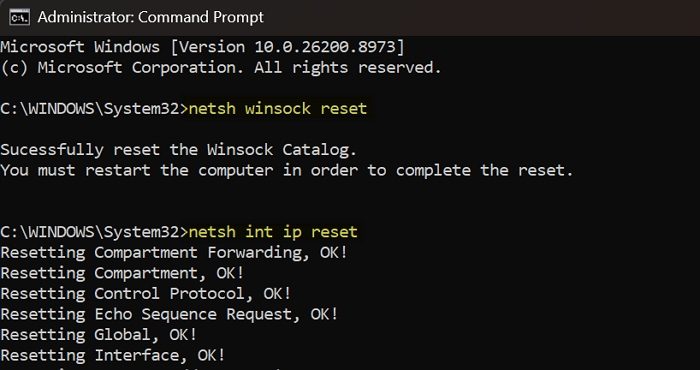
Restart your PC after the reset and check if you can connect to the internet.
5] Flush DNS cache
Windows stores a temporary database of domain names and IP addresses. Even if you do not use the internet on your newly reset PC, there might be some instances where Windows has saved automatically. Flushing the DNS cache clears everything and fixes the issue with the internet if it is caused by it.
Open Command Prompt as an administrator on your PC, type the following command, and press Enter.
ipconfig /flushdns
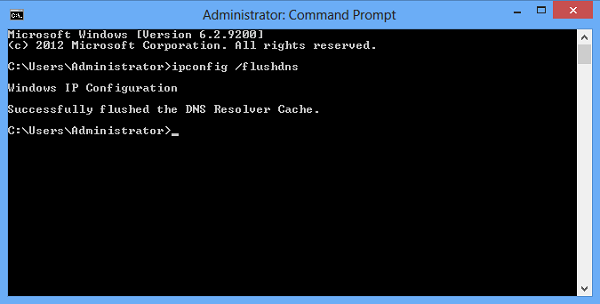
After successfully running the command, you will see the confirmation message. Now, check if your PC is connected to the internet or not.
6] Reset Network Settings
If you are still not connected to the internet, you need to reset the network settings to start from scratch. Open the Settings app on your PC and go to Network & internet. Click Advanced network settings and go to Network reset. Click Reset now. Click Yes on the prompt that appears for reset confirmation.
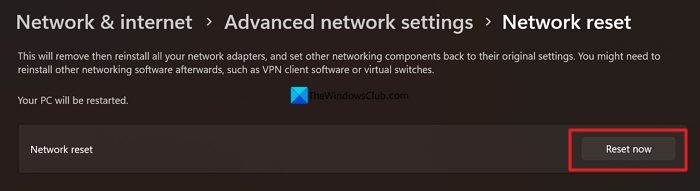
After the reset, restart your PC and see if you can connect to the internet.
7] Manually download and install network drivers
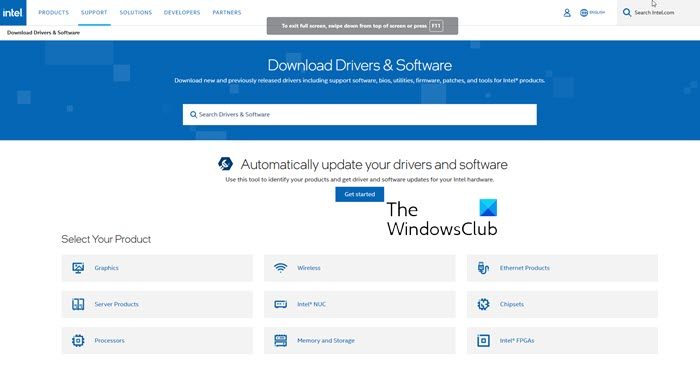
When nothing works, including USB tethering, it’s likely a problem with the network drivers. You will need to manually download the network drivers on another PC or a device and transfer them to your PC, and install them. Every manufacturer provides drivers and other free tools to manage their devices. You can visit your manufacturer’s official website and use your model number to get the exact drivers you need. After installing them, your PC will connect to the internet automatically.
Read: No Internet after resetting the router
Cannot connect to the internet after Factory reset
After a Factory reset of a Windows PC, all drivers get installed automatically along with the operating system. Try connecting your PC to the internet via USB Tethering and see if Windows installs the missing drivers. You should also reset TCP/IP settings and flush DNS, run the network and internet troubleshooter, and reset network settings. If nothing works, download network drivers for your PC from your PC manufacturer’s website on another device and install them manually.
Cannot connect to the internet after Network reset
If you cannot connect to the internet after a Network reset, check whether the WiFi passwords are entered correctly. Then, reset TCP/IP settings, flush DNS, and check network adapters in the Device Manager. If any drivers are missing, download them by connecting your PC to the internet through USB tethering on a smartphone. If that doesn’t work, download the drivers manually on another device and install them on your PC.
Read: No Internet after fresh Windows install.
