
A GPU, or Graphics Processing Unit, is responsible for processing and rendering visuals. Graphics-intensive tasks, such as gaming, video editing, and 3D modelling, put a load on the GPU. However, if your Windows PC shuts down under GPU load, you need to troubleshoot and fix the issue. This article will help you fix this problem.
Windows PC shuts down under GPU load
Use the following suggestions if your Windows 11/10 PC shuts down under GPU load:
- Monitor your CPU and GPU temperature
- Roll back or reinstall the GPU driver
- Update your system’s drivers
- Update your system’s BIOS and chipset driver
- Reset your PC or perform a clean installation of Windows
- Hardware fault
All these fixes are explained below in detail.
1] Monitor your CPU and GPU temperature
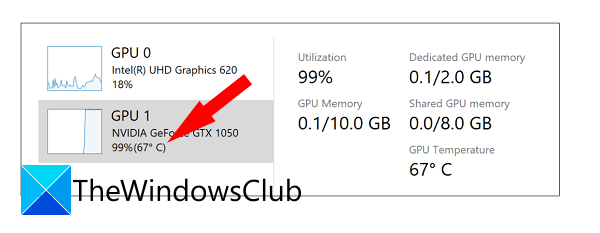
The primary cause of a sudden computer shutdown under load is overheating. This can be the case with you. To confirm this, monitor your CPU and GPU temperature. You can use free software to monitor your CPU temperature. To view the temperature of your GPU, you can use the built-in utility, Task Manager. If you notice a continuous rise in temperature before your computer shuts off, there might be an issue with the cooling system.
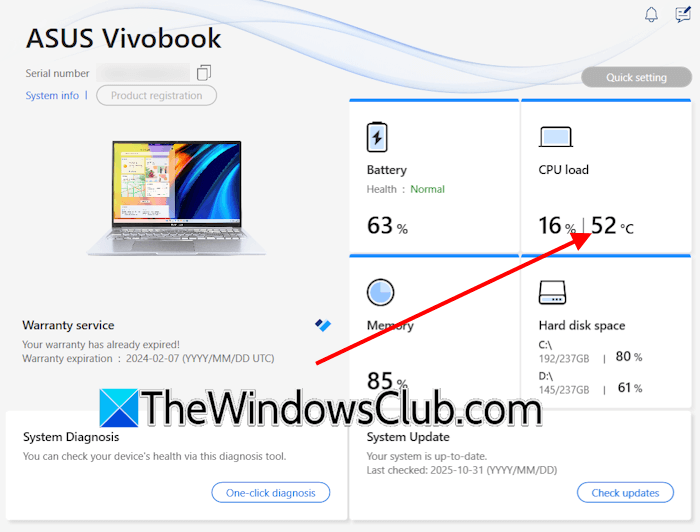
Computer manufacturers also develop dedicated software to help users manage their computer systems. For example, the MyASUS app for ASUS computers, HP Support Assistant for HP computers, etc. These tools also show the CPU temperature.
Dust buildup in a computer can affect the ventilation system, causing your system to overheat. Overheating can damage your system’s internal components. Open your computer case or laptop and clean it. If you are not skilled at this work, consider seeking professional help.
2] Roll back or reinstall the GPU driver
A corrupt GPU driver can also cause this issue. Try to install the previous version of your graphics card driver by using the Roll Back Driver feature in Windows.
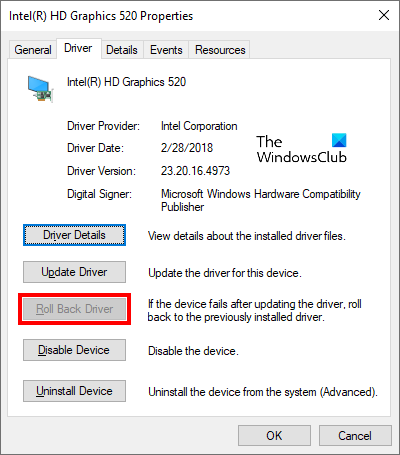
Follow these steps:
- Open the Device Manager.
- Expand the Display adapters branch.
- Right-click on your graphics card driver and select Properties.
- Go to the Driver tab and see if the Roll Back Driver button is clickable. If yes, click on it and follow the on-screen instructions to install the previous version of the GPU driver.
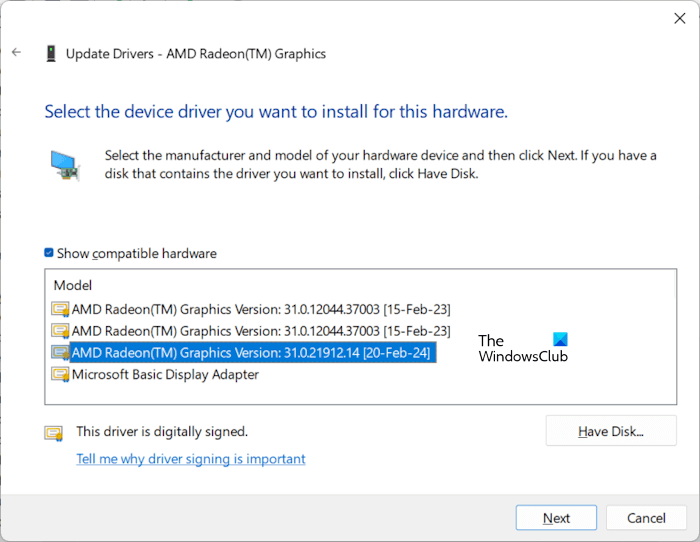
If the Roll Back Driver button is greyed out, you can use other methods to install the previous version of your graphics card driver.
If rolling back the graphics card driver does not work or you cannot roll it back to the previous version, performing a clean installation can help. First, download the latest version of the GPU driver from the official website of your computer manufacturer. Now, download and install a third-party tool, DDU (Display Driver Uninstaller).
Completely remove your graphics card driver from your system using the DDU, then run the installer to perform a clean installation.
3] Update your system’s drivers
Corrupt drivers can also cause this issue. Check this in the Device Manager. Follow these steps:
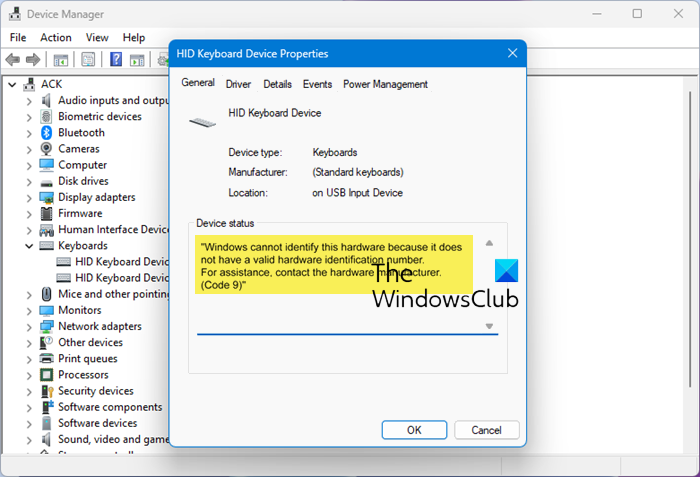
- Open the Device Manager.
- Expand all device driver branches and open the properties of each device driver in turn.
- If any driver shows a warning message, that driver might be causing this problem.
Device Manager has certain error codes for different issues. Note the error code and troubleshoot accordingly.
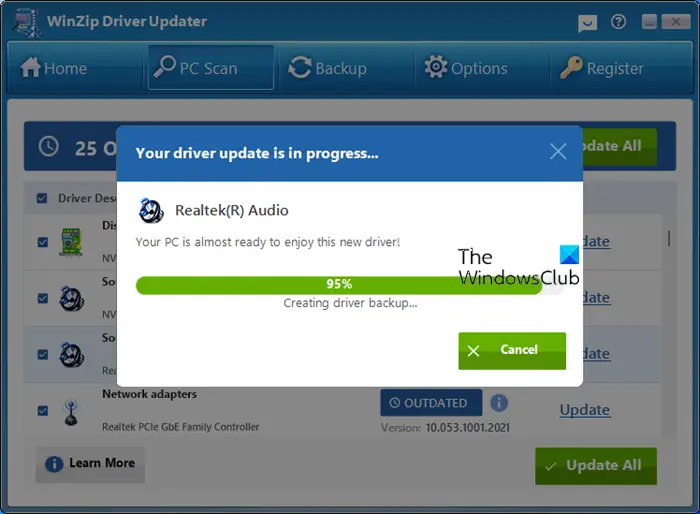
Additionally, you should try checking for driver updates. For this, you can use the dedicated software developed by your computer manufacturer or another third-party driver updater software.
4] Update your system’s BIOS and chipset driver
Updating the BIOS to the latest version is recommended because it increases the system’s stability and hardware compatibility. The problem you are encountering with your system might be fixed after updating your BIOS.
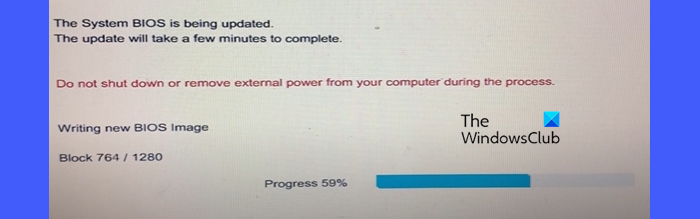
First, check the current BIOS version in System Information. Now, visit the official website of your computer manufacturer and search for your device drivers. Check the version of BIOS available there. If the new version is available, download and install it. While updating the BIOS, ensure your system maintains a continuous power supply; otherwise, your motherboard may be damaged. If you have a laptop, connect the charger and turn on the power supply, even if it is completely charged.
Also, update the chipset driver.
5] Reset your PC or perform a clean installation of Windows

If none of the above-mentioned fixes work, your Windows OS might have been corrupted. First, run the SFC and DISM scans to repair the corrupt system image files. If this does not help, reset your PC.
Resetting the PC reinstalls Windows without uninstalling the currently installed version. This action removes all your programs, but keeps your files (if you select the Keep my Files option). However, if you perform a complete factory reset, all your data will be deleted.
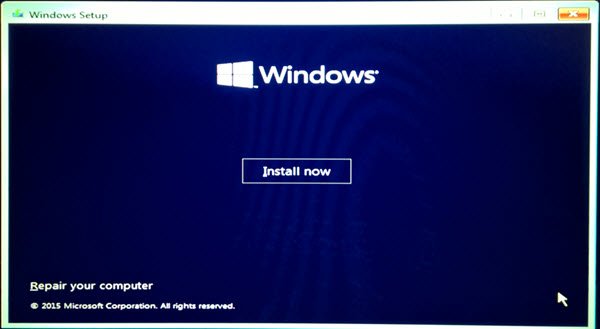
Alternatively, you can also perform a clean installation of Windows by creating a bootable USB flash drive with Windows installation media. Before performing this action, back up all your files because you may select the wrong hard drive partition during the process which could wipe out your important files.
6] Hardware fault
Since your computer shuts down under the GPU load, your PSU might not be providing enough power to the GPU. If so, you have to upgrade your PSU. Additionally, the issue may be with your graphics card or RAM. Test your RAM using the built-in tool, Memory Diagnostic. If your RAM is faulty, replace it.
Seek professional help for troubleshooting hardware faults.
That’s it. I hope this helps.
Why is my GPU making my PC crash?
Overheating is the main cause of this issue. Your GPU might be overheating while performing graphics-intensive tasks. A faulty graphics card can also cause this issue. Moreover, this problem can occur when the PSU is unable to provide the required power to the GPU. Sometimes, it can be another hardware, such as faulty RAM.
Can a GPU cause the PC to shut down?
Yes, a GPU can cause a PC to shut down or crash. Such a thing happens if the graphics card is not receiving the required power to handle graphics-intensive work, or if it is faulty. Dust buildup is the most common cause of this issue, as it impairs the cooling system and leads to GPU overheating.
Read next: Windows computer freezes, hangs or crashes randomly.
